The Client View Window
Open Client View on any client and everything about that one client lands in a single window. No more bouncing between the main list, the accounting window, and a stack of reports.
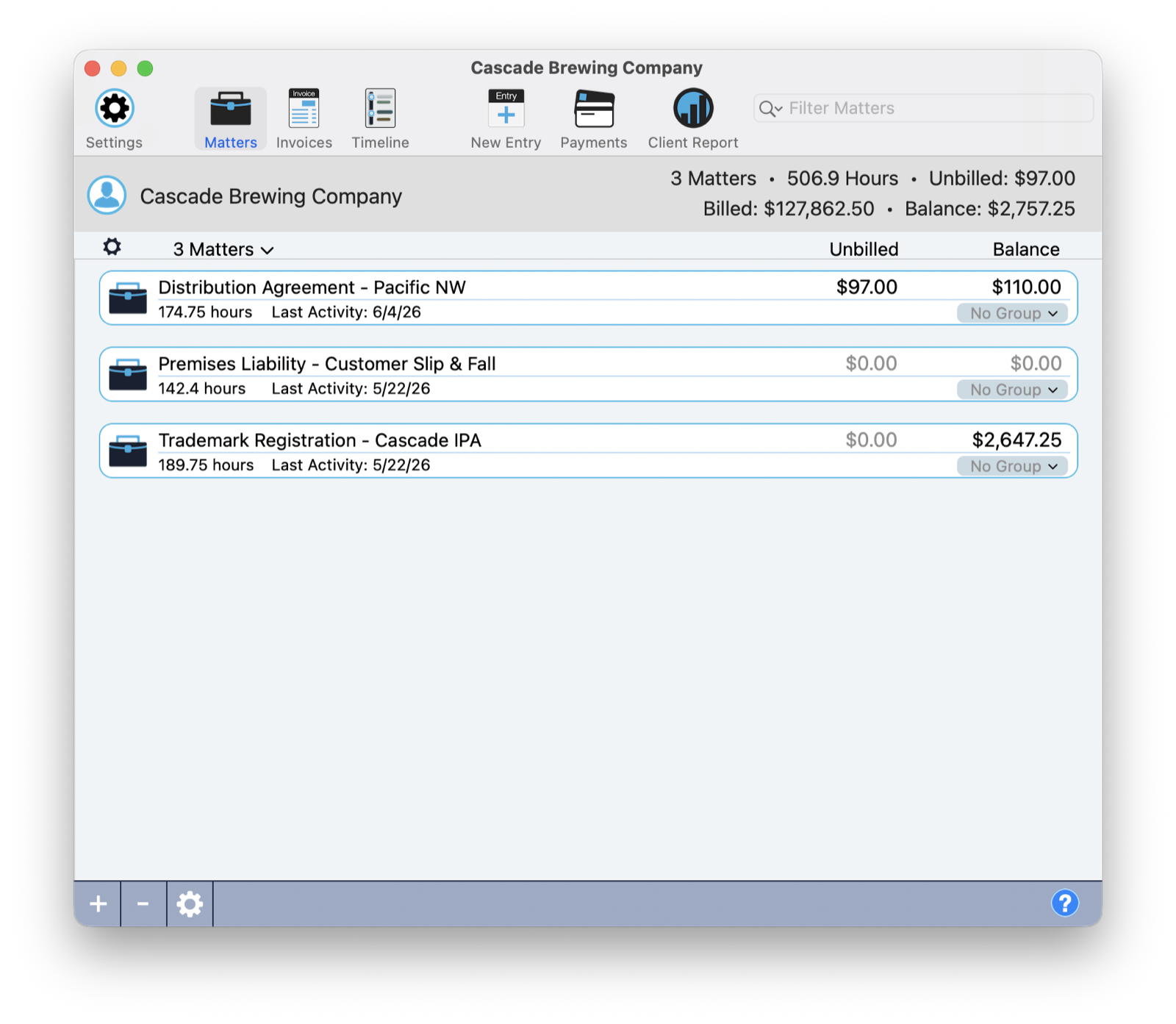
Across the top, the toolbar holds four views and three actions. The four views, Settings, Matters, Invoices, and Timeline, change what you're looking at. The three actions, New Entry, Payments, and Client Report, act on the client you're in.
Just below the toolbar, a summary band gives you the whole picture at a glance: the number of matters, total hours, unbilled work, lifetime billed, and the current balance. The search field on the right filters whatever view you're currently in.
Matters
The Matters view lists every matter for the client, each with its hours, last activity date, unbilled amount, and balance. Assign a matter to a group using the dropdown on its row, and use the group filter at the top left to focus on one group when a client has a lot of matters.
The Filter Matters field in the toolbar narrows the list instantly as you type, handy when a client has a long roster of matters.
Create a new matter
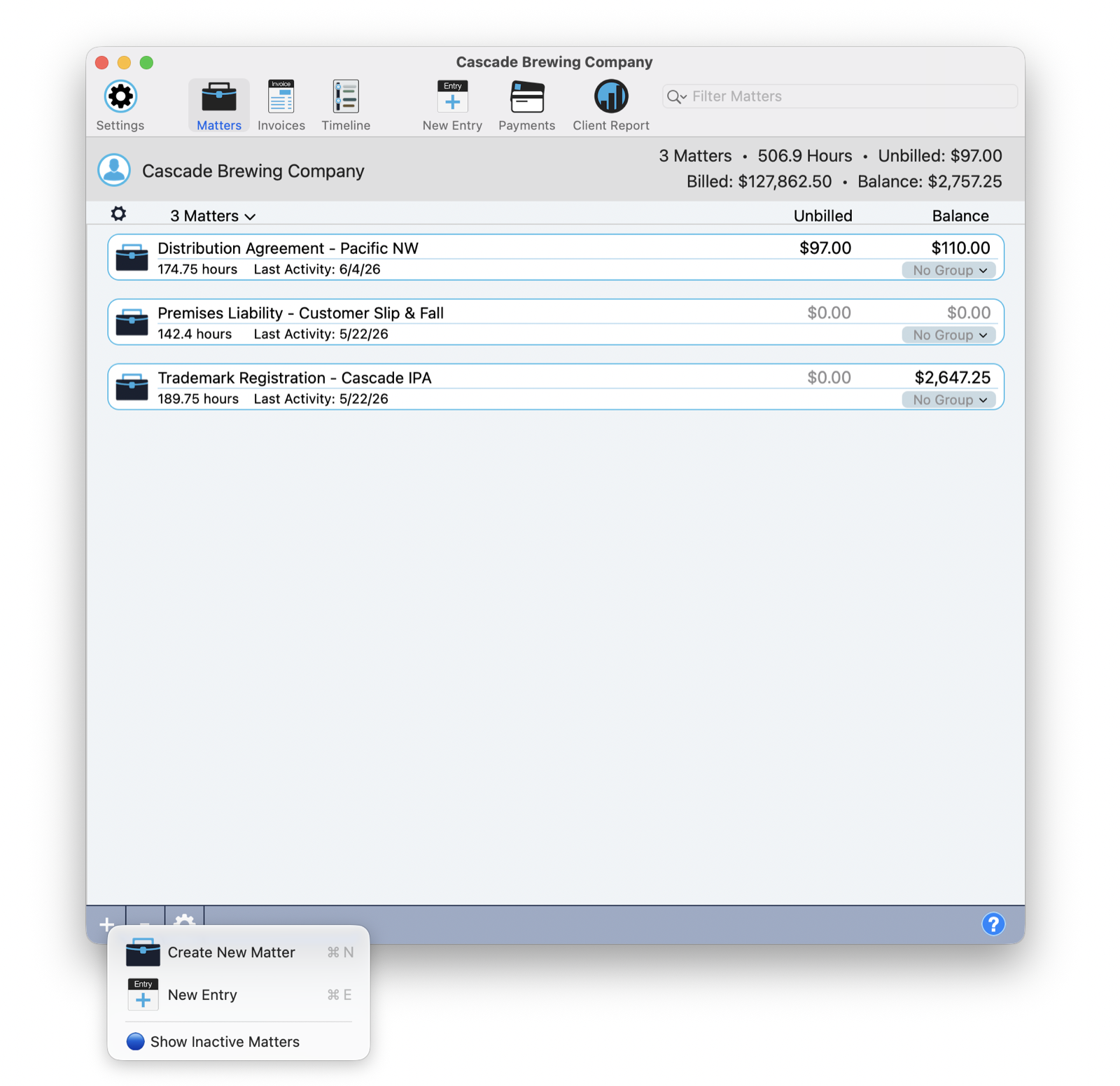
Click the + button at the bottom of the list, or right-click an empty area of the list with no matter selected. Either one opens the create-new popup.
Right-click a matter
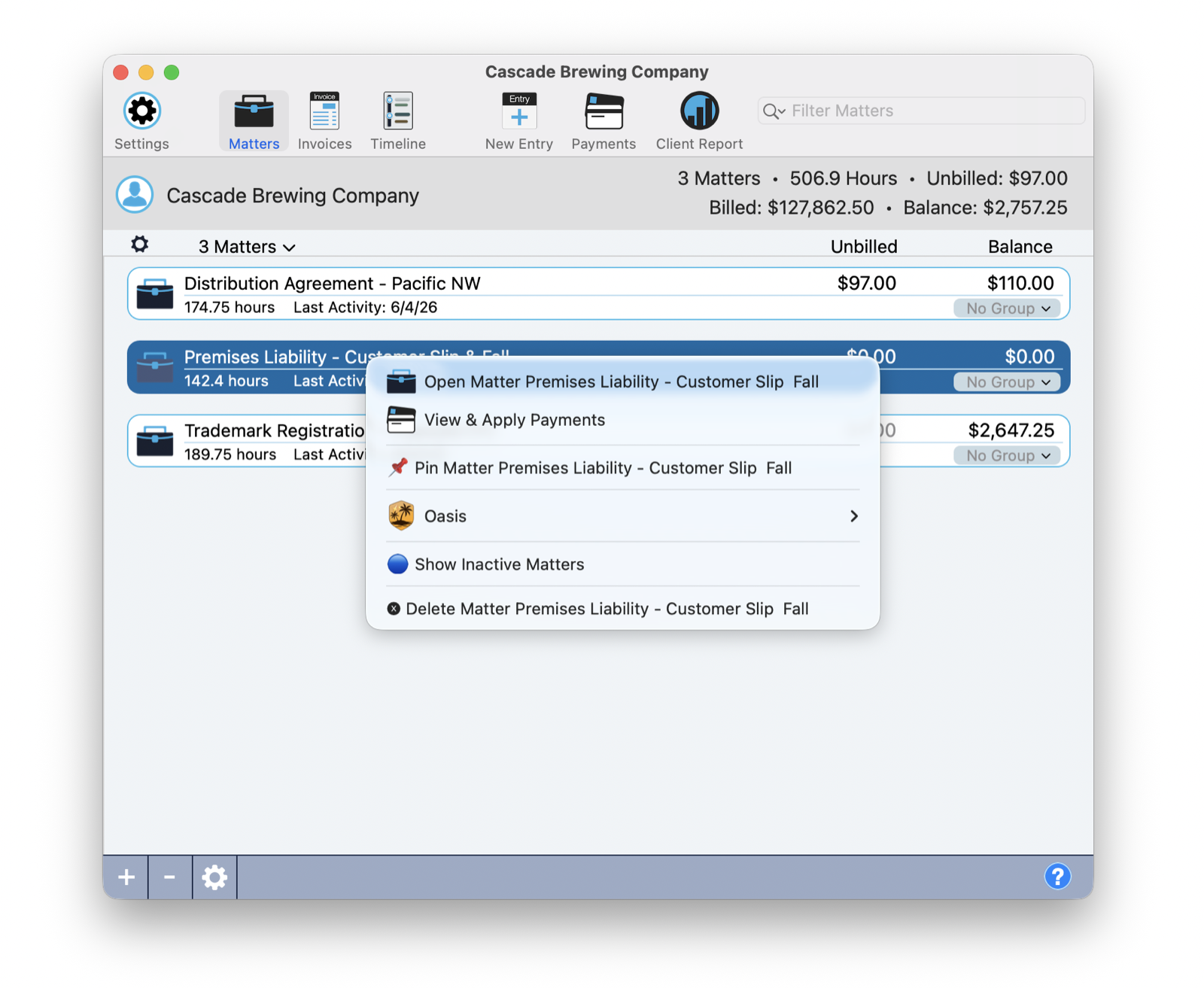
Right-click any matter for its full set of actions:
- Open Matter opens the full matter window.
- View & Apply Payments jumps straight to applying payments for that matter.
- Pin Matter pins it for instant access in the main window.
- Oasis opens the right-click Oasis menu, so you can ask about the matter or act on it with full context.
- Show Inactive Matters reveals closed and inactive matters in the list.
- Delete Matter removes it.
Logging Time and Entries
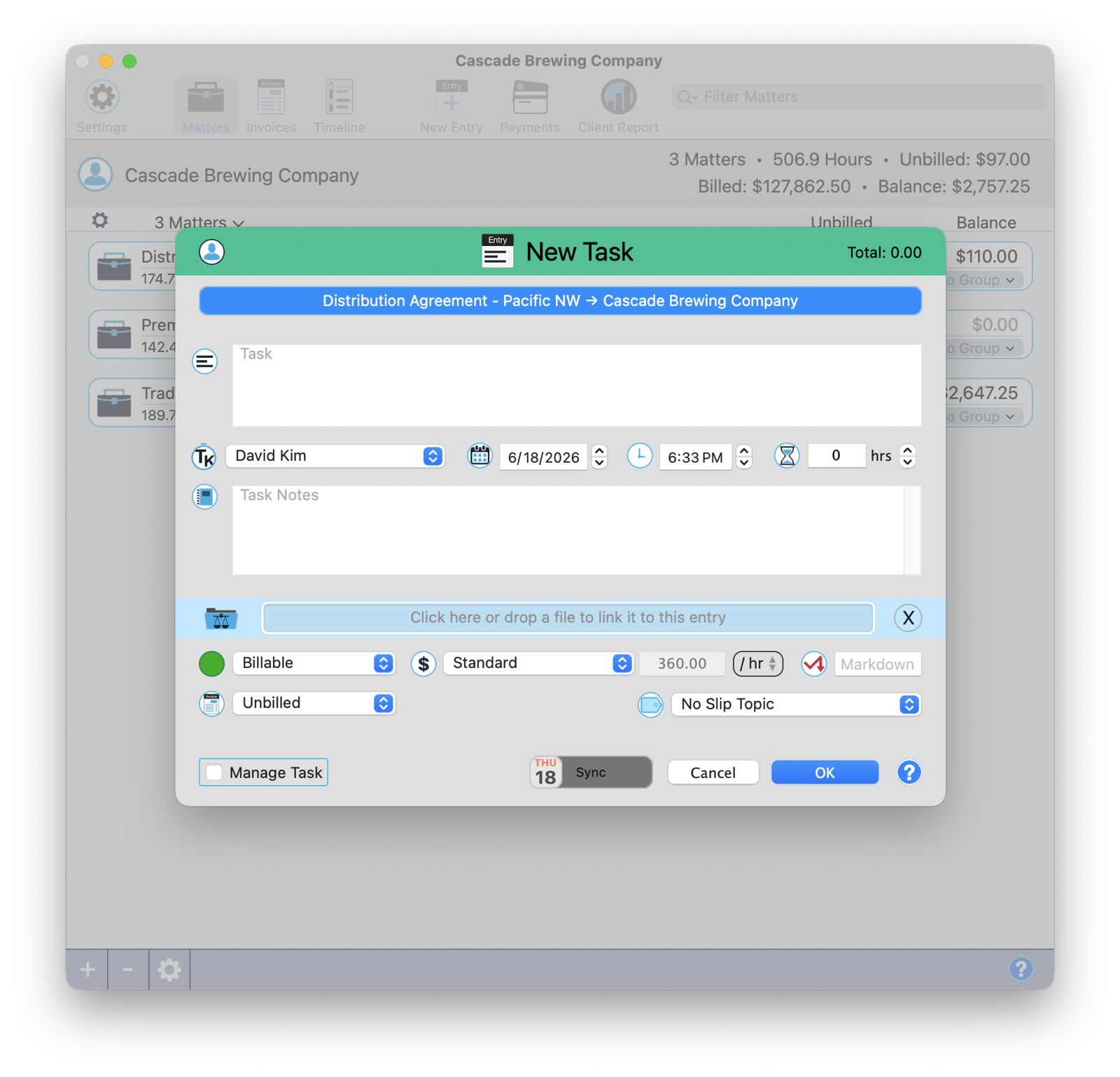
Select a matter, click New Entry, and log time or create a task without ever leaving Client View. The full entry sheet opens already scoped to the matter you selected. Timekeeper, date, hours, billable status, rate, slip topic, notes, and an attachment well are all right there. Fill it in and click OK.
Invoices
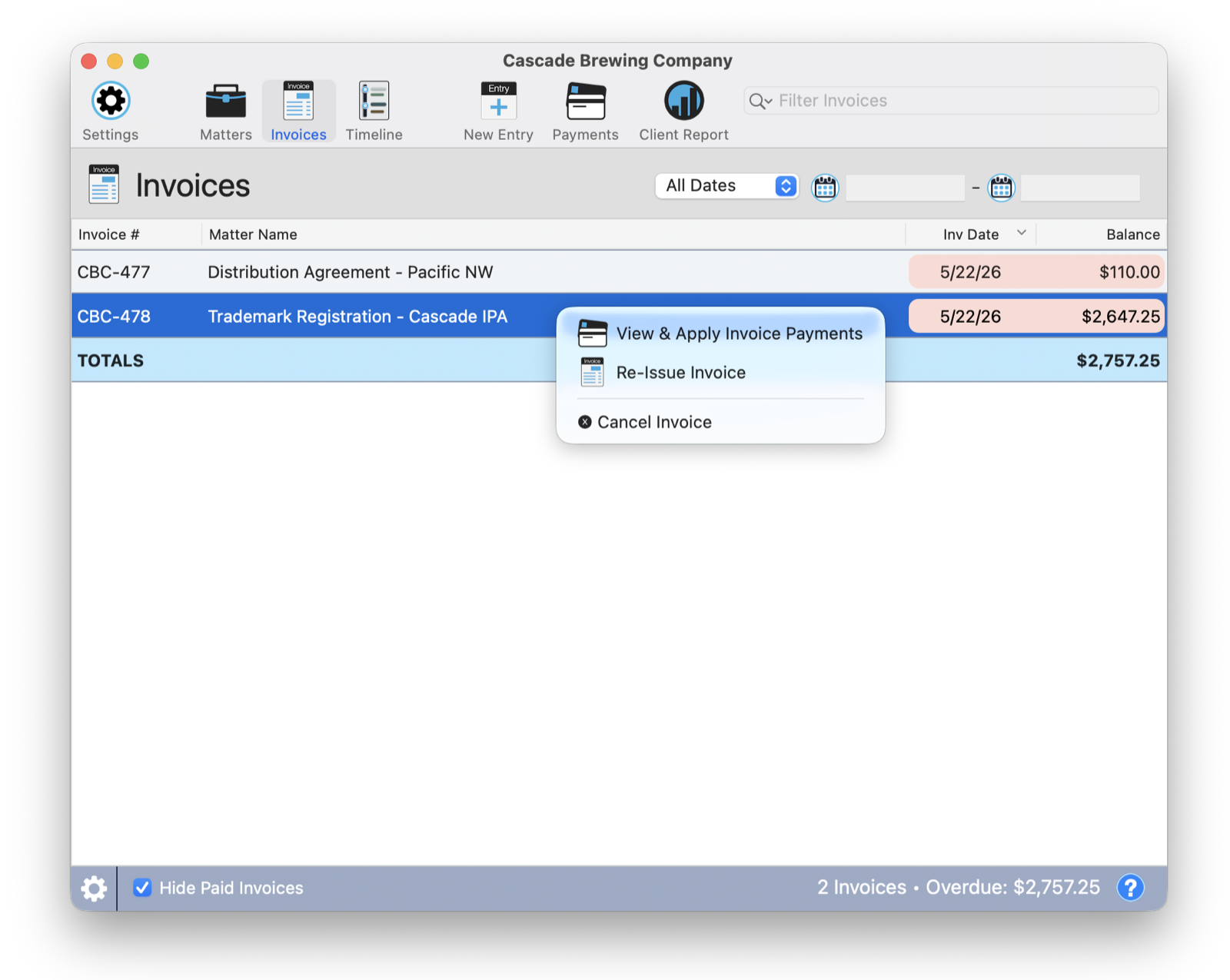
The Invoices view lists the client's invoices with invoice number, matter, invoice date, and balance, plus a running TOTALS row. Use the date-range filter at the top to narrow the list, and the Hide Paid Invoices checkbox at the bottom to focus on what's still owed. The footer shows the invoice count and the overdue total.
The Filter Invoices field in the toolbar narrows this list as you type, the same way it does in Matters and the Timeline.
Right-click an invoice
- View & Apply Invoice Payments
- Re-Issue Invoice
- Cancel Invoice
Payments and Client Report
Two toolbar buttons are shortcuts to where the deeper work happens.
- Payments opens the Payment Center for this client, where you record and apply payments and manage trust, escrow, and UAC funds.
- Client Report runs the client's report.
New to applying payments and handling retainers? Start with the Payment Center tutorial.
The Timeline
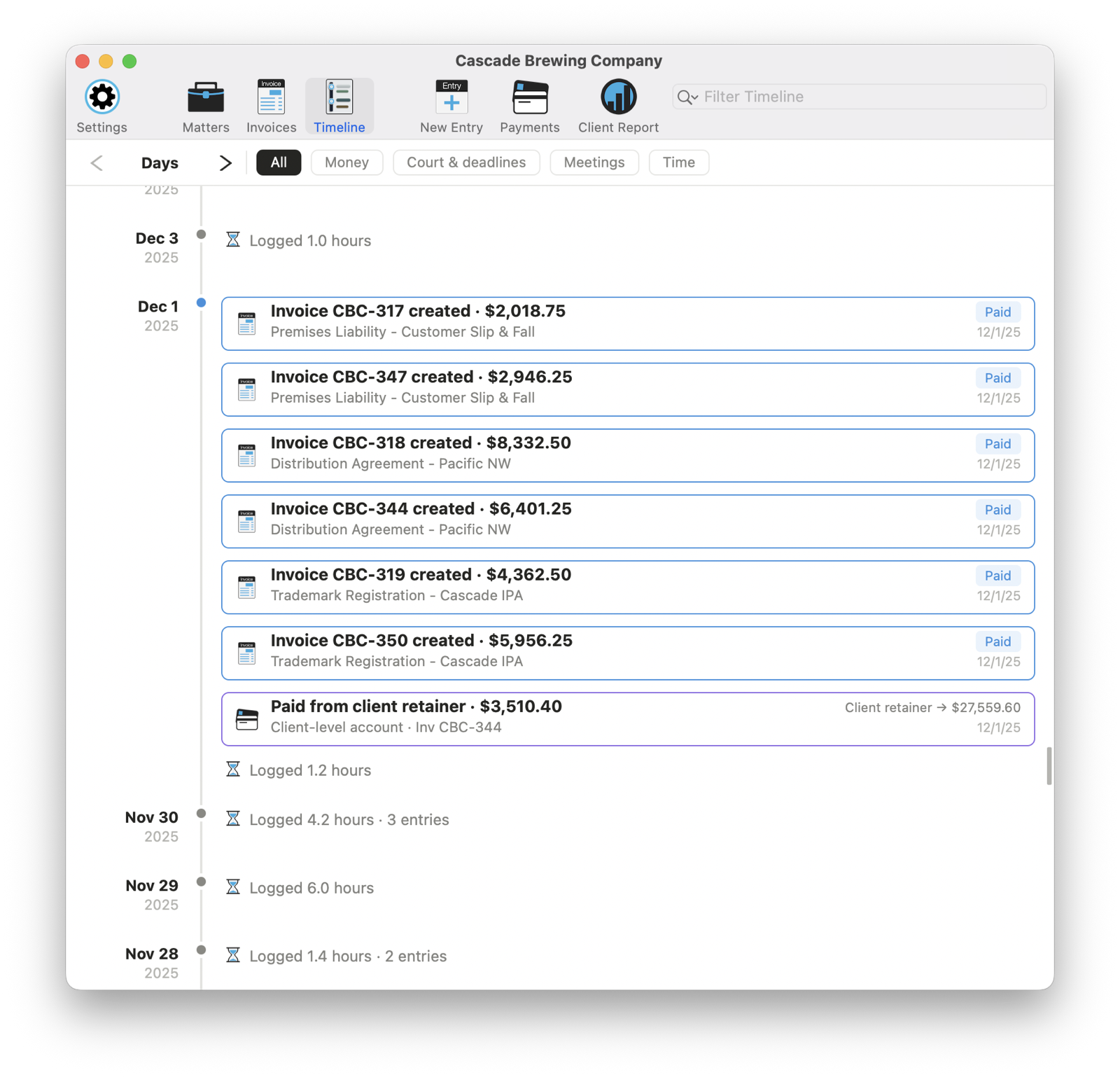
The Timeline is the heart of Client View. It's a living, scrolling history of everything that has happened for this client, time logged, invoices created, payments received, retainer activity, meetings, and deadlines, newest at the top.
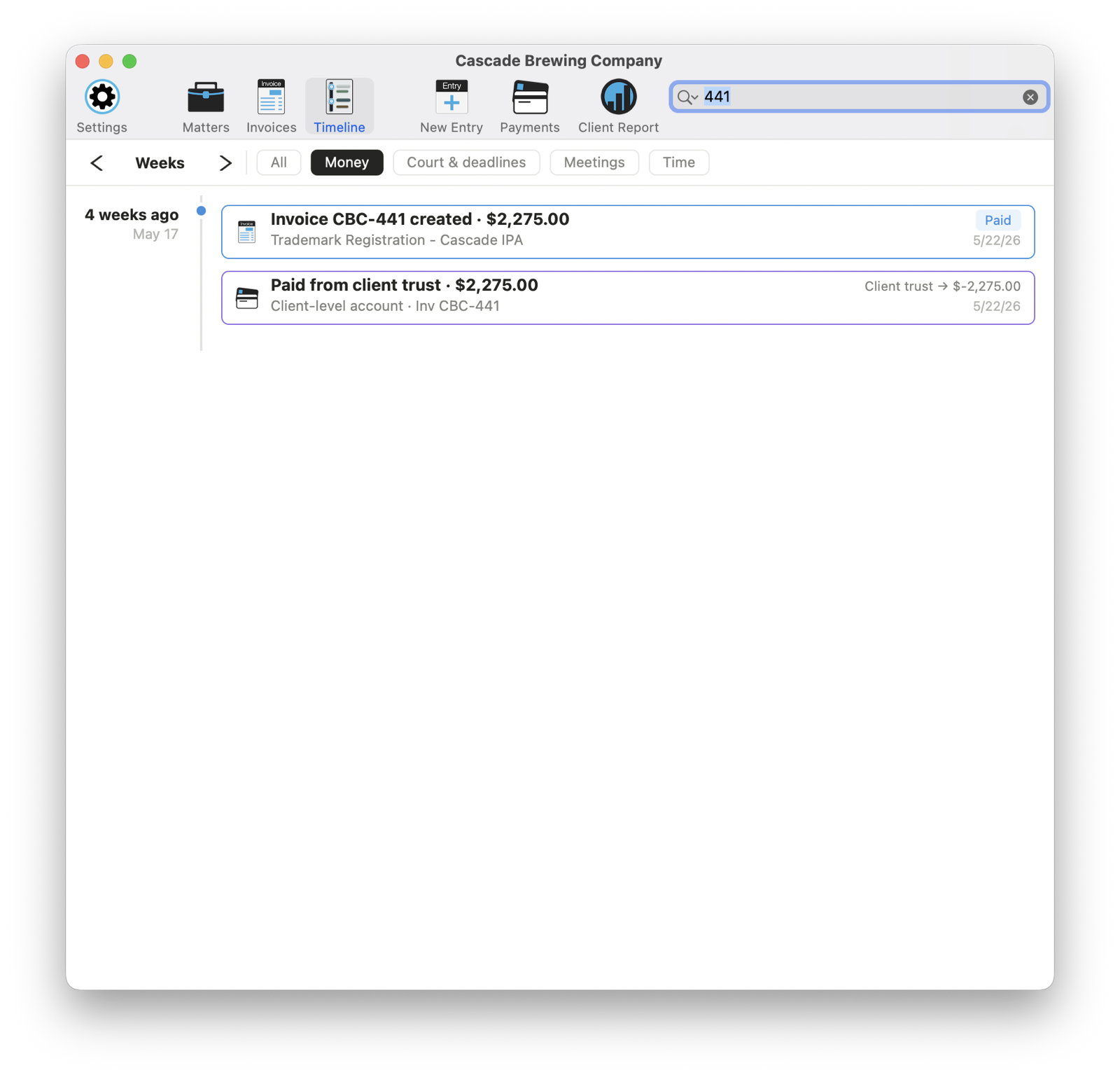
Quiet stretches compress to a single line ("Logged 4.2 hours, 3 entries") so you can scan months in seconds, while the moments that matter, an invoice, a payment, expand into full cards you can read at a glance.
The color system
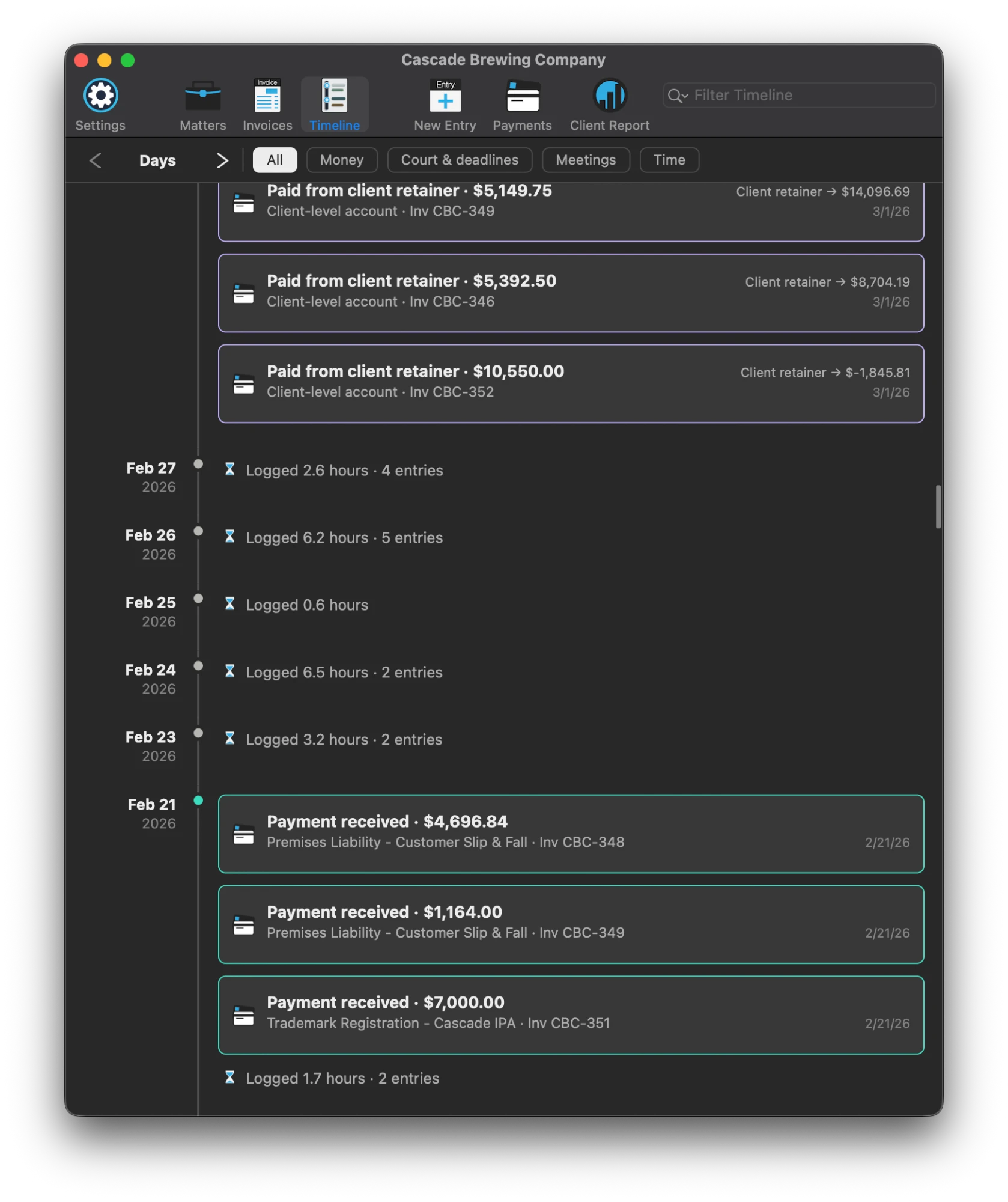
Every card is color-coded so you can read the timeline at a glance, no labels required:
- Blue · Invoices
- Purple · Trust and retainer activity
- Green · Direct payments (not from a retainer)
- Orange · Events and tasks
- Coral · Document activity
- Grey · Milestones (new client, new matter)
And it looks especially sharp in dark mode.
Everything is clickable
The Timeline isn't just for reading. Every entry is a jumping-off point straight to the thing it represents:
- Click an invoice to view and re-issue it on the spot.
- Click a payment to jump straight to that payment in the Payment Center.
- Click a time-and-expense rollup line to open an Entry Report scoped to that client and date range. Click a line like "8 time entries, 3 expenses" and you land on a report of exactly those 11 entries, where you can read every detail and open each one's matter with a click.
Change the zoom
Step through Day, Week, Month, Quarter, and Year using the steppers in the control bar, or hold Shift and scroll. Zoom out to take in a whole year of a relationship at once, or in to a single day.
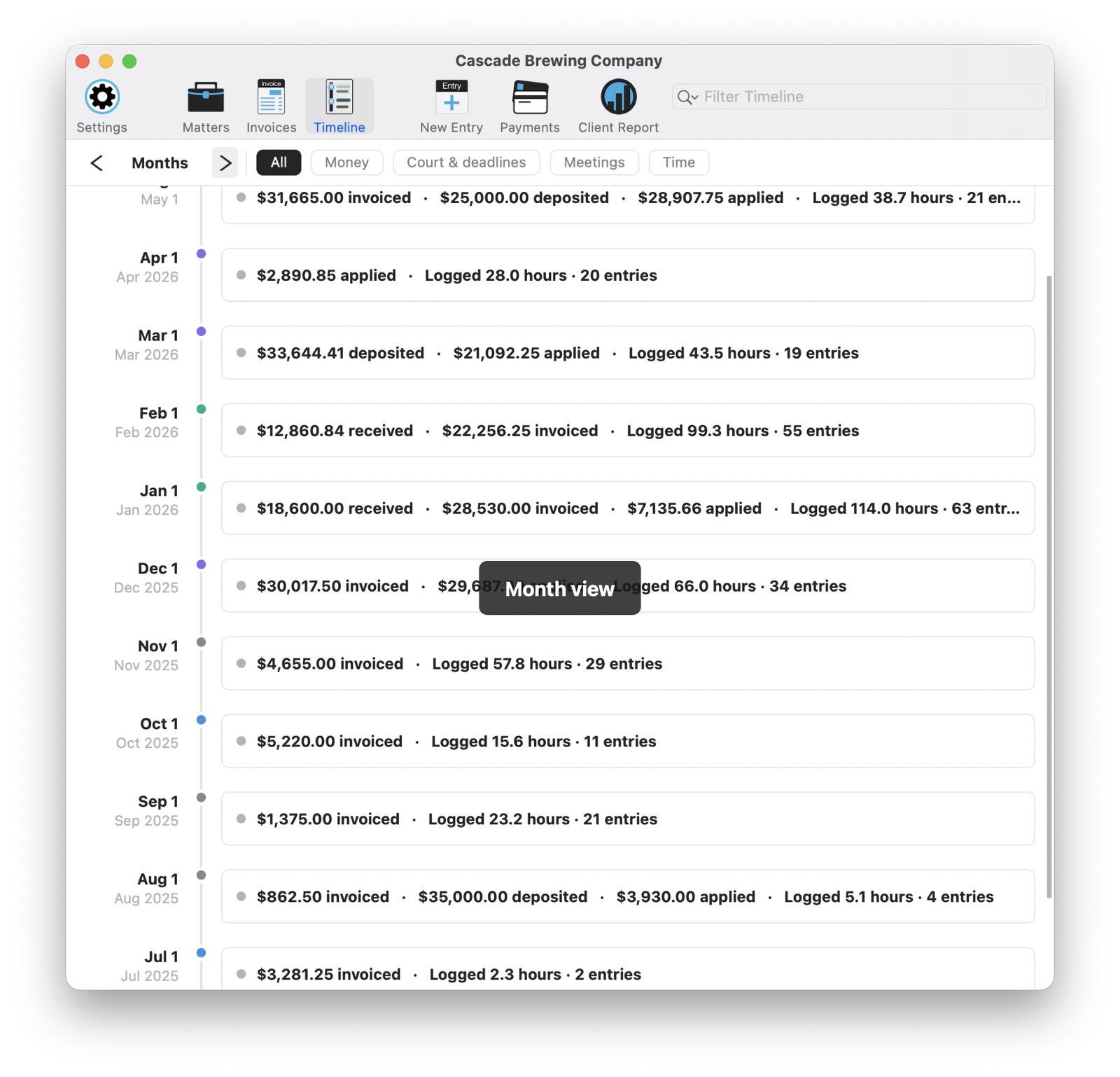
And to resize the cards themselves, hold Option and scroll. That makes the cards and text bigger or smaller, independent of the time range, so you can dial in exactly how much detail fills the screen.
Filter by type
The chips along the top instantly narrow the feed to what you care about:
Search anything
Type in the filter field to find an entry by name or amount. The same search works in the Matters and Invoices views too. And hover any entry for a tooltip with the full detail.
Client Settings
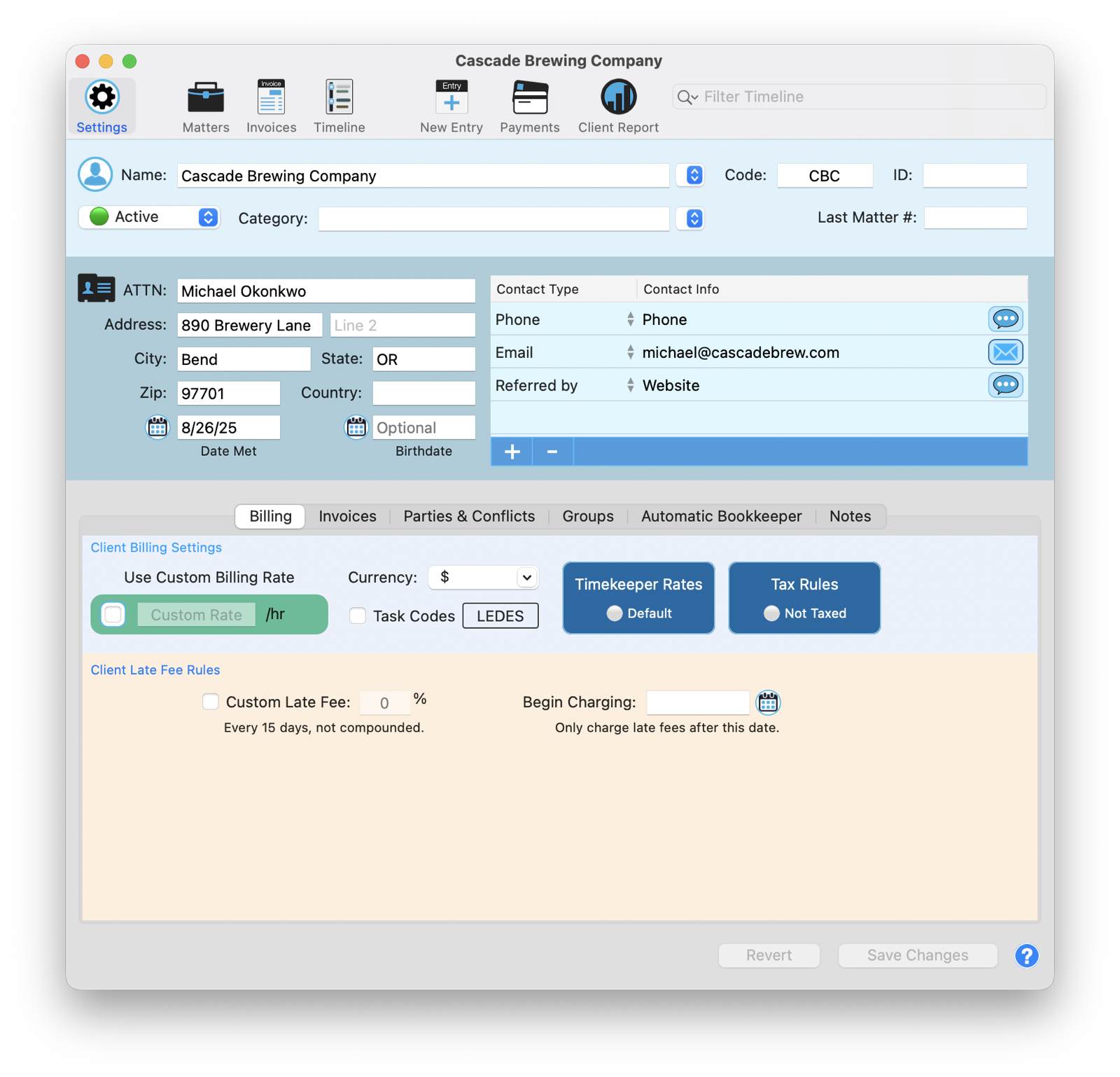
The Settings view brings the client's settings right into Client View: rates, contacts, billing rules, and everything else. These are the same options covered in the Clients tutorial, now available without leaving the window.
Pro Tips
Pro Tip: Prep for a client call in seconds
Open the Timeline, zoom to Quarter, and tap the Money chip. Every invoice and payment for the last few months is right there before they finish saying hello.
Pro Tip: Pin your daily matters
Right-click a matter and choose Pin Matter. It jumps to the top of your main window for one-click access all day.
Pro Tip: Ask Oasis without leaving the client
Right-click any matter and choose Oasis to ask a question or draft something with the full context of that matter, right where you're already working.