What You'll Learn
- How Money Moves in TimeNet Law (start here)
- Key Terms, in Plain English
- The Payment Center Window
- Applying Payments to Invoices
- Depositing Funds to Trust, Escrow, or UAC
- Paying Invoices from Trust, Escrow or UAC
- Apply Available Funds in One Click
- Withdrawing and Refunding Trust, Escrow or UAC Funds
- Payment History and Trust, Escrow and UAC Ledgers
- Pro Tips
How Money Moves in TimeNet Law
Before the buttons, the big picture. Almost every Payment Center question comes down to one idea: money in TimeNet Law lives in two different places. Once you can see those two places, everything else falls into line.
Invoices: what the client owes you
A finalized invoice is a real bill. The total of a client's unpaid finalized invoices is their Balance.
When money comes in, you apply it to an invoice. That lowers the invoice's balance. This is money you have earned.
Retainer accounts: money you hold on file
Trust, Escrow, and UAC hold money the client gave you in advance. It is still the client's money. You are only holding it.
When you earn it, you pay an invoice from that account. The money then moves into your operating account.
The one rule that prevents most confusion
Any money you record is doing exactly one of two things: it is applied to an invoice (Bucket 1), or it is held in a retainer account (Bucket 2). Money held in retainer is not income yet. It becomes income the moment you use it to pay an invoice.
The life of an invoice
An invoice is not a bill the instant you create it. It moves through stages, and a payment can only land on it once it is finalized:
Track
Log time and expenses to a matter.
Finalize
Finalizing turns the draft into a real invoice. Now it counts toward the Balance.
Get paid
Apply a payment here in Payment Center. The balance drops.
Don't see an invoice in Payment Center?
It is almost always still a draft. Drafts live in One Click Billing, not here. Finalize it there and it appears in the invoice list, ready for payment.
Key Terms, in Plain English
| Draft | A work-in-progress invoice in One Click Billing. Fully editable, not yet owed by the client, and not shown in Payment Center. |
|---|---|
| Finalized invoice | A real bill. It counts toward the client's Balance and can receive payments. |
| Balance | The total of a client's finalized invoices that are not yet paid. It does not include unbilled time or money held in retainer. |
| Apply a payment | Attach incoming money to a specific invoice, lowering what the client owes. |
| Retainer (held on file) | Money the client paid in advance, sitting in Trust, Escrow, or UAC. Still the client's money until you earn it. |
| Operating account | Your firm's own business account. Paying an invoice from a retainer moves money into operating. That is the moment the fee is earned. |
Trust vs Escrow vs UAC
| Trust | Client funds you hold, typically your IOLTA account. The bar-regulated default for advance funds. |
|---|---|
| Escrow | Funds held for a specific purpose or a third party, such as a settlement or a closing. |
| UAC | Unearned Advance Client funds: advance or flat fees you will bill against as you earn them. |
If your firm only uses one of these, that is completely normal. Many solo firms use Trust alone.
The Payment Center Window
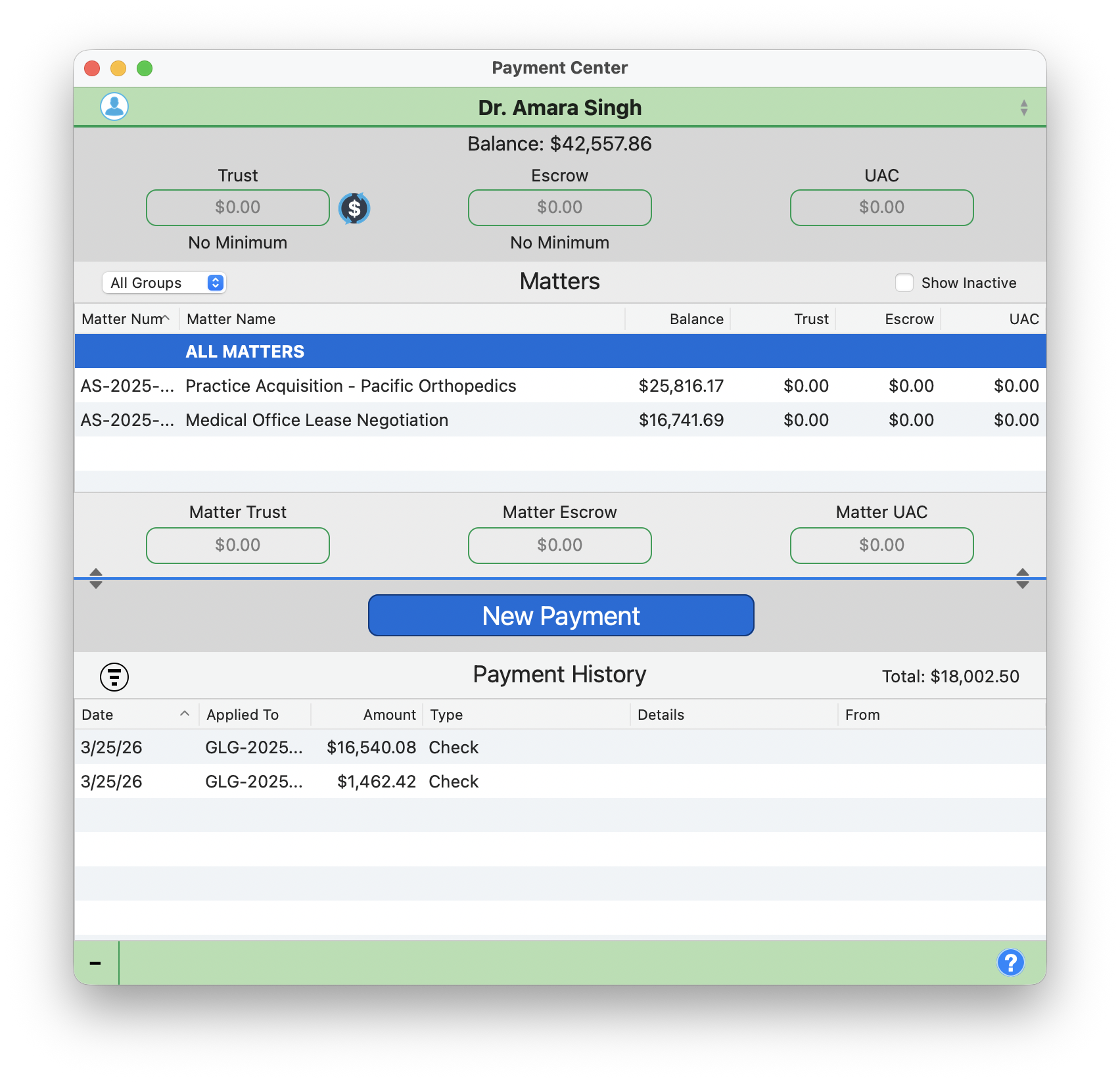
Payment Center is your single view for everything related to incoming money. Open it from the Launchbar or press the keyboard shortcut to jump straight in.
At the top, the green client selector bar shows the currently selected client. The green ← and → buttons step to the Previous and Next client without leaving the window, and Cmd+← / Cmd+→ do the same from the keyboard. That makes triaging a stack of payments fast: jump to a client, glance at the balance, apply funds, move on.
Balance Summary
Directly below the client name, you will see the total outstanding Balance for this client. Next to it, individual account boxes display the client's Trust, Escrow, and UAC (Unearned Advance Client) balances. Each account box shows its minimum requirement when one is set, or displays "No Minimum" otherwise. Click this line to edit the client's required minimum right from Payment Center.
Matters Table
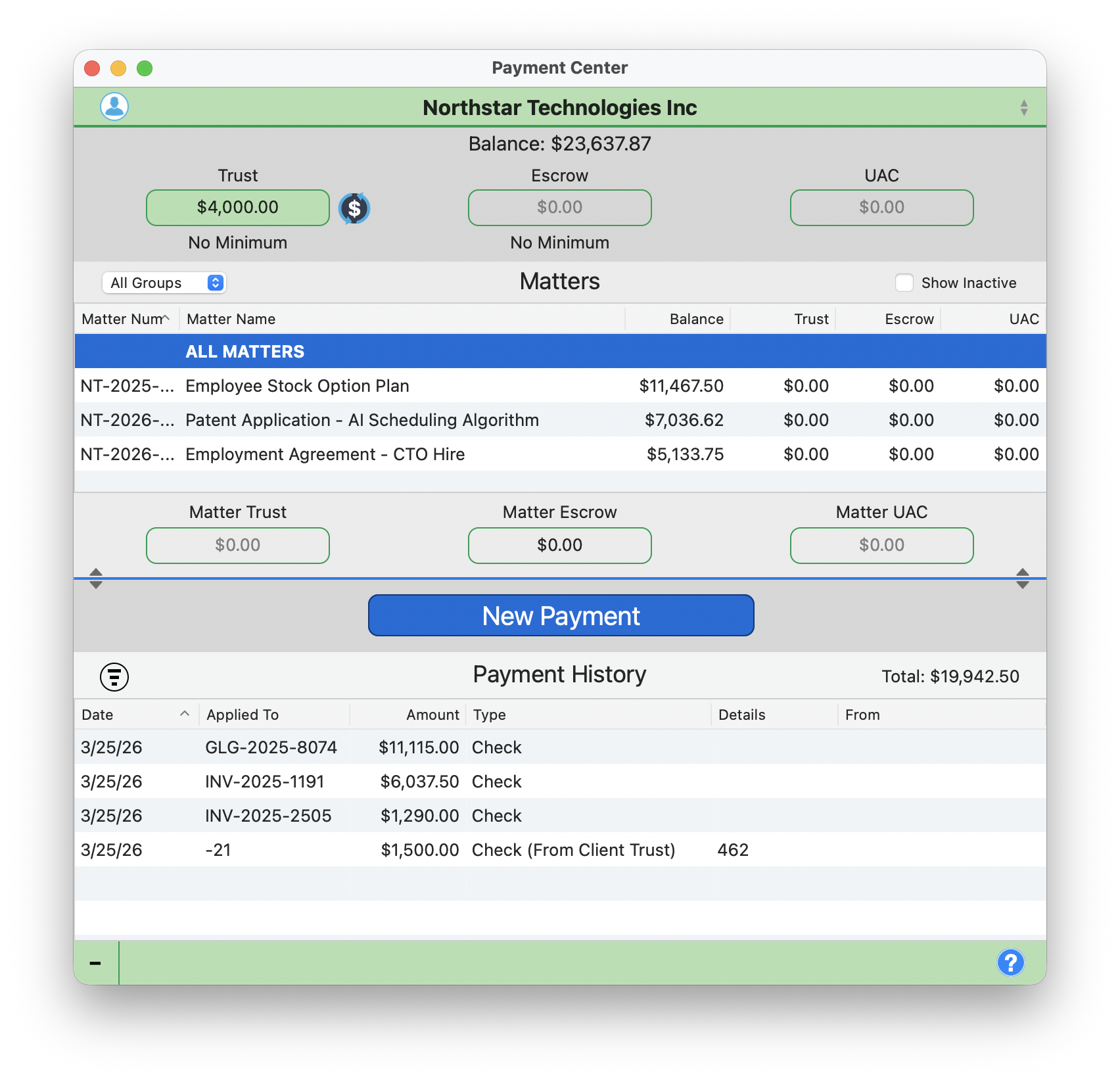
The matters table lists every matter for the selected client. Each row shows the Matter Number, Matter Name, Balance, Trust, Escrow, and UAC columns. Below the table, subtotal boxes display the combined Matter Trust, Matter Escrow, and Matter UAC totals across all listed matters.
Use the "All Groups" filter dropdown to view matters by group when a client has many. Check the "Show Inactive" checkbox to include closed or inactive matters in the table.
New Payment and Payment History
The big blue New Payment button at the top right opens the payment panel (covered in the next section). At the bottom, the Payment History section shows a full transaction log with columns for Date, Applied To, Amount, Type, Details, and From.
Applying Payments to Invoices
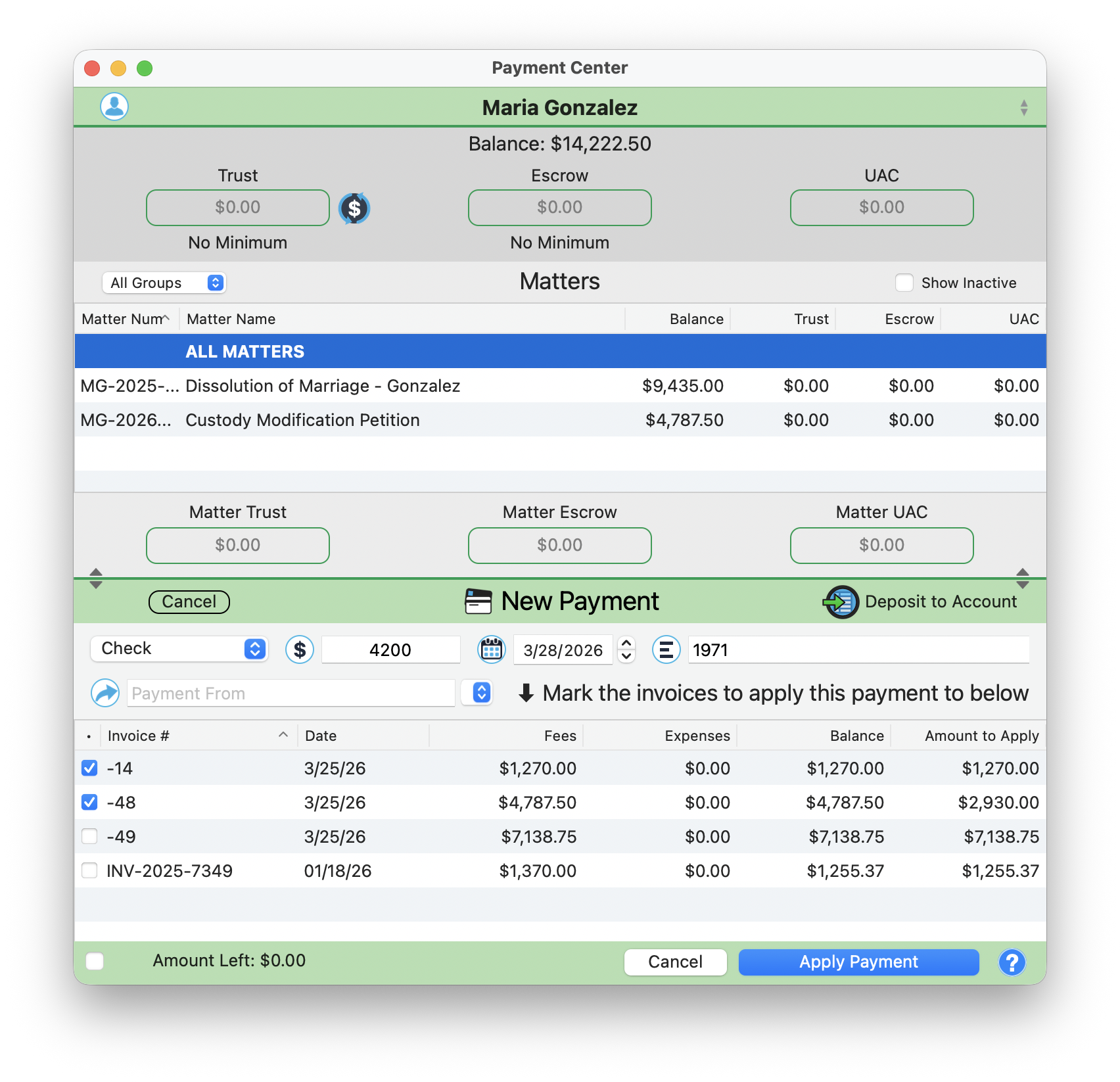
When a client sends a payment, click the blue New Payment button to open the payment panel on the right side of the screen.
One button does it all
New Payment is the entry point for every kind of money movement: recording a payment, depositing funds into a retainer, and even withdrawing or refunding money. The options inside the panel decide which one happens. So if you are here to deposit a retainer or issue a refund, you still start with New Payment.
The invoice list below the payment details shows finalized invoices only. If the invoice you expect is missing, it is most likely still a draft in One Click Billing. Finalize it there and it will appear here.
Step by Step
- Select a Payment Type from the dropdown: Check, Credit Card, ACH, Wire, or Cash.
- Enter the Amount, Date, and Reference number (e.g., check number).
- Fill in the "Payment From" field with the payer's name.
- Below the payment details, all open invoices for this client appear with checkboxes. Each row shows the Invoice number, Date, Fees, Expenses, Balance, and Amount to Apply.
- Check off the invoice(s) you want to apply the payment to. The "Amount to Apply" column auto-fills based on the invoice balance.
- If the payment covers multiple invoices, check more than one. The system distributes funds across each selected invoice.
- Watch the "Amount Left" tracker at the bottom. It updates in real time as you check invoices, showing how much of the payment remains unapplied.
- When Amount Left reaches $0.00, click "Apply Payment" to finalize.
Why are invoices already checked?
When you create a new payment, every invoice with a balance starts out checked. That is what most firms want, because money that arrives is almost always paying down what is owed. If your firm would rather start from a clean slate and choose each invoice deliberately, turn off Pre-check invoices when creating a payment in Preferences. New payments then open with nothing checked, and the amount stays where you put it.
You can also partially apply a payment. If the amount does not cover the full invoice balance, the "Amount to Apply" field can be edited to a lesser amount, leaving the remainder on the invoice.
Depositing Funds to Trust, Escrow, or UAC
Sometimes a client payment is not meant for a specific invoice. Instead, the funds go into a retainer account (Trust, Escrow, or UAC). The Payment Center handles this seamlessly.
How to Deposit Retainer Funds
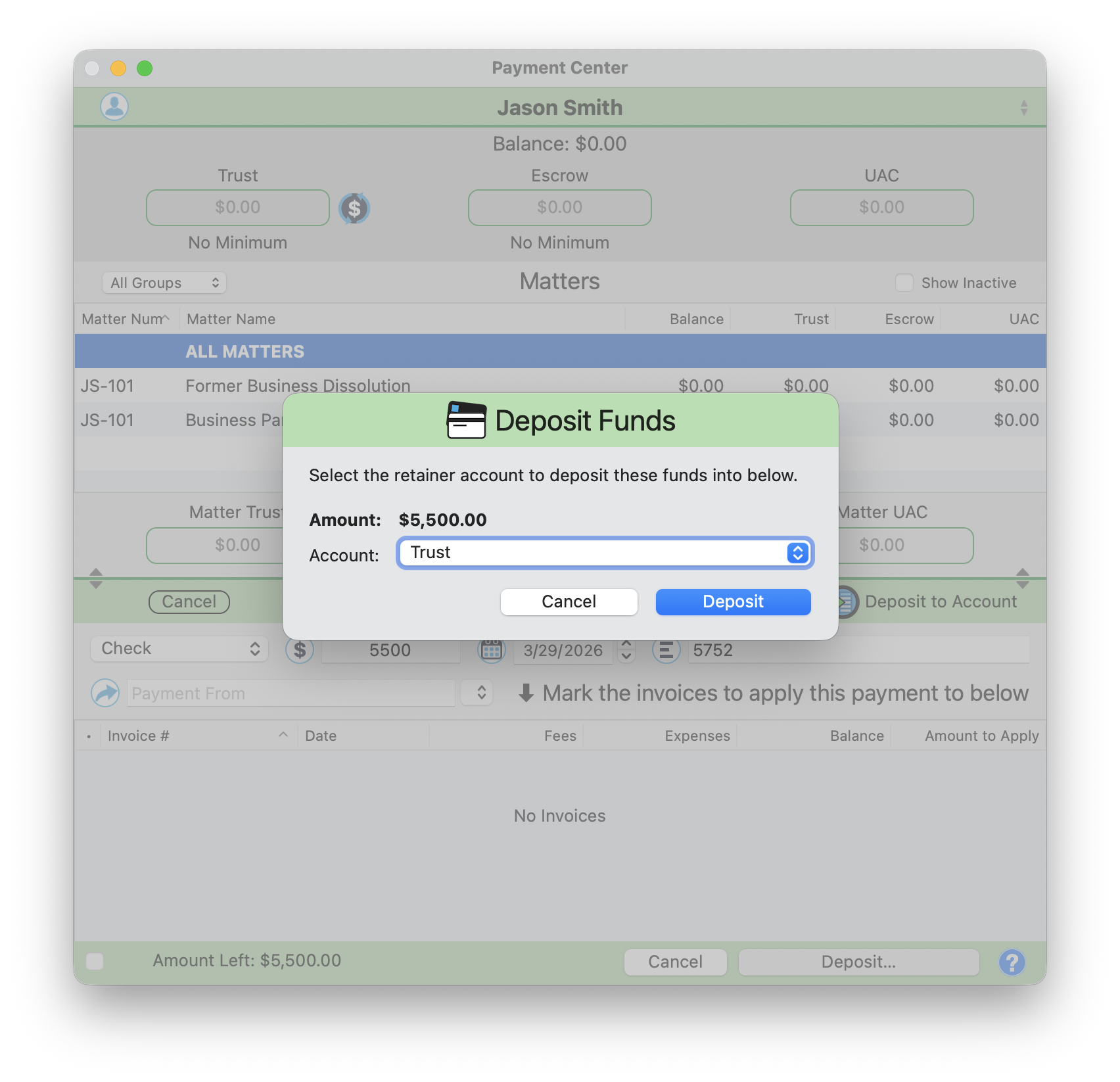
- Click New Payment and enter the payment details as usual: type, amount, date, and reference number.
- Do not check any invoices. Leave them all unchecked. (You can also check some invoices but leave remaining funds unapplied.)
- When funds remain unapplied, click the "Deposit..." button at the bottom of the payment panel.
- The Deposit Funds dialog appears, asking: "Select the retainer account to deposit these funds into below."
- Choose Trust, Escrow, or UAC from the Account dropdown.
- Click Deposit.
The funds appear in the client's retainer account immediately. You can verify the deposit by checking the Trust, Escrow, or UAC balance box at the top of the Payment Center.
Paying Invoices from Trust, Escrow or UAC
When it is time to pay an invoice using funds already held in trust, escrow or UAC, the Payment Center lets you draw directly from the client's retainer accounts.
Applying Retainer Funds to an Invoice
- Click New Payment.
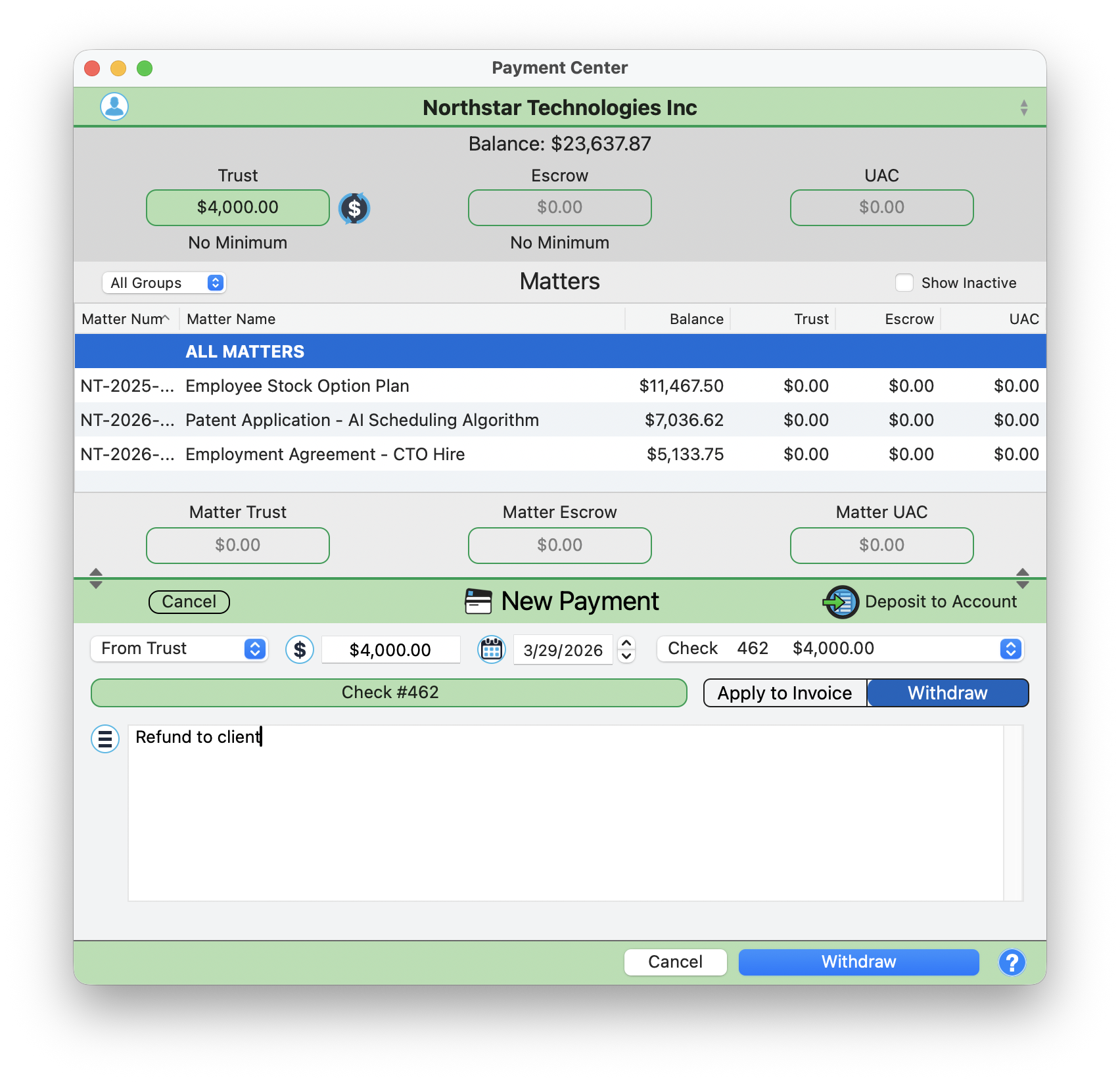
- Change the Payment Type dropdown to "From Trust", or the account you want to use.
- The system displays available trust deposits for this client (e.g., "Check 462 $4,000.00"). Select the deposit to draw from.
- Enter the amount to apply.
- The toggle at the bottom defaults to "Apply to Invoice". Leave it on this setting.
- Check off the invoices you want to pay from the retainer account.
- Click "Apply Payment" to move funds from the selected retainer account into your operating (business) account and mark the selected invoices as paid. This transfer is the moment those fees become earned income.
This creates a complete audit trail: the trust, escrow, and UAC withdrawal and the invoice payment are linked together in a single transaction. The retainer balance updates immediately in the Payment Center.
Apply Available Funds in One Click
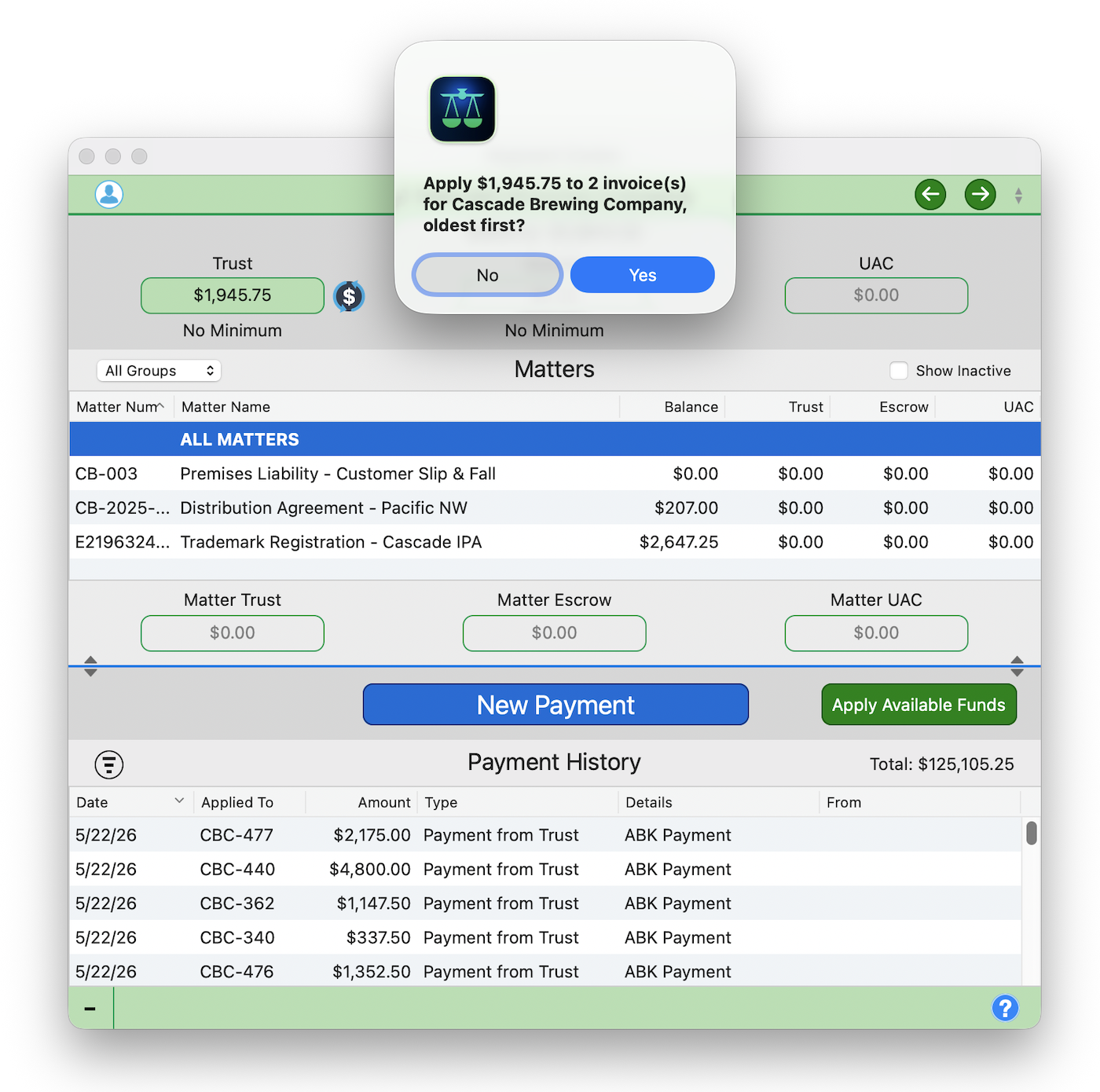
The section above applies retainer funds by hand: pick the account, pick the deposit, check the invoices. When a client has money sitting in Trust, Escrow, or UAC and open invoices waiting on it, the green Apply Available Funds button (next to New Payment) does the whole thing in one click.
What it does
It applies the client's available retainer funds to their outstanding invoices, oldest first, following your firm's Automatic Bookkeeper rules: which account to draw from, and whether to use client-level or matter-level funds. It is the same engine that runs when you generate invoices, now available on demand any time money is sitting idle against a balance.
Step by Step
- Select the client. Cmd+← and Cmd+→ move between clients quickly.
- Click the green Apply Available Funds button.
- A confirmation shows exactly what will happen, for example: "Apply $2,365.00 to 1 invoice(s) for Anderson Family, oldest first?"
- Click Yes. The payments post, the invoices update, and the retainer balances drop, all recorded in Payment History and the account ledgers.
Every application is logged like any other payment and is fully reversible from the Event Vault, so nothing moves that you cannot trace or undo. If a client has no available funds matching their open invoices, the button tells you so and does nothing.
Need to clear funds across your whole client roster at once? The Billing Center has a Batch Apply Available Funds sweep that does the same thing for every client in a single pass, with a preview before it commits.
Withdrawing and Refunding Trust, Escrow, and UAC Funds
Need to return unused retainer funds to a client or withdraw money without applying it to an invoice? The Payment Center supports that too.
How to Withdraw from Trust, Escrow, or UAC
- Click New Payment and set Payment Type to "From Trust", or the account you want to use.
- Select the retainer deposit to draw from (e.g., "Check 462 $4,000.00").
- Enter the withdrawal amount and date.
- Switch the toggle from "Apply to Invoice" to "Withdraw". The Withdraw option highlights in blue when selected.
- Add a note in the Notes field describing the reason (e.g., "Refund to client").
- Click "Withdraw" to complete the transaction.
Use this workflow for client refunds, closing out matters, or returning unused retainer balances. The funds are removed from the selected retainer account and recorded in the ledger.
Payment History and Account Ledgers
Every transaction you record in the Payment Center is tracked in the Payment History section at the bottom of the window. This is your complete log of all incoming payments for the selected client.
Payment History
The Payment History table includes columns for Date, Applied To (the invoice number), Amount, Type, Details, and From. Trust payments appear with the type "Check (From Client Trust)" along with the deposit reference number, making it easy to trace funds back to their source.
Account Ledgers
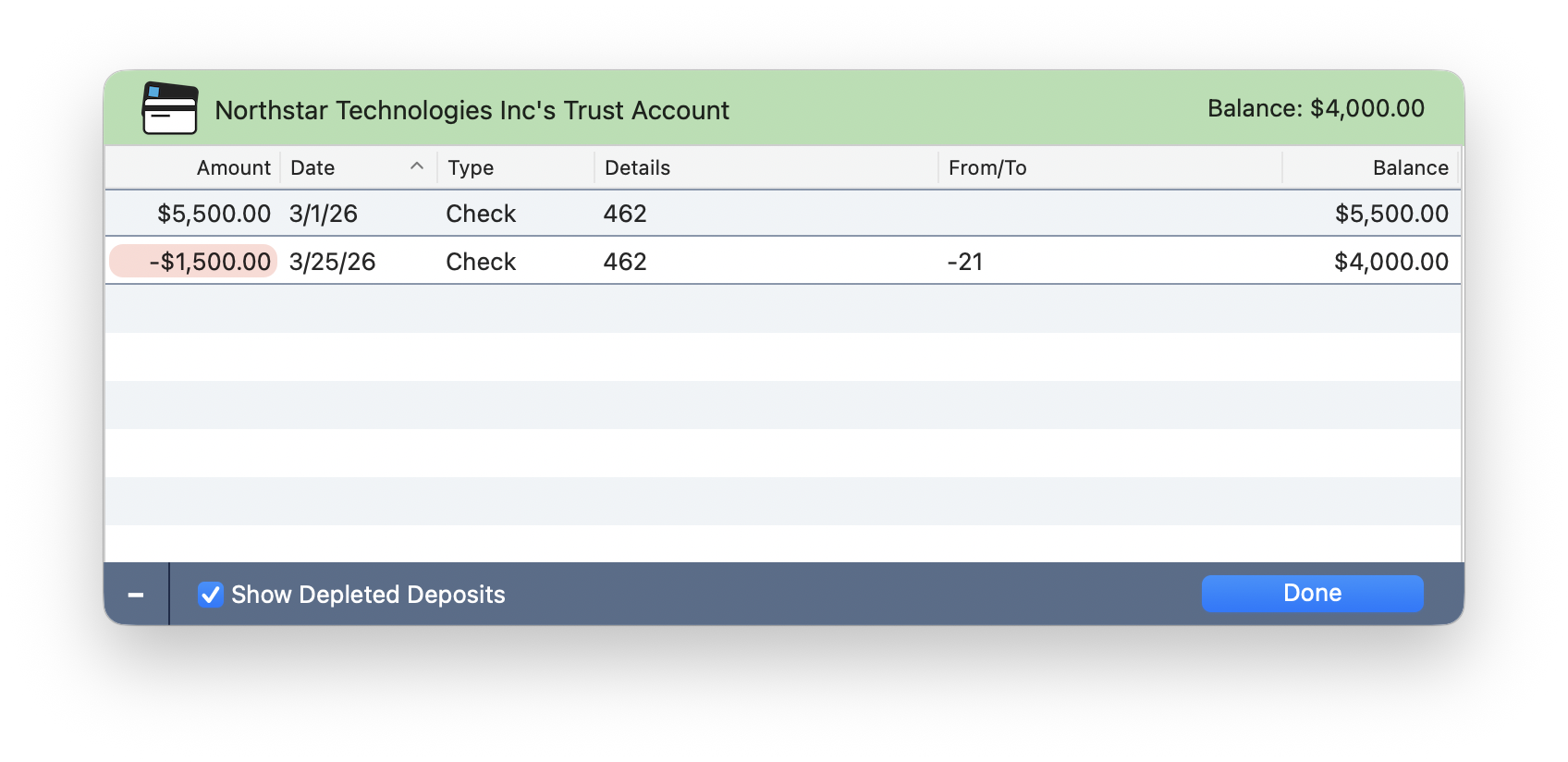
For a detailed view of any retainer account, click the green Trust, Escrow, or UAC button at the top of the Payment Center. This opens the account ledger window.
The Account Ledger displays every deposit and withdrawal with columns for Amount, Date, Type, Details, From/To, and a running Balance. Withdrawals are highlighted in red with negative amounts, so they stand out at a glance.
Check the "Show Depleted Deposits" checkbox at the bottom to include deposits that have been fully used up. This is useful for auditing historical trust activity.
Potential discrepancies (duplicate entries, transposed digits, etc) are highlighted in amber.
Pro Tips
Pro Tip: Always Enter Reference Numbers
Always enter reference numbers (check numbers, transaction IDs) when recording payments. Future-you will thank present-you during reconciliation.
Pro Tip: Filter Matters by Group
Use the "All Groups" dropdown to filter matters when a client has many. Focus on the active cases instead of scrolling through the full list.
Pro Tip: A Faster Payment Run
When a stack of checks comes in, work the keyboard: Cmd+→ to the next client, glance at the balance, Apply Available Funds, repeat. You can clear a morning's deposits without reaching for the mouse.