Every other legal AI works the same way. Your firm's billing, your clients' names, your trust balances, all of it gets shipped to someone else's servers so a model in the cloud can read it back to you. Oasis does the opposite. It runs entirely on your own Mac, works from your real numbers, and never sends a byte of your data anywhere.
Ask it how the quarter went and it answers from your actual books. Hand it a stack of receipts and it files them. Point it at a trust account and it reconciles. Oasis is not a chatbot bolted onto billing software. It is a crew of experts who live inside your firm's data and work for you alone.
What Oasis Is
Think of Oasis as a crew, not a chatbot. There is a watchman who scans for risk, a strategist who designs your pricing, a rainmaker focused on revenue, a harbormaster who guards your trust accounts, and a navigator who runs operations. Above them all is the First Mate, who answers anything you ask in plain language, and the Tide, who does the actual work. Each one looks at the same thing, your firm, through a different expert lens.
And every one of them runs on your Mac. No account. No upload. No monthly AI surcharge. The intelligence is local, and that is the whole point.
Turning Oasis On
Oasis needs a one-time setup, and TimeNet Law walks you through it. Two steps, no command line. Install and open Ollama, the free engine that runs the AI locally, then download the model itself, about 17 GB that lives in a folder on your Mac. Click the buttons in order, and when both steps show ready, you are done.
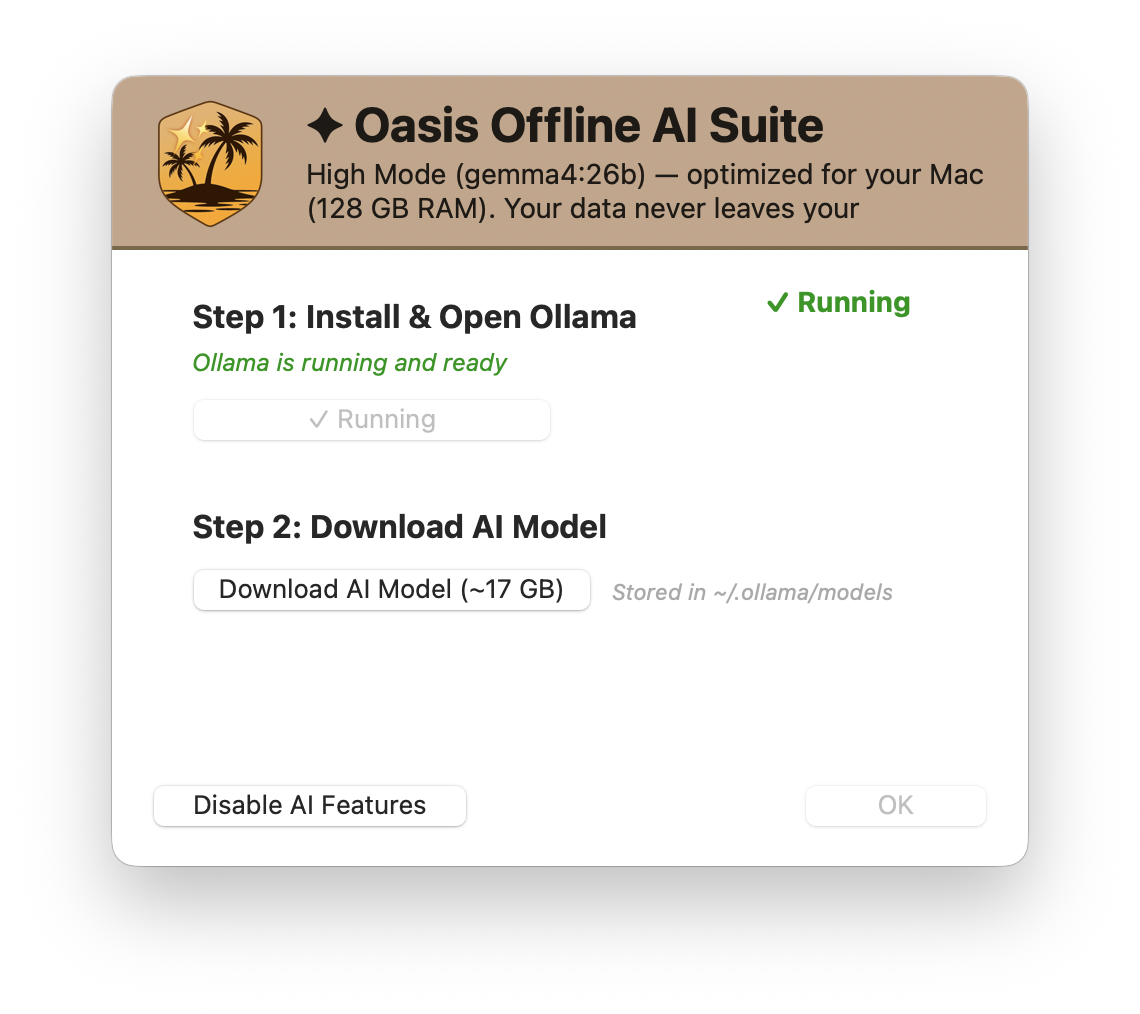
The Mac above has 128 GB of memory, so Oasis runs in High Mode on its largest model, and it needs at least 24 GB to run at all (the full requirements are just below). Read the line at the top one more time: your data never leaves your Mac. That is true during setup and true forever after. You can disable AI features any time.
System Requirements
Because Oasis runs entirely on your Mac, it needs enough Mac to run on. The bar is short and firm:
| Requirement | What You Need |
|---|---|
| Mac | Apple Silicon (M1 or later) |
| Memory | 24 GB minimum. A firm floor, not a suggestion. |
| Disk Space | About 17 GB for the AI model |
| Software | Ollama, the free local-AI engine. TimeNet Law installs it for you. |
The 24 GB minimum is what lets a serious model live in memory and answer quickly while you work. On a Mac that clears it, Oasis runs in High Mode on its largest model. On a Mac below it, TimeNet Law tells you plainly that Oasis needs more memory instead of running a crippled version, because a legal AI that cuts corners is worse than no AI at all.
The Oasis Window
Open Oasis and you land here. The window has two halves, because Oasis does two kinds of work.
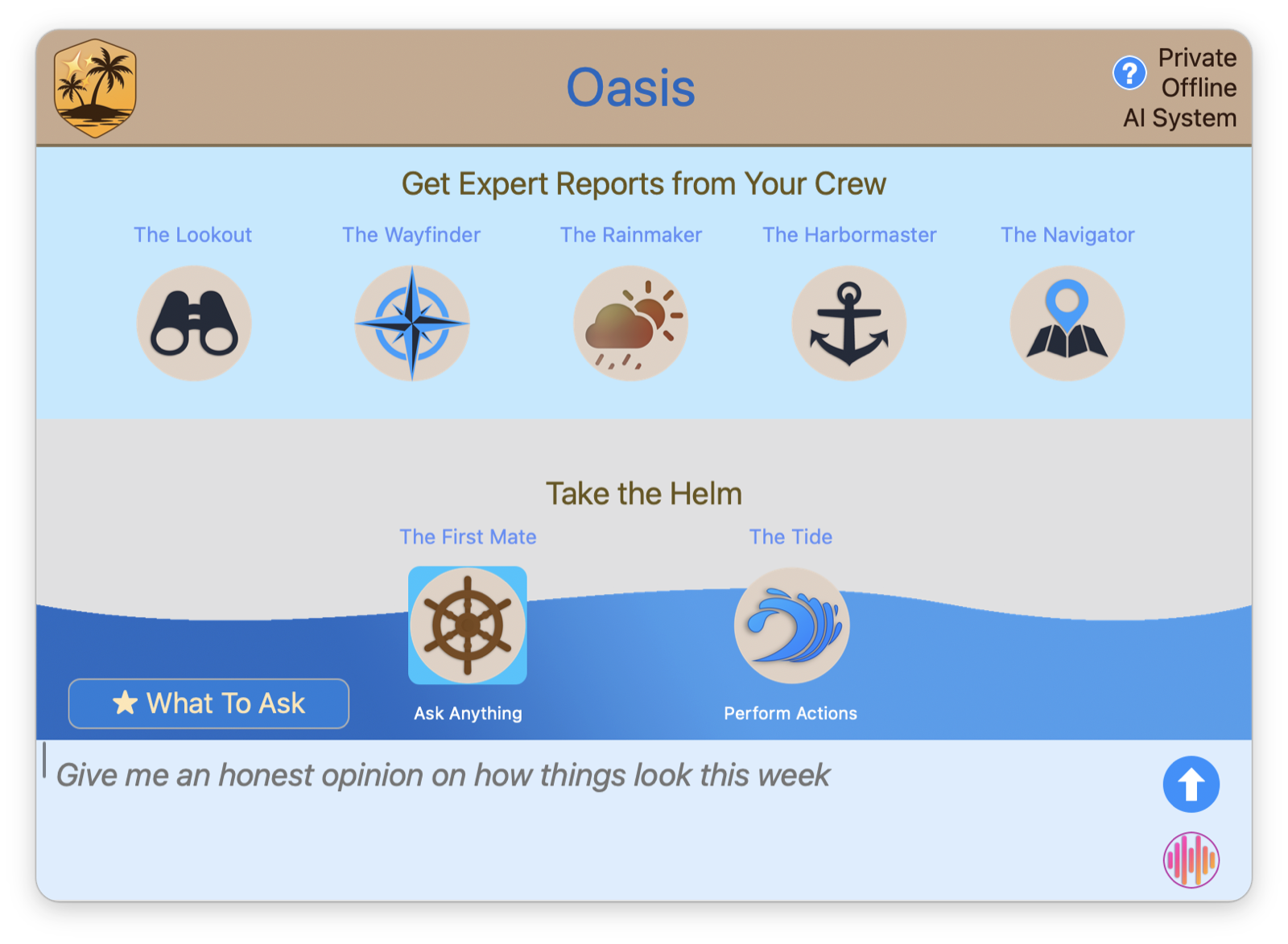
Up top, Get Expert Reports from Your Crew: pick a specialist for a full, structured analysis through their lens. Below, Take the Helm: the First Mate is where you ask anything in your own words, and the Tide is where you hand Oasis real tasks to perform. Not sure where to begin? The What To Ask button is full of real questions you can borrow.
Ask Anything: The First Mate
The simplest way to use Oasis is to just ask. Type a question the way you would ask a sharp associate, like How was Q1?, and the First Mate answers from your real data.
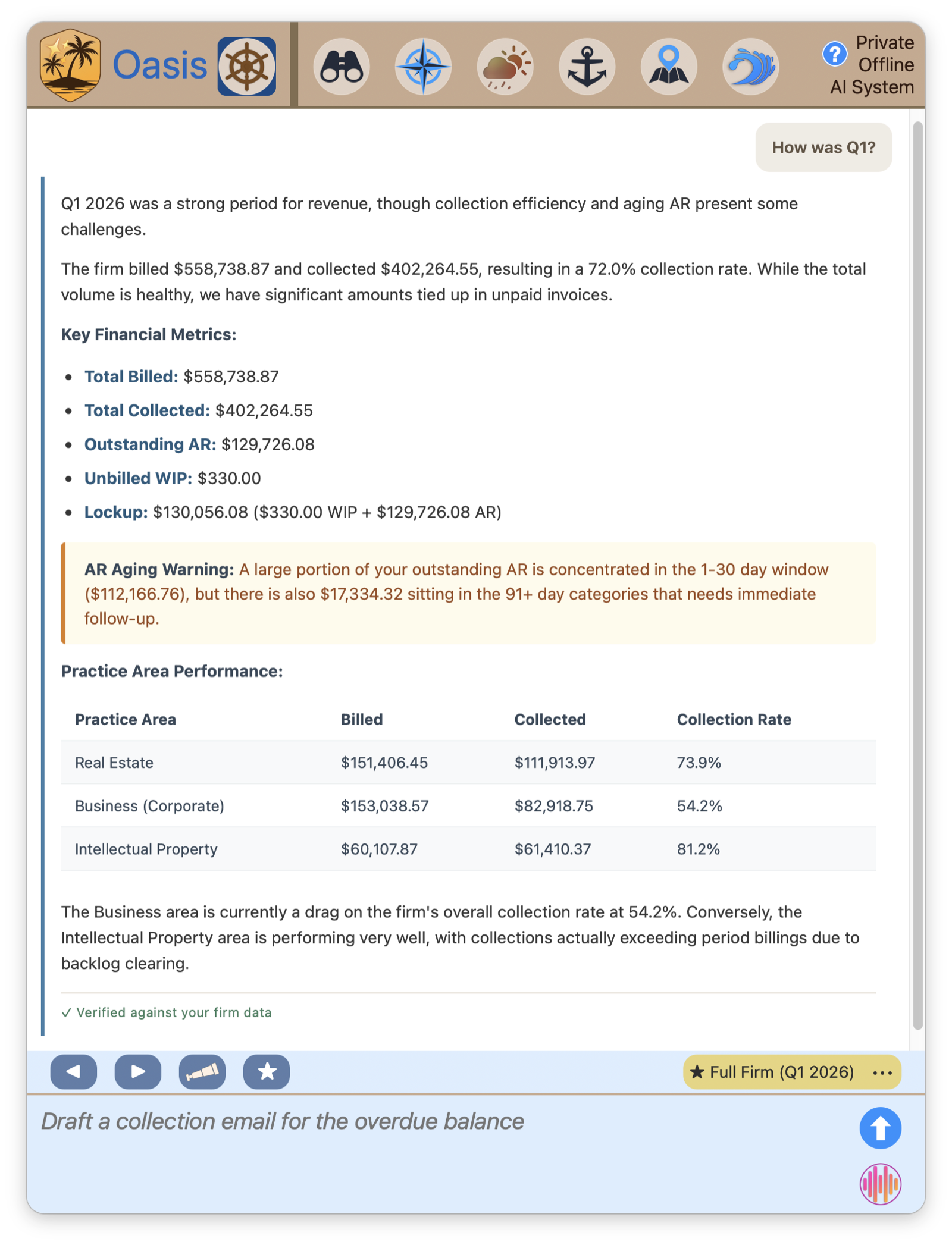
This is not a generic summary. The firm billed $558,738.87 and collected $402,264.55, a 72% collection rate, with the full aging breakdown and a practice-area table, because those are your numbers, pulled the moment you asked. Oasis flags what matters on its own, here a warning that $17,334 has aged past 91 days. The Verified against your firm data line means exactly that: it answered from your ledger, not from the internet.
Ask a follow-up and it remembers the conversation. And when it spots something actionable, it offers to do it, like drafting a collection email for that overdue balance. Which brings us to the rest of the crew.
Voice Mode
Oasis can talk. Turn on Voice Mode and it reads its answers and reports aloud, so you can hear your Monday-morning briefing while the coffee brews instead of reading it off the screen. By default it speaks a tight summary, the headline and what matters, not every number on the page.
Oasis speaks with your Mac's own system voice, the text-to-speech built into macOS. That has one consequence worth knowing: if Oasis sounds robotic, that is not Oasis, it is the default macOS voice. The good news is that macOS ships far better voices for free, and switching takes a minute.
Make Oasis Sound Natural
Open System Settings → Accessibility → Spoken Content. Click the System Voice menu and choose Manage Voices. Download one of the high-quality voices (the Siri voices, and the ones marked Enhanced or Premium, sound dramatically more natural than the default), then set it as your system voice. Oasis picks it up automatically.
Set it once and the whole crew, from the First Mate to the Lookout, speaks in a voice you will actually want to listen to.
Your Crew of Experts
When you want a deep, structured read instead of a quick answer, call on a specialist. Each member of the crew owns a lens:
- The Lookout Watches for risk: write-offs, slow payers, aging invoices, matters gone quiet
- The Wayfinder Owns strategy and pricing, including flat-fee package design
- The Rainmaker Focuses on revenue and collections
- The Harbormaster Guards trust accounts and compliance
- The Navigator Runs day-to-day operations
Pick one and you get a report built for that job. Not sure what to ask? Every specialist comes with sample queries written for its specialty.
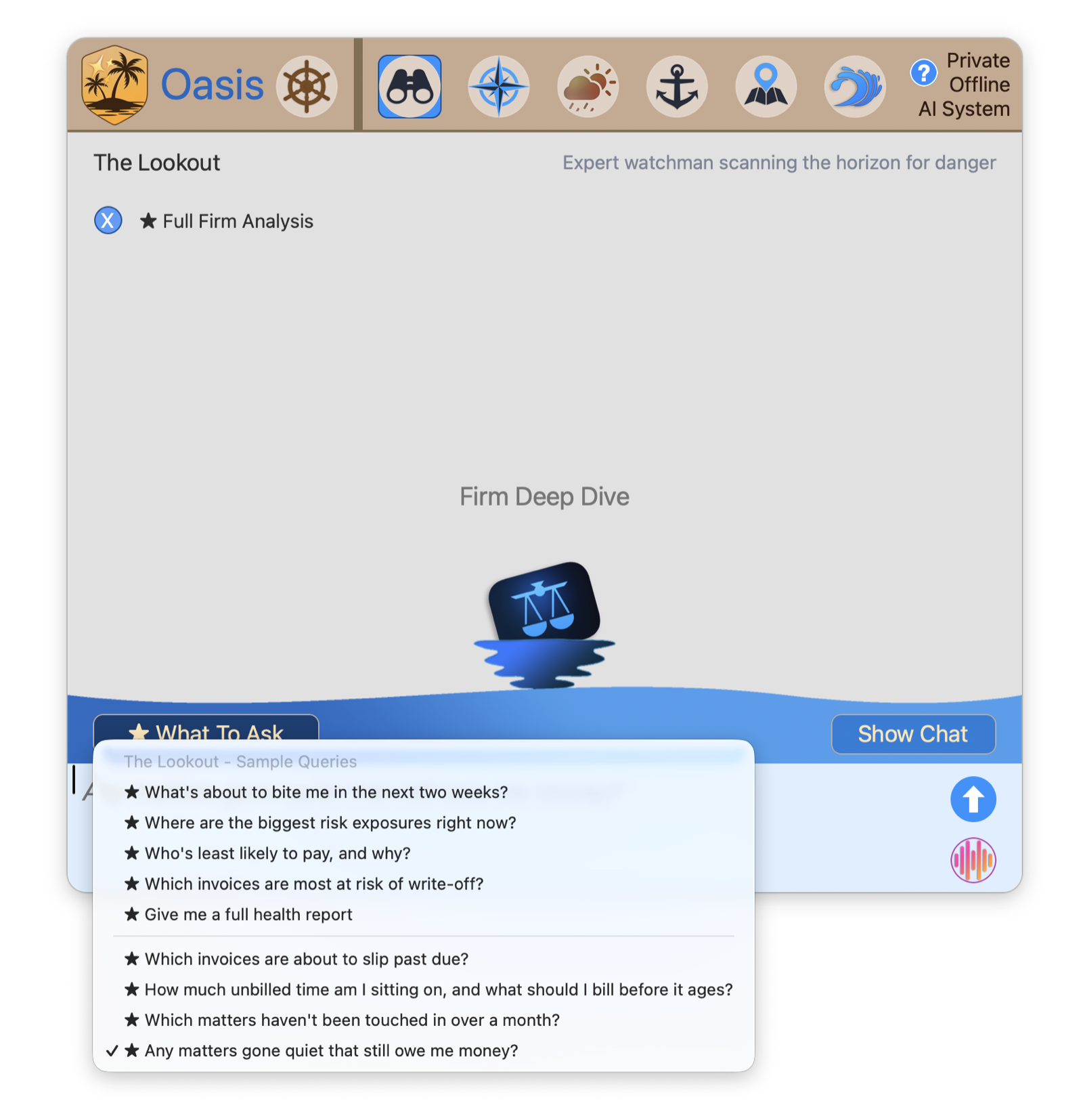
The Lookout, for instance, will tell you what's about to bite you in the next two weeks, which invoices are most at risk of write-off, and which matters have gone quiet but still owe you money. The questions a careful partner asks on a Sunday night, answered in seconds.
Take the Helm: Oasis Acts
Oasis does not just talk. It works. The Tide is a menu of real tasks Oasis performs end to end.
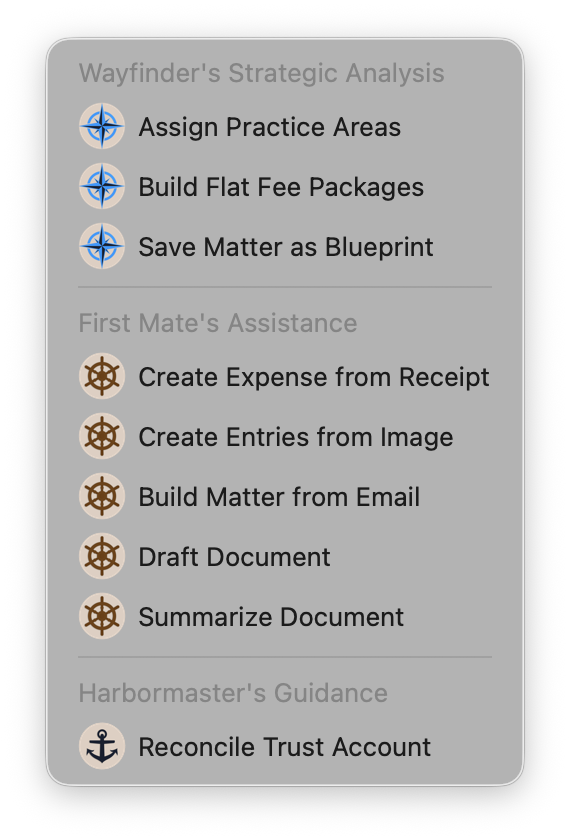
Create an expense from a receipt. Create time entries from an image. Build a matter from a forwarded email. Draft or summarize a document. Design flat-fee packages, or save a matter as a reusable blueprint. Reconcile a trust account. The Drops you may already know, Receipt Drop, Time Drop, and Smart Reconcile, are Oasis actions wearing friendly names. This menu is the whole crew, ready to do the work, not just describe it.
You do not always reach these through the main window, either. Every matter has its own Oasis button in the toolbar, a short menu of the actions that matter most for a single matter: check it for anomalies, draft a document, drop a receipt or a time log, or save the matter as a reusable blueprint. The same crew, scoped to the matter in front of you.
Oasis Everywhere: The Flood
You do not even have to open the Oasis window to put the crew to work. Right-click almost anything in TimeNet Law, a time entry, a calendar event, a task, a client alert, and an Oasis submenu appears, offering actions built for exactly that item: explain it, rewrite it for the client, draft a letter from it, or just ask.
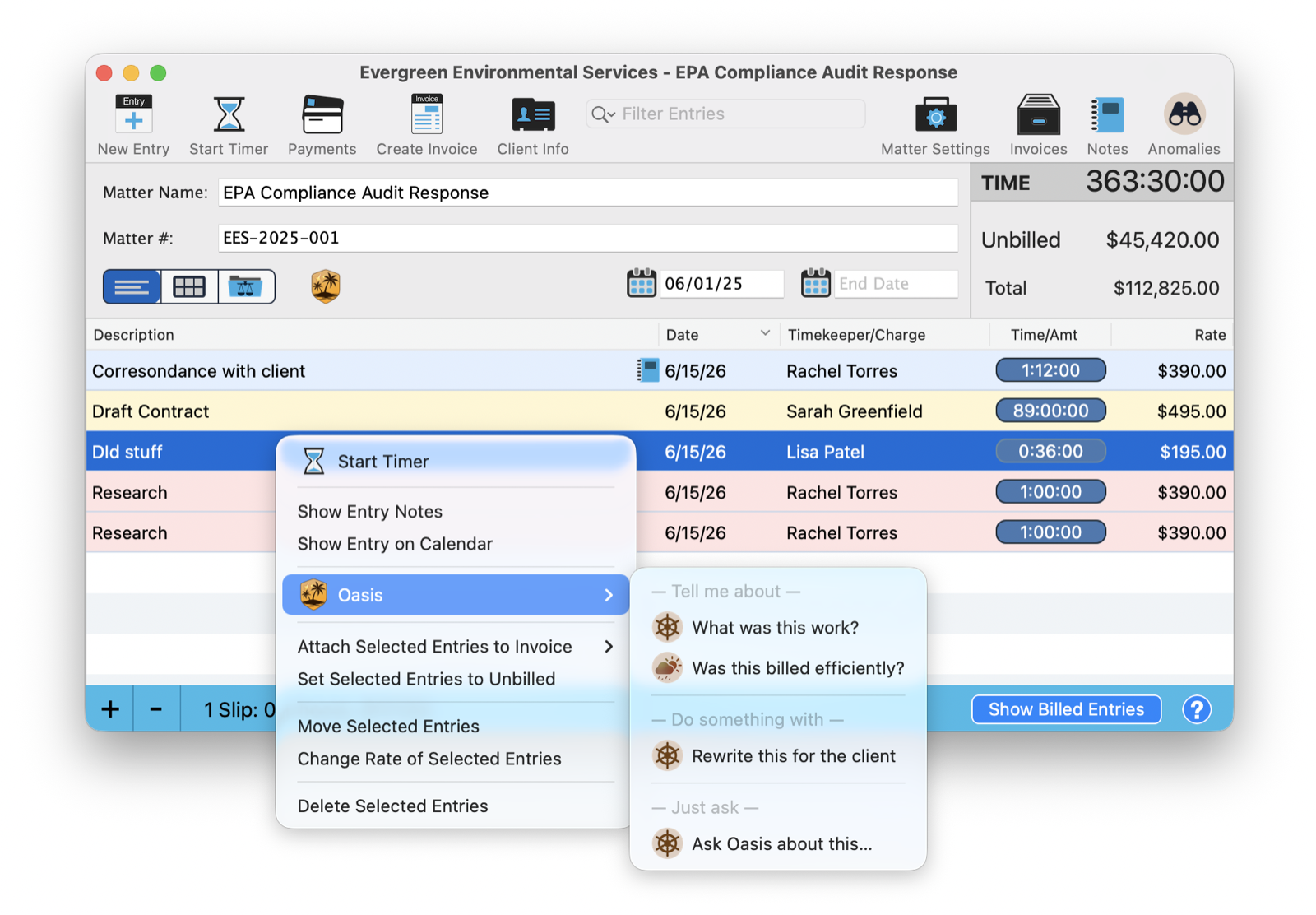
We call it The Flood, because Oasis is suddenly everywhere you work, the same intelligence from the main window, one right-click away, shaped to whatever you clicked. It has a full tutorial of its own, but the habit is simple: when something catches your eye, right-click it and ask.
Private and Offline
Here is what no cloud legal AI can say: your data never leaves your Mac. Not to be summarized, not to be processed, not to train a model you will never see. The entire Oasis crew runs locally through Ollama, on your own hardware, with no account and no connection required.
For a lawyer, that is not a nice-to-have. It is the line between using AI and breaching client confidentiality. The big firms get their AI by shipping client data to a vendor's servers. You get the same intelligence, and arguably better, on a Mac that can be unplugged from the internet entirely and still answer every question. Private. Offline. Yours.
Want proof? Turn off Wi-Fi and ask Oasis anything. It answers exactly the same, because there was never a server on the other end. The intelligence has been on your Mac the whole time.
Where to Start
Turn it on, open it up, and click What To Ask. Borrow a question, or just type the one already on your mind, like give me an honest opinion on how things look this week. Oasis will answer from your real numbers, and it will probably tell you something you did not know about your own firm.
That is the moment Oasis stops being a feature and starts being the reason you open the app. Go meet your crew.
Related Tutorials
New to Local AI? Just Ask Perry.
Oasis is a genuinely new idea, and new ideas deserve a real walkthrough. Call, email, or screen share and the person who built it will set you up and show you around personally.