Getting paid should be the easiest part of practicing law. For most firms it is the slowest: print the invoice, mail the invoice, wait for the check, drive the check to the bank. Slipstream replaces all of it with one email your client already gets and two buttons inside it. They click, they pay, and the payment walks itself into the right matter in TimeNet Law.
You do not need a merchant account, a gateway, or a weekend of configuration. Setup is one guided form, about ten minutes, once. And TimeNet Law never sees or stores a card number at any point. Payments are processed by Stripe, the same infrastructure behind Amazon, Shopify, and most of the modern internet.
What Slipstream Is
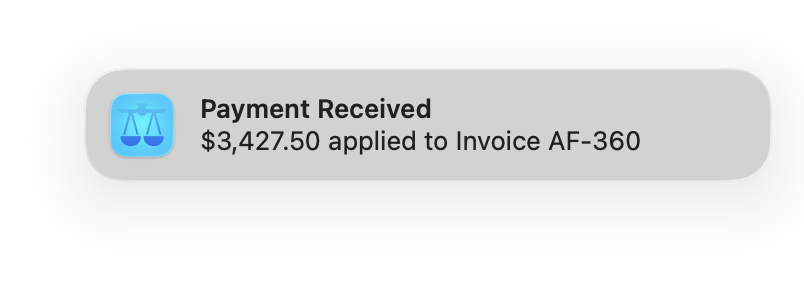
Slipstream is built into TimeNet Law 6.2. Turn it on and every invoice you email carries a Pay by Card and a Pay by eCheck button. Your client pays on a secure checkout page, by credit card, Apple Pay, or their bank account. The money lands in your firm's bank account. The payment lands on the invoice, in the matter, in your Payment Center, automatically, usually before you know it happened. In fact, the first you hear of it is usually a notification on your Mac telling you money arrived.
The name comes from the thing your billing already does. You bill in slips. Slipstream is what forms behind them: the money, following the work, with no drag.
The Fees, In Full
This is the entire fee schedule. There is no monthly fee, no setup fee, no statement fee, no "pass-through allocation," and nothing that changes at our reasonable discretion.
| Payment Method | Fee |
|---|---|
| Credit or debit card | 2.95% + $0.30 |
| Apple Pay | 2.95% + $0.30 |
| eCheck (bank transfer) | 1%, capped at $50 |
| Monthly | $0 |
Read the eCheck line again, because it is the one nobody else will print. Every other legal payments provider charges an uncapped percentage on eChecks. On a $25,000 settlement payment, an uncapped 1% costs your firm $250. Slipstream costs $50, because $50 is the most an eCheck will ever cost you, on any amount, period. We capped it on purpose, and the cap only ever moves down.
Steer large payments toward eCheck. A $10,000 retainer costs your firm $295 by card and $50 by eCheck. The invoice email already nudges clients the same direction, with a note that eCheck carries the lowest processing fee.
Setting Up (One Time, Ten Minutes)
Open Settings → Billing and click Accept Online Payments. You will find the same button in the Billing Center, the Payment Center, and Invoice Architect settings. They all open the same Slipstream panel.
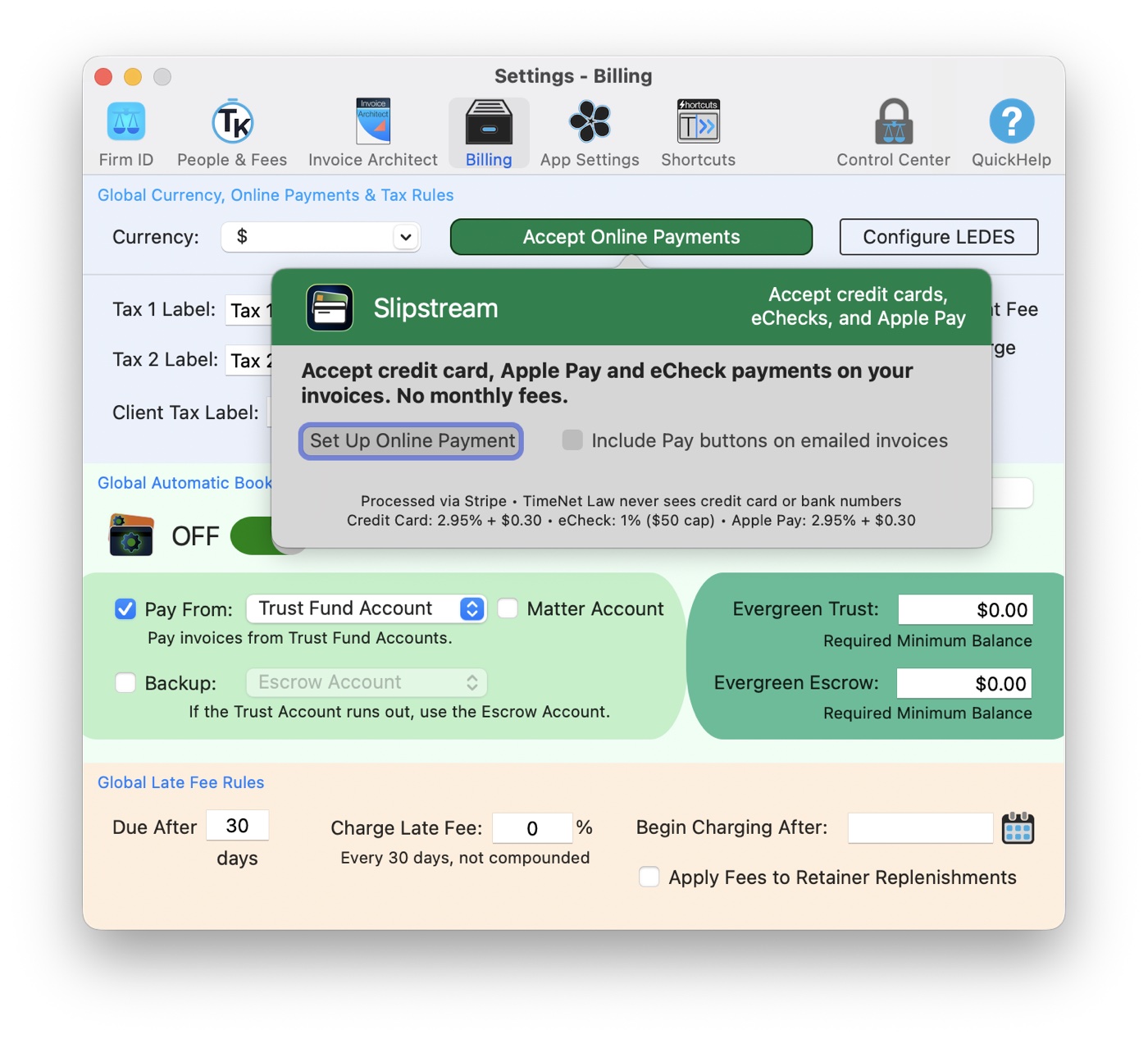
Click Set Up Online Payments and your browser opens a secure, guided form hosted by Stripe. It asks who your firm is, who you are, and where your money should go. Have three things at hand before you start:
The form takes most people under ten minutes. A few moments in it deserve a heads-up, because they are the ones that generate support email:
Partway through, Stripe asks you to create an email and password sign-in. This is not a throwaway. It is the login to your firm's Stripe Dashboard, the place where refunds, payout reports, and bank statements live. Put it in your password manager the moment you create it.
Stripe may offer optional extras during setup, such as Stripe Tax, sales tax monitoring built for retailers. You can decline every optional offer. TimeNet Law needs none of them, and legal services are not subject to sales tax in the overwhelming majority of states. When in doubt, "Not right now" is the right answer.
One field asks for a statement descriptor. That is the text that appears on your client's card statement next to the charge. Use your firm's name as clients know it. A descriptor they do not recognize is how disputes start.
After you submit, the browser shows a brief confirmation and its job is done. TimeNet Law is the source of truth from there: the Slipstream panel watches your application and flips to Online payments are active on its own, usually within a minute or two. If you get interrupted mid-form, nothing is lost. Click Set Up Online Payments again and Stripe resumes where you left off. Each setup link works exactly once, so always launch it fresh from TimeNet Law.
Pay Buttons on Emailed Invoices
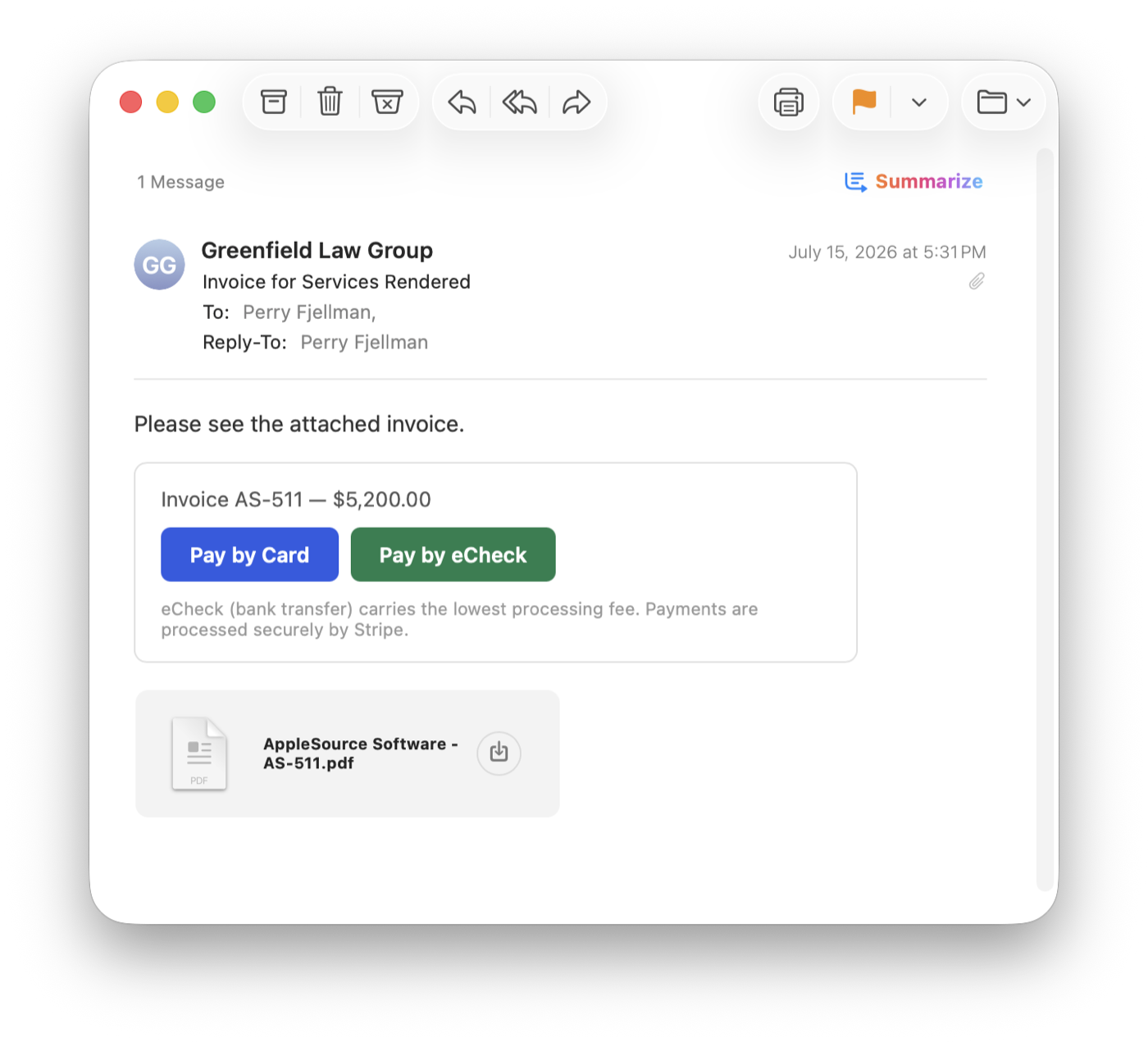
When the panel shows active, check Include Pay buttons on emailed invoices. That is the whole rollout. From the next invoice you email, every message carries a Pay by Card and a Pay by eCheck button for that exact invoice and its exact balance, alongside the PDF your clients already expect. If an email carries several invoices, each invoice gets its own buttons.
What Your Client Sees
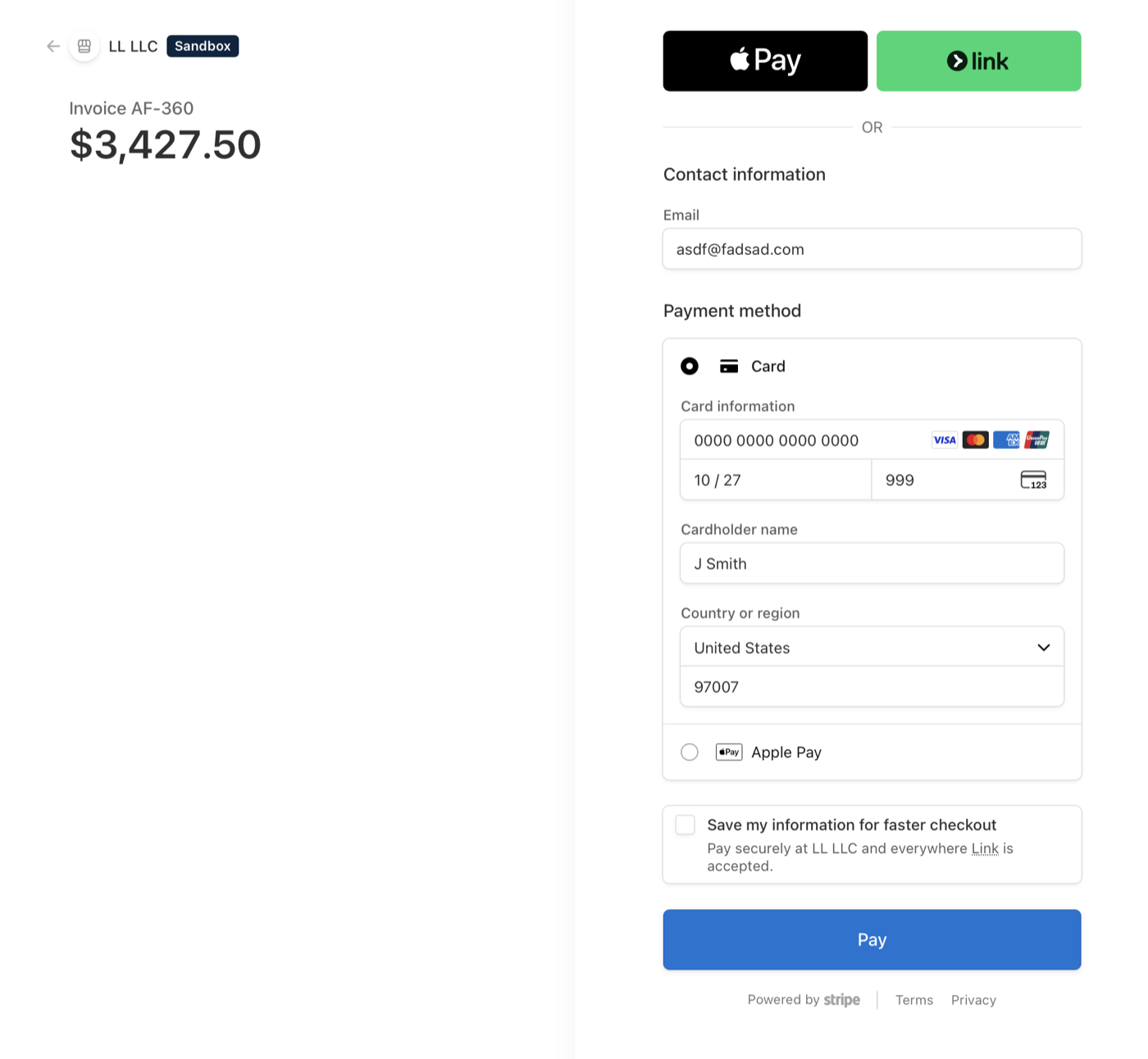
Your client clicks a button and lands on a clean, secure checkout page showing your firm's name, the invoice number, and the amount. Card payments take a card number or a double-click with Apple Pay. eCheck payments connect to their bank in a few clicks, no routing numbers hunted off a paper check. They pay, they get a receipt by email, done. No account to create, no portal to remember, no password for them, ever.
Payments Post Themselves
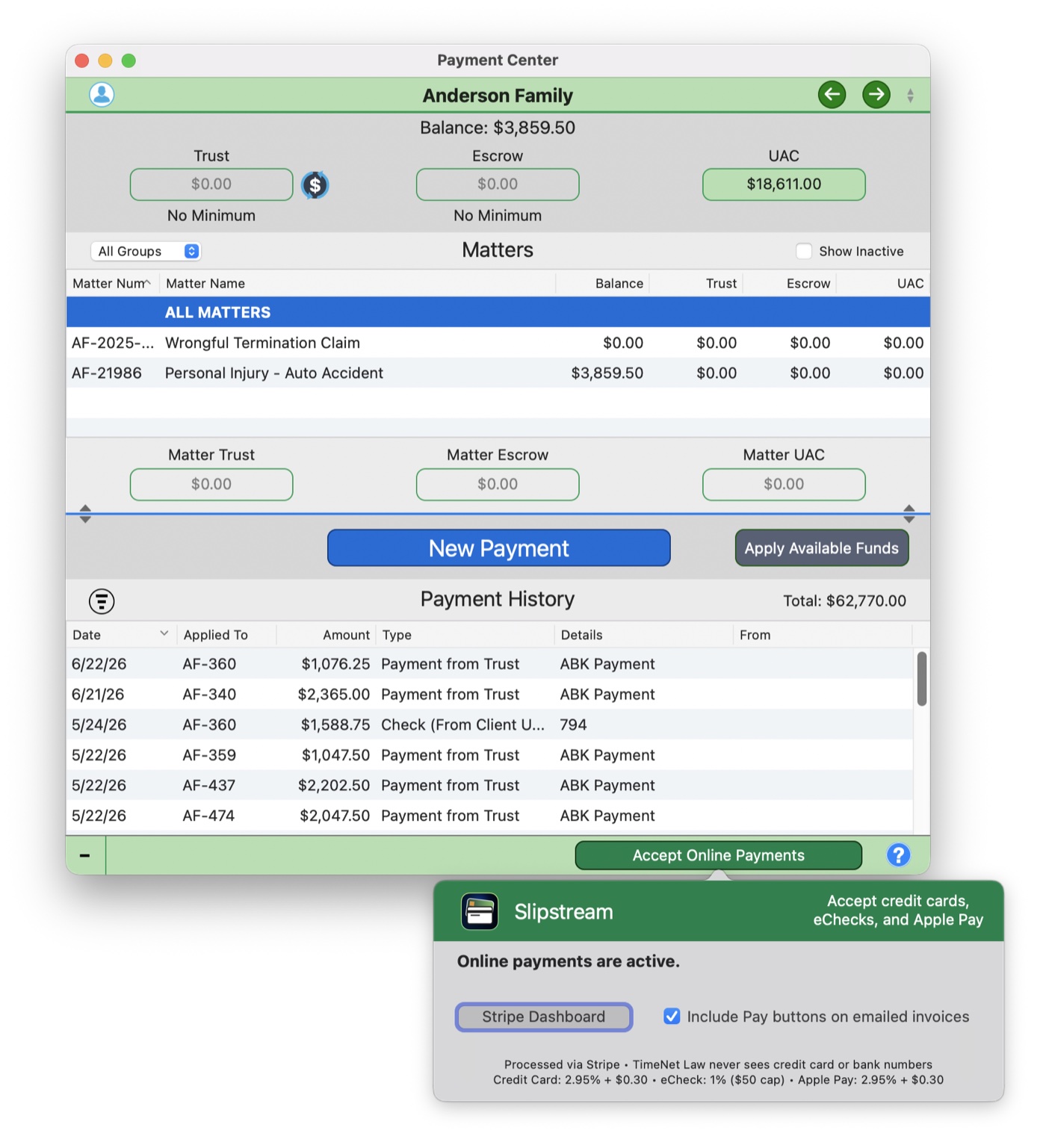
This is the part that saves the most time, and it is the part you never touch. TimeNet Law checks for new payments in the background. When one arrives, it posts to the right invoice on the right matter, the invoice balance updates, and a notification tells you what happened. No re-keying, no matching deposits to invoices at the end of the month, no wondering which client the wire was from.
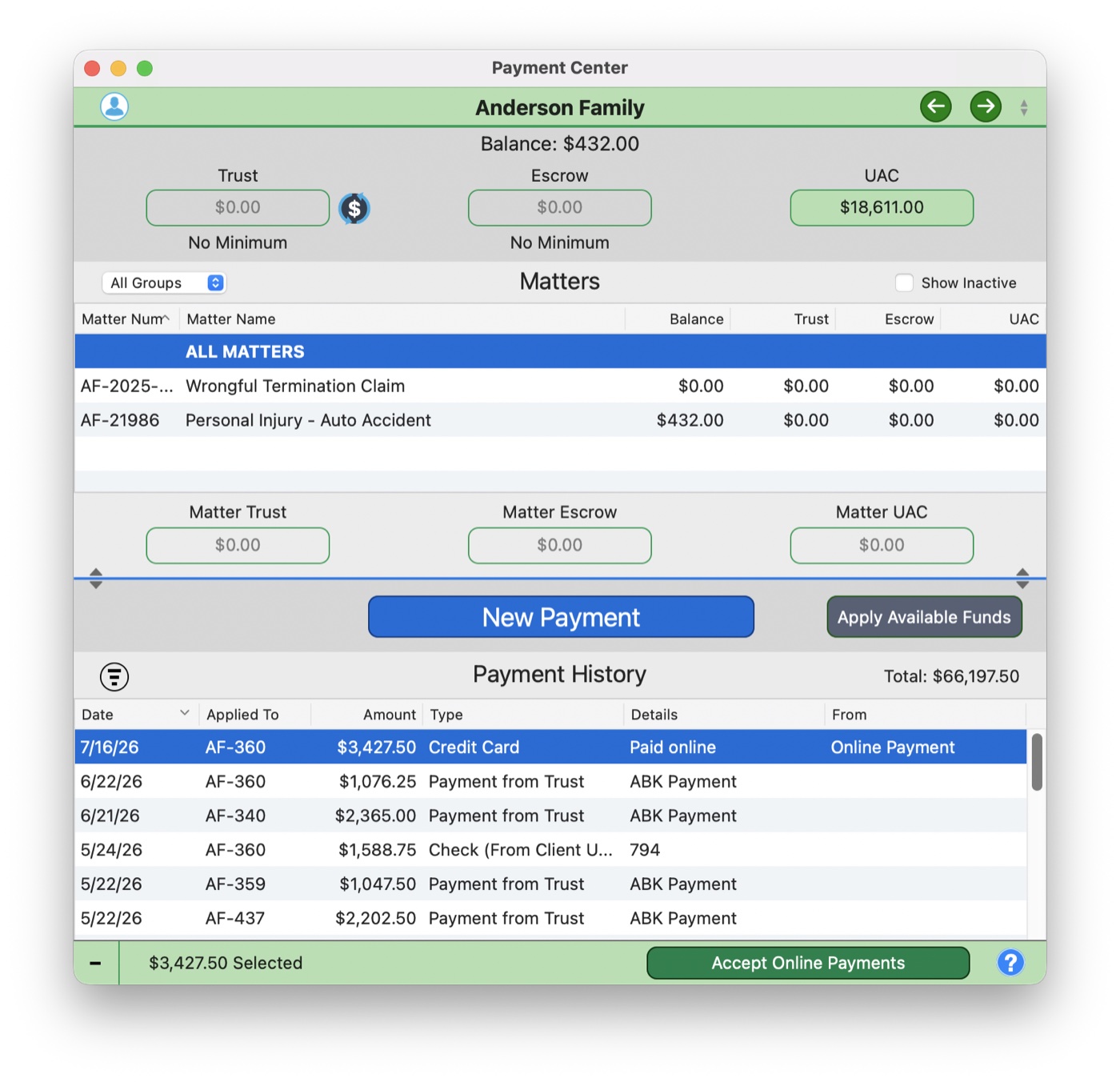
Card payments confirm in seconds. eChecks move on banking time: the payment your client sends today typically clears in one to three business days, and TimeNet Law posts it the moment it settles, not before. If a client says "I paid Tuesday" and the ledger says nothing yet, the answer is almost always "it is an eCheck, and it is Wednesday."
Copy Payment Link
Sometimes the invoice email is not the moment. A client calls and wants to pay right now. Opposing counsel finally cuts the check, except they want to pay by card. For all of it, right-click any invoice, in the matter window, the Billing Center, or Client Info, and choose Copy Card Payment Link or Copy eCheck Payment Link. The link for that invoice and its current balance is on your clipboard, ready to paste into an email, a text, anywhere.
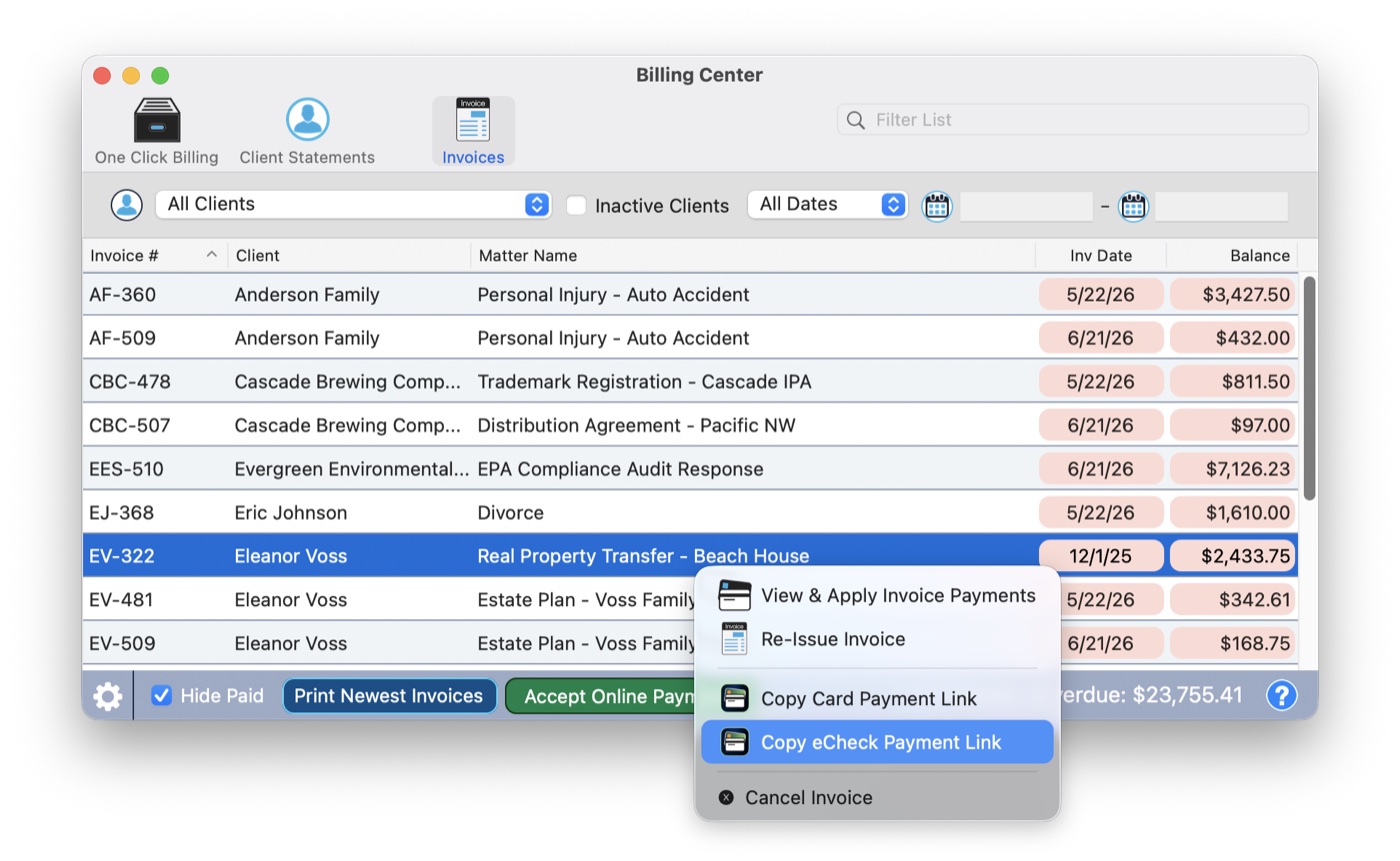
Client on the line with a card in hand? Copy the card payment link, open it in your own browser, and key in the card as they read it to you. Same secure page, same automatic posting, and the card number still never touches TimeNet Law or your files.
Payouts, Refunds, and Your Stripe Dashboard
Money your clients pay is deposited to your firm's bank account automatically, typically about two business days after each payment. You do not need to do anything to make that happen.
For everything past the day-to-day, the Slipstream panel has a Stripe Dashboard button. Sign in with the email and password you created during setup, and you will find payout schedules, monthly statements for your bookkeeper, and refunds. To refund a payment, find it in the Dashboard, click Refund, and the money returns to your client's card or bank. That covers the rare cases too: if a client ever double-pays an invoice, or pays an invoice you have since reissued, the fix is a thirty-second refund from the Dashboard.
Questions Lawyers Actually Ask
Is my clients' card data safe?
Safer than paper. Card numbers are entered on Stripe's secure checkout, encrypted in transit, and never touch TimeNet Law, your Mac, or your files. Your firm never stores a card number, which means your firm can never leak one.
Where does the money go?
To the operating bank account you named during setup, automatically, about two business days after each payment. Retainer and trust workflows in TimeNet Law continue to work exactly as they always have.
Does my client need an account?
No. They click, they pay, they get a receipt. Nothing to sign up for.
What if a client overpays or pays a stale invoice?
Refund it from the Stripe Dashboard in about thirty seconds. One thing to know: a payment link is pinned to the invoice as it stood when the link was created. If you reissue or cancel an invoice after emailing it, links in the old email still reference the old invoice, so reissue and re-send, and refund anything paid against the old one.
What does it cost me monthly?
Nothing. The fee schedule above is complete. If you process zero payments in a month, you pay zero.
Can I turn it off?
Any time. Uncheck the pay-buttons box and invoices email exactly as they did before. Your Stripe account simply sits idle, costing nothing.
Slipstream took years of "does TimeNet Law do payments?" and answered it the way we answer everything: locally, fairly, and without a subscription attached. Set it up once, and the next invoice you send knows how to get itself paid.