What Import Database Does
It takes a CSV export from your old system and creates the two things everything else in TimeNet Law hangs off: your clients and their matters. Names, addresses, email, phone, matter names, and your existing matter numbers all come across.
Clio is recognized on sight. Drop a Clio export in and every field maps itself. Anything else that can produce a CSV can be mapped by hand in about a minute.
Nothing is written until you say so
Import Database is a two-stage tool. Everything up to the Import button is a preview: it reads your files, works out exactly what it would create, and tells you in plain numbers. Only when you click Import does anything touch your data, and a backup runs first.
Getting Your Export Out of Clio
You need two files, and Clio will give you both:
Step by Step
- In Clio, go to Settings, then Account, then Export.
- Request an export of your Contacts and your Matters.
- Clio emails you a download link. Unzip it and find the two CSV files.
- Keep them somewhere easy to reach, like your Desktop.
The matters file is the one that matters most. The contacts file is optional, but with it you get real addresses, email, and phone numbers instead of just names.
Opening Import Database
In TimeNet Law, choose File, then Import Database. You will see two panels waiting for files.
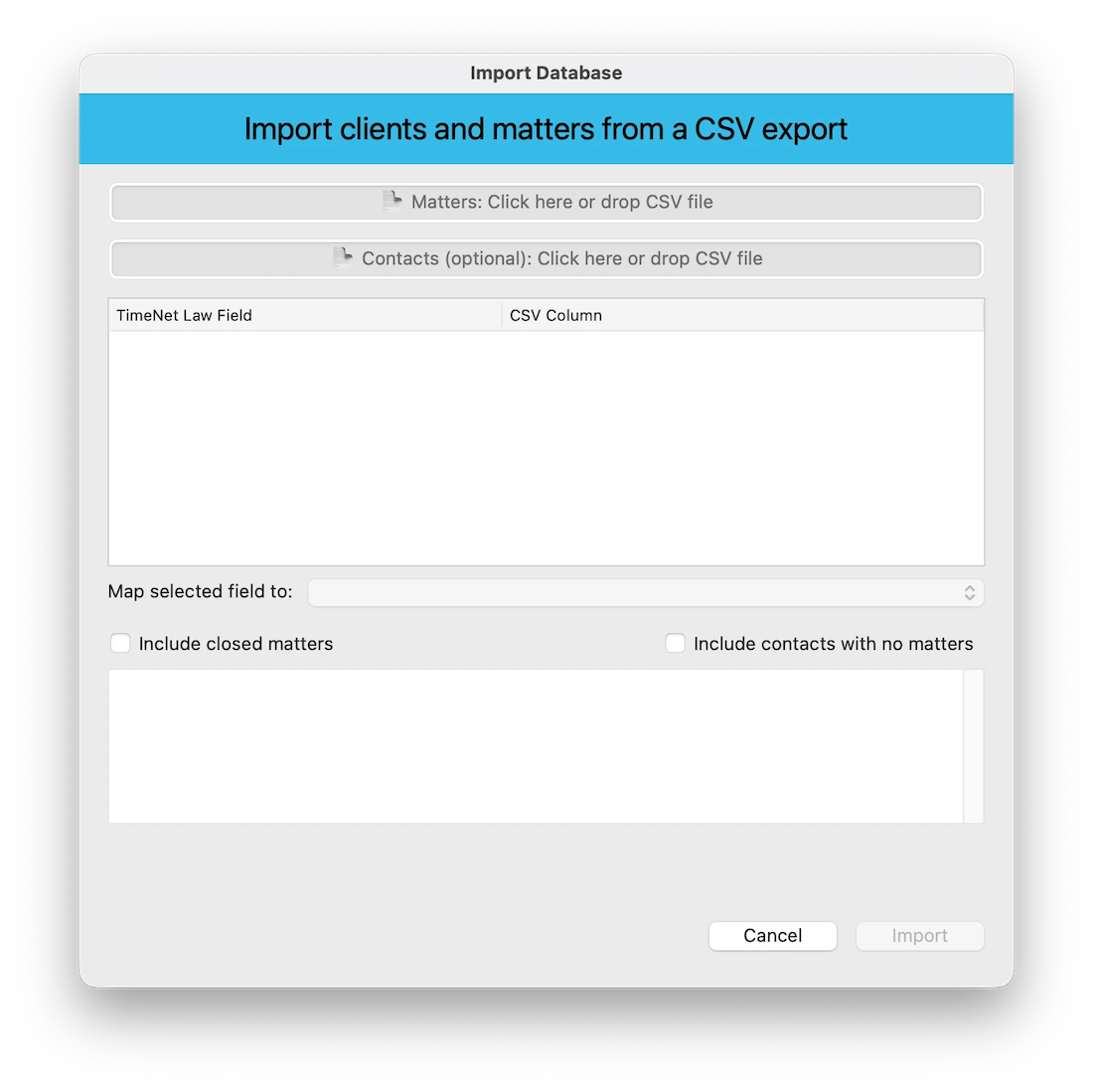
Drag your CSV files straight onto the panels, or click a panel to browse for one. The matters file goes on top. Contacts go below it.
Checking the Mapping
The moment both files land, TimeNet Law reads them and tells you what it found.
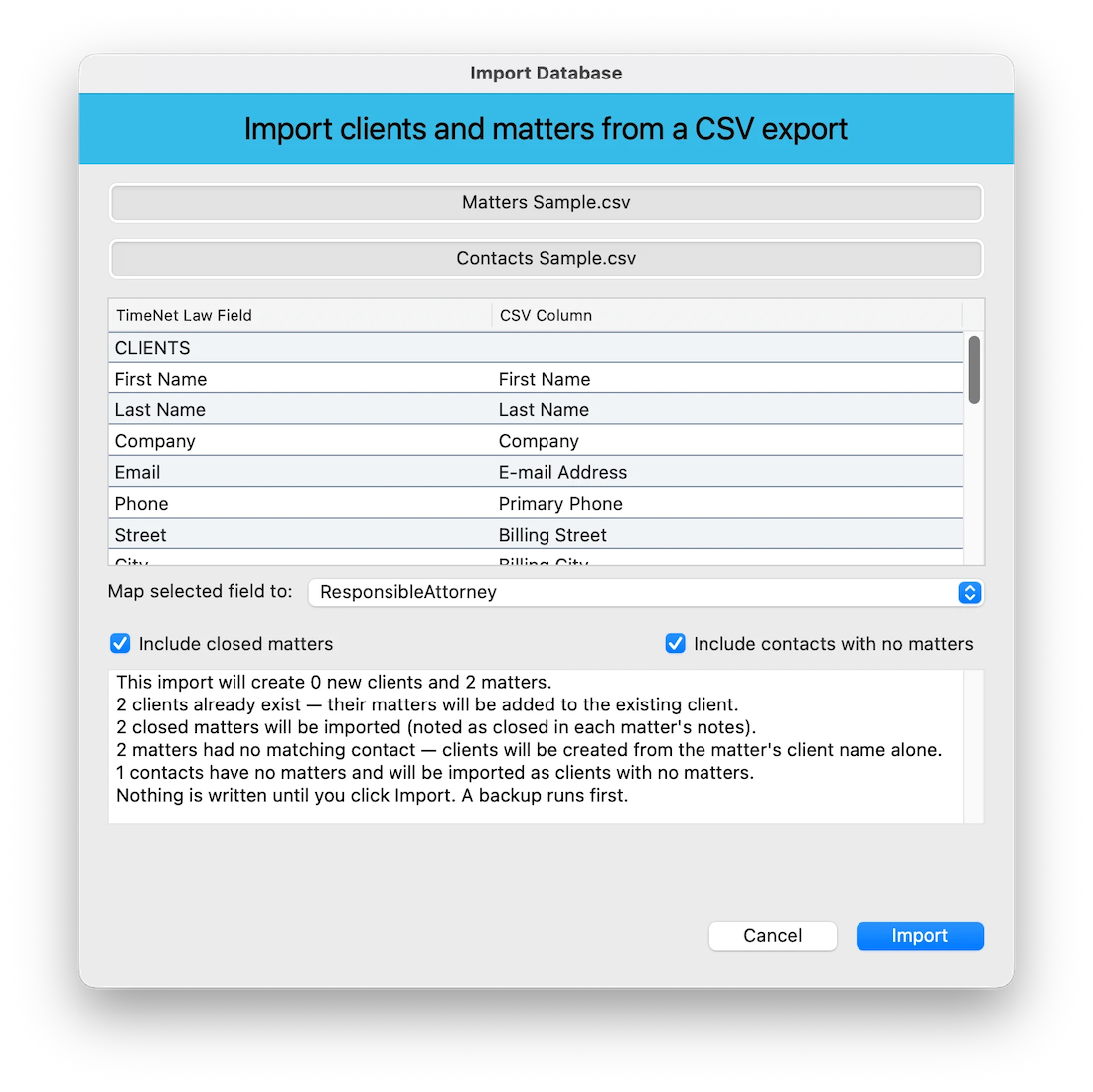
The table pairs each TimeNet Law field with the CSV column feeding it. For a Clio export this is already correct and you can move straight on. To change one, select the row and pick a different column from Map selected field to.
The Two Switches
Two checkboxes decide how much of your old system comes with you.
Include closed matters
Off by default. Most firms moving billing systems want the live work, not fifteen years of finished files. Turn it on and closed matters come across too, each one noted as closed in its own matter notes so you can tell them apart later.
Include contacts with no matters
Also off by default, and this one is worth understanding. A contacts export is your whole address book: opposing counsel, court clerks, expert witnesses, process servers, the vendor who fixed the copier. Importing all of it would bury your actual clients. Left off, only contacts attached to a matter become clients. Turn it on when the address book itself is worth having.
Reading the Preview
The box at the bottom is the whole point of the tool. It is written in counts, not jargon:
- How many clients and matters will be created
- How many clients already exist, whose matters will be added to the client you already have rather than duplicating it
- How many closed matters are being imported or skipped
- How many matters had no matching contact, so the client is built from the matter's client name alone
- How many contacts have no matters
Change either checkbox and the numbers update immediately. When it says what you want it to say, click Import. You get one confirmation showing the same summary, then TimeNet Law backs up your database and does the work.
After the Import
Your clients appear in the client list right away, matters nested underneath, ready to bill. A few things worth knowing:
- Your matter numbers survive. Whatever the matter was called in your old system, it keeps that number here.
- Every imported matter carries a note recording where it came from, its practice area, responsible attorney, and open date. It is searchable, and it is the receipt if you ever need to reconcile against the old system.
- Run it again safely. A client that already exists is reused, not duplicated, so a second pass over a bigger export adds what is new without making a mess of what is there.
On a demonstration license
The demo allows three matters per client. A larger import creates what it can and tells you plainly how many it held back. Activate your license and re-run the import to bring the rest across.
Coming From Something Other Than Clio
Any system that exports a CSV will work. TimeNet Law will not recognize the format, so the mapping table starts mostly empty and you fill it in: select a TimeNet Law field, choose the column that feeds it, and repeat. You need very little to get a useful import. A client name and a matter name are enough. Everything else is a bonus.
Only bringing time entries? That is a different tool. Drag a CSV onto an open matter, or choose File then Import Entries, and you get a review screen built for time.
What Does Not Come Over
Import Database moves clients and matters. It does not move time entries, invoices, payments, or trust balances, and this is deliberate rather than unfinished. Financial history is the part you cannot afford to have quietly mistranslated by a field-mapping guess, so the safe move is to close out your old system's billing and start clean here, carrying opening balances across as you would for any new matter.
If you are sitting on a large amount of unbilled work in progress, get in touch before you migrate. We would rather talk it through with you than have you find out afterward.
Twenty three years of watching firms move billing systems taught us the same lesson every time: the fear is never the software, it is the data. So Import Database shows you its work first, backs you up second, and writes third. Export from Clio, drop two files, read the numbers, click once.