Expenses are the costs you incur on behalf of a client: filing fees, court reporters, expert witnesses, travel, and more. TimeNet Law tracks each one with its own entry window so nothing falls through the cracks.
The Expense Window
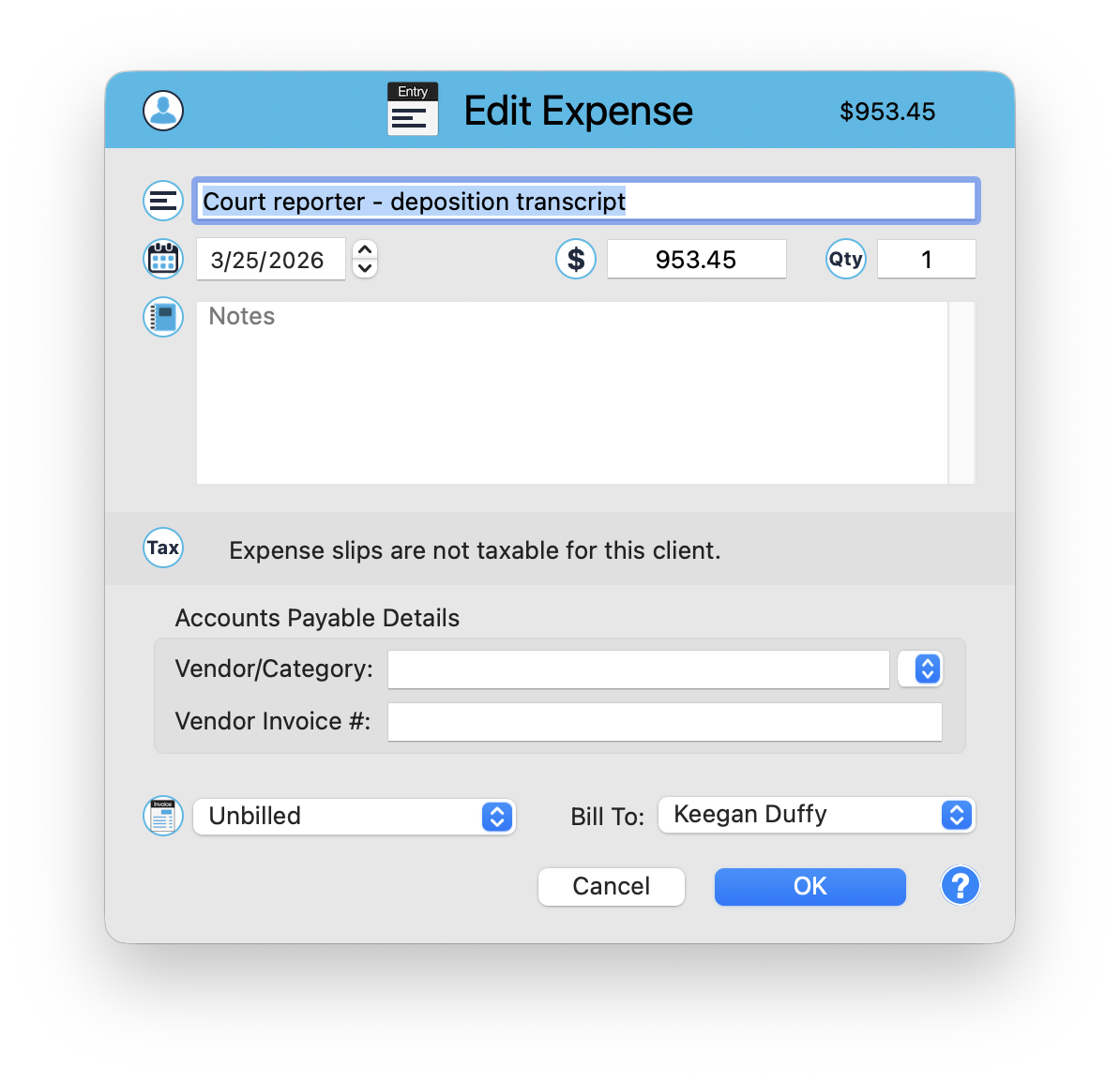
The Edit Expense window has a light blue header showing "Edit Expense" and the total amount. Every expense you record goes through this window.
Core Fields
- Description - What the expense is for (e.g., "Court reporter - deposition transcript")
- Date - When the expense was incurred
- Amount ($) - The dollar amount of the expense
- Quantity - Number of units (defaults to 1). Useful when billing for copies, pages, or multiple items.
Notes
A separate text area for additional details, internal notes, or context that does not appear on the invoice description line.
Tax Notice
A notice appears indicating the tax status for this client's expenses, for example: "Expense slips are not taxable for this client." Tax rules are configured at the client level, not per-expense. See Tax Rules and Late Fees for details.
Accounts Payable Details
The Accounts Payable Details section helps you track where the money went:
- Vendor/Category dropdown - Select or create the vendor you paid (e.g., the court, a process server, a copy service). This feeds into your accounts payable tracking.
- Vendor Invoice # - The reference number from the vendor's invoice, so you can match payments to receipts.
Billing Controls
- Status dropdown - Shows whether this expense is Unbilled or Billed
- Bill To dropdown - Choose which client or party to bill this expense to. This is especially useful when split billing is active and different expenses go to different parties.
Record expenses the day you incur them. Waiting until billing time means receipts pile up and details get fuzzy. A quick expense entry takes 15 seconds and saves headaches later.
Flat Fees
Flat fees are entered through their own window, similar to expenses but without the Accounts Payable section. The Edit Flat Fee window includes Description, Date, Amount, Quantity, Notes, and a status dropdown.
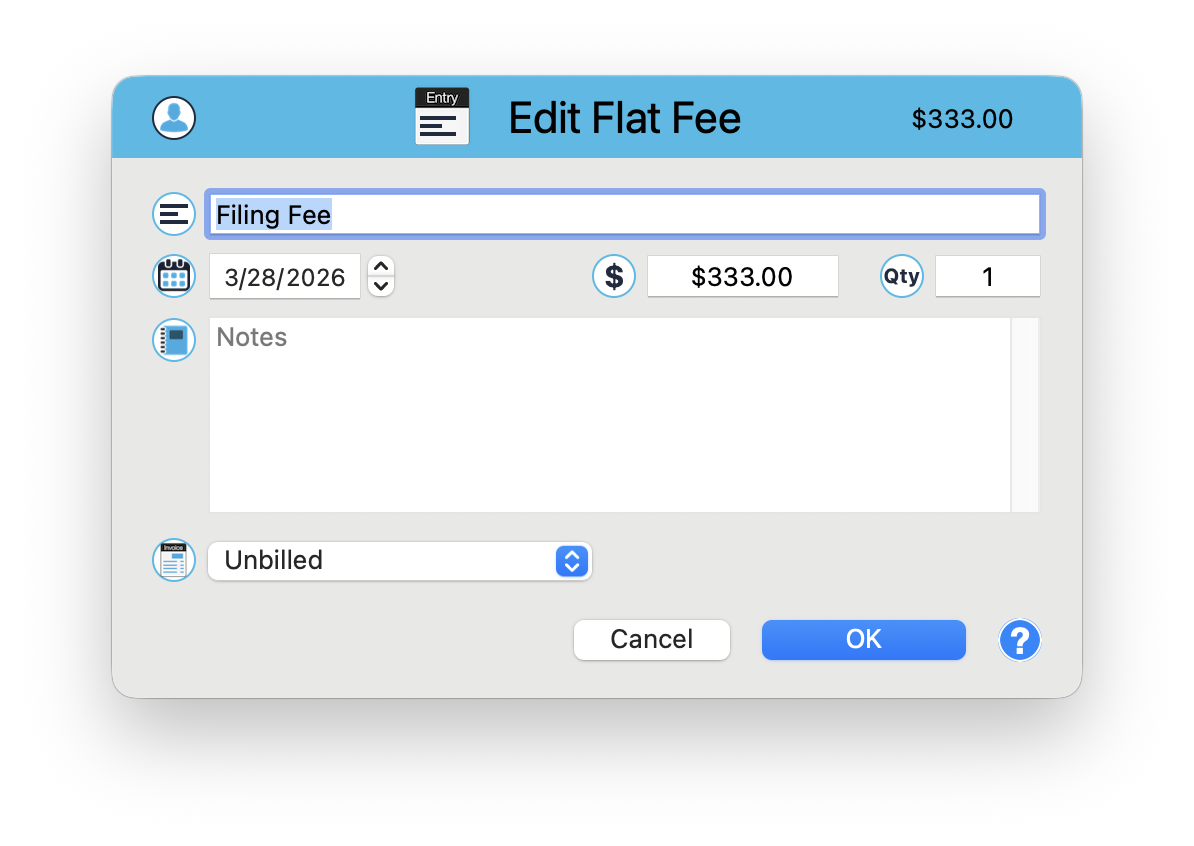
Use flat fees for fixed charges like filing fees, document preparation fees, or any predetermined amount that does not depend on time spent.
Creating an Expense
Open the Matter Window
Navigate to the matter where you want to record the expense.
Click New Entry
Click "New Entry" in the toolbar and select Expense (or use Quick Capture with the $ prefix).
Fill In the Details
Enter the description, amount, and date. Add vendor information if you want to track accounts payable. Choose the Bill To party if using split billing.
Click OK
The expense appears in the matter's entry list and will be included on the next invoice.
Every Dollar Accounted For
Expenses are a significant part of many legal bills. Recording them accurately, with vendor details and proper billing assignment, ensures your invoices are complete and your accounts payable stays organized.
Keep exploring:
- Discounts, Markdowns, and Write-Offs - adjust billing amounts when needed
- Split Billing - direct expenses to the right party
- Tax Rules and Late Fees - configure tax settings and overdue charges
Expense Tracking Questions? Perry Can Help.
Perry can show you the fastest way to set up expense categories and workflows for your practice.