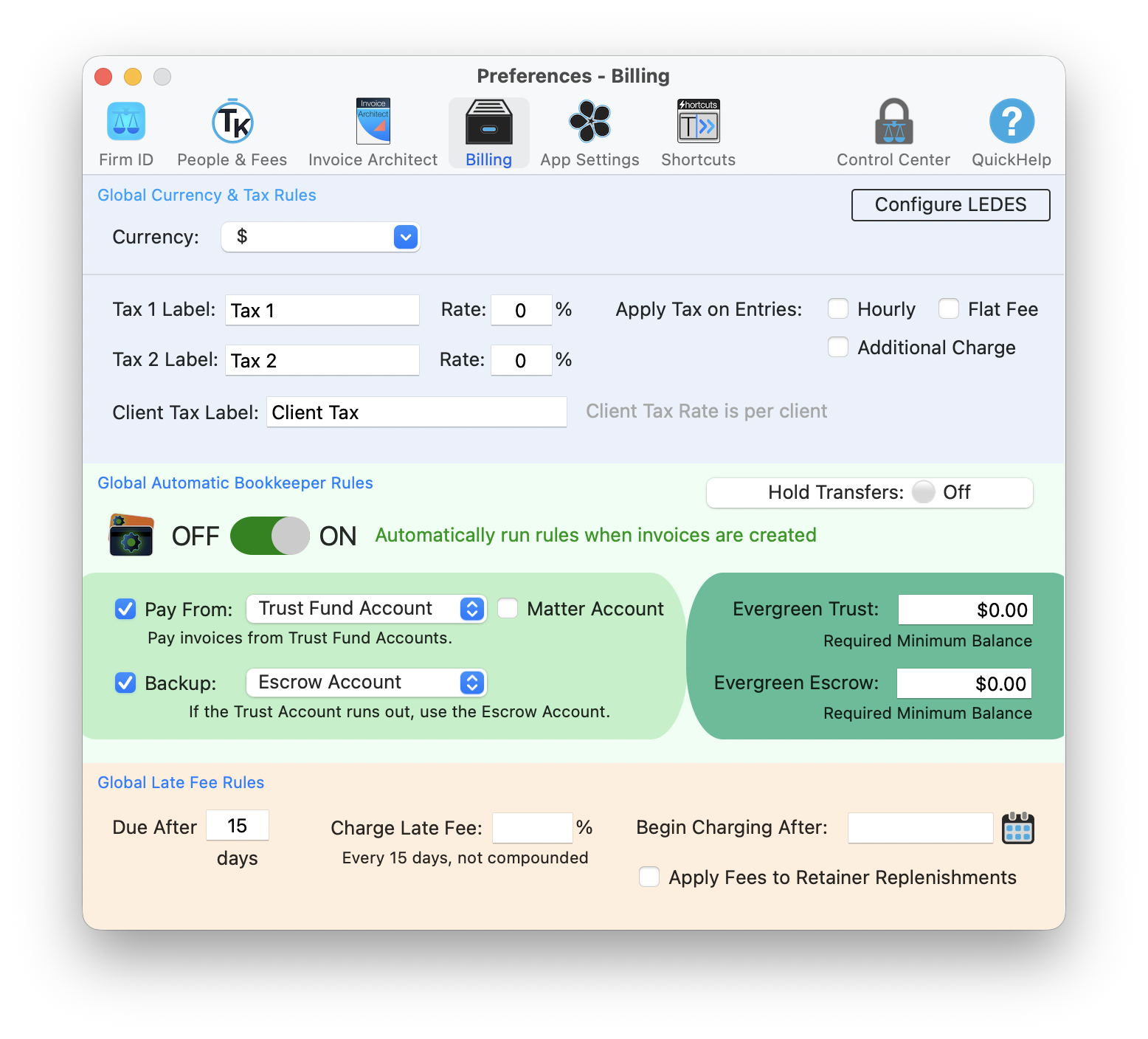
The Billing tab in Preferences with currency and tax rules, automatic bookkeeper rules, and late fee configuration
Taxes and late fees are two areas where manual calculation is a recipe for errors. Get the tax rate wrong, and you are out of compliance. Forget to apply a late fee, and clients learn they can pay whenever they want. TimeNet Law automates both, so you stay accurate and consistent.
Both tax rules and late fee policies are configured at the firm level and can be overridden for specific clients or matters when needed.
Configuring Tax Rules
Tax requirements for legal services vary by jurisdiction. Some states charge sales tax on legal fees. Canada requires GST/HST. Some European jurisdictions require VAT. TimeNet Law handles all of these.
Open Billing Settings
Open Preferences and go to the Billing tab. Tax rules are configured here as defaults that apply to all invoices.
Add a Tax Rule
Create a new tax rule with a name (e.g., "State Sales Tax" or "GST"), the tax rate (e.g., 7.5% or 5%), and a description.
Define What Gets Taxed
Choose which invoice items the tax applies to: fees only, expenses only, or both. Some jurisdictions tax legal fees but not disbursements. Configure it to match your local rules.
Save
Save the rule. Going forward, every invoice generated will automatically include the tax calculation as a line item.
Multiple Tax Rules
Some jurisdictions require multiple taxes (e.g., federal GST plus provincial PST in Canada). You can create multiple tax rules and they will all be applied to invoices. Each appears as a separate line item for transparency.
Check with your accountant about whether legal services are taxable in your jurisdiction. The rules vary widely. Some states tax legal services, others do not. Getting this right from the start saves headaches at tax time.
Per-Client and Per-Matter Overrides
Not every client or matter follows the same tax rules. TimeNet Law lets you override the firm-level defaults when needed.
- Tax-exempt clients - Government agencies and nonprofits may be exempt. Override the tax rule to exempt their invoices.
- Out-of-state clients - If the client is in a jurisdiction where you do not need to collect sales tax, override accordingly.
- Different tax rates - Some matters involve work in different jurisdictions with different tax rates. Set the correct rate at the matter level.
Setting Up Late Fee Policies
Late fee policies encourage prompt payment and compensate you for the cost of carrying unpaid balances. Configure them once, and TimeNet Law applies them automatically to overdue invoices.
Open Billing Settings
Navigate to the late fee configuration in your firm-level billing settings.
Choose Your Late Fee Structure
Select how late fees are calculated:
- Percentage-based interest - A monthly or annual interest rate applied to the overdue balance (e.g., 1.5% per month)
- Flat fee - A fixed dollar amount charged for each overdue period (e.g., $25 per month)
- Combined - Both a flat fee and percentage interest
Set the Grace Period
Define how many days after the due date before late fees kick in. A common grace period is 30 days. Some firms use 15 or even 0 days.
Save and Activate
Save your late fee policy. TimeNet Law will automatically calculate and apply late fees to overdue invoices based on your settings.
Include your late fee policy in your engagement letter and on your invoices. Clients should know the terms upfront. A clearly communicated late fee policy is more effective at encouraging prompt payment than a surprise charge months later.
Per-Client Late Fee Overrides
Just like tax rules, late fee policies can be overridden for specific clients or matters.
- Waive late fees - For long-standing clients or special circumstances, disable late fees on their account
- Different rates - Some clients may have negotiated different late fee terms in their engagement letter
- Extended grace periods - Government clients often have longer payment cycles. Give them a longer grace period to avoid unnecessary late fees.
How Taxes and Late Fees Appear on Invoices
Both taxes and late fees appear as clearly labeled line items on your invoices:
- Taxes - Shown after the subtotal with the tax name and rate (e.g., "State Sales Tax (7.5%): $240.00")
- Late fees - Shown as a separate charge with a clear description (e.g., "Late Fee - 1.5% on overdue balance: $45.00")
- Invoice total - Includes all taxes and applicable late fees for a single, clear amount due
Legal Considerations
A few things to keep in mind when setting up taxes and late fees:
- Usury laws - Some jurisdictions cap the interest rate you can charge on late payments. Make sure your late fee rate complies with local law.
- Disclosure requirements - Late fee policies often must be disclosed to clients in advance (usually in the engagement letter) to be enforceable.
- Tax registration - If you are collecting sales tax, GST, or VAT, you may need to be registered with the appropriate tax authority.
- Exemptions - Know which clients and services are exempt from tax in your jurisdiction.
The existence of a late fee policy often matters more than enforcing it. Many firms find that simply having late fees in their engagement letter and on their invoices is enough to encourage timely payment. You can always waive the fee for a good client who has a one-time delay.
Compliance on Autopilot
Tax rules and late fee policies are "configure once, benefit forever" features. Set them up correctly, and every invoice going forward is compliant and consistent. No more manual calculations, no more forgotten late fees, no more tax errors.
Keep exploring:
- Discounts and Write-Offs - other billing adjustments that work alongside taxes and late fees
- Trust Accounting - manage client trust funds and retainer applications
- Invoice Architect - customize how taxes and late fees appear on your invoices
Need Help with Tax Setup? Perry Can Help.
Perry can walk you through configuring tax rules and late fee policies for your specific jurisdiction and practice.