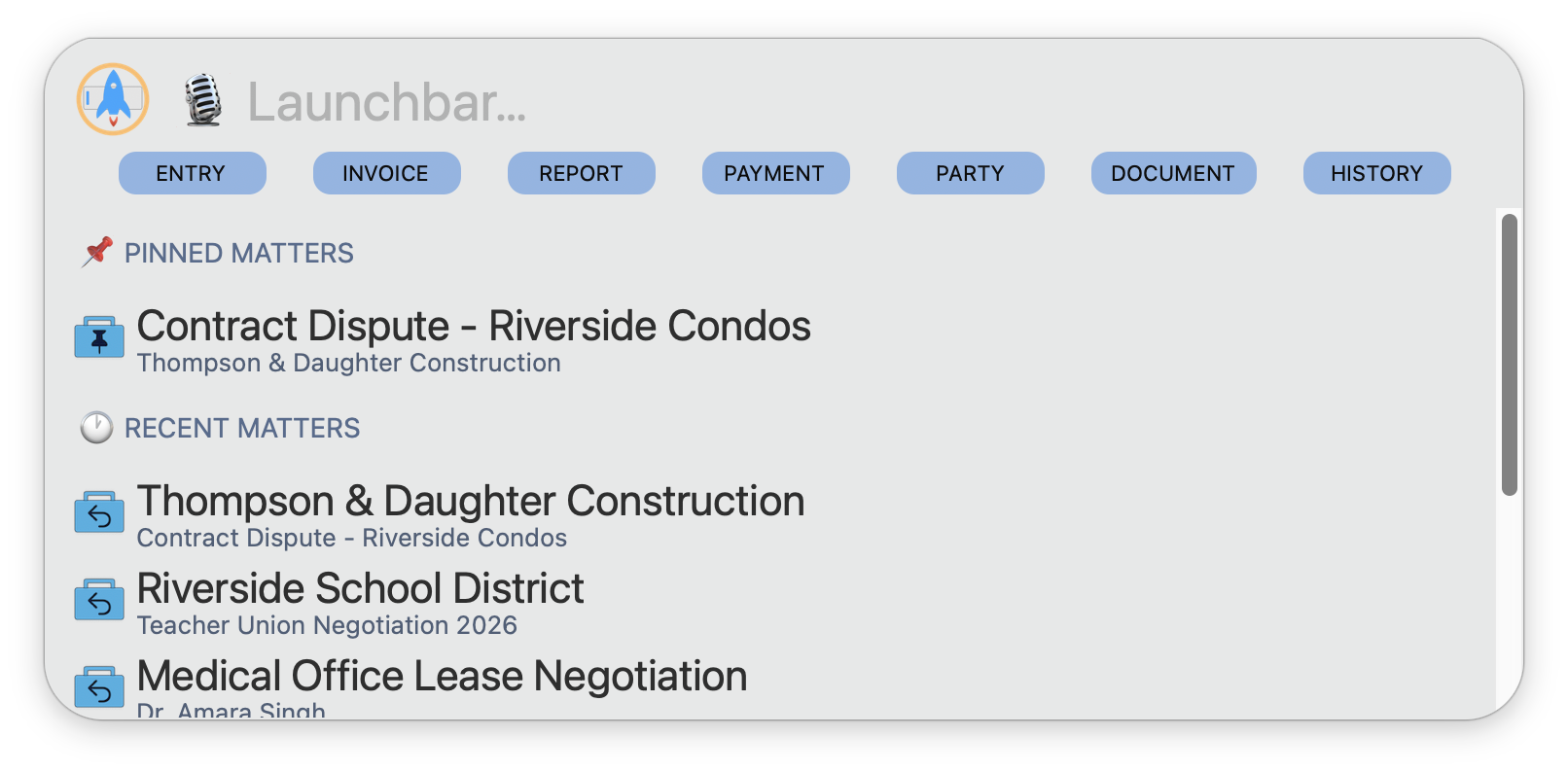
Hit a customizable global keyboard shortcut and Launchbar appears. Start typing. SmartSearch finds clients, matters, contacts, and commands instantly. Hit Enter. Done. Think of it as Spotlight for your law firm.
Every action in TimeNet Law is reachable from the Launchbar. Search for a matter, open a client, log time, create an invoice, run a report — all from the same search field. And with the natural language command system, you can type exactly what you want to do in plain English.
Getting Started
There are three ways to summon the Launchbar:
Global Keyboard Shortcut
The fastest way. Just press ⌥ Option + Space.
Customize the keyboard shortcut in Preferences → App Settings. Set it to whatever feels natural and summon Launchbar from anywhere in the app.
Click in the Toolbar
Launchbar lives at the right side of your toolbar, next to the search options. It's just one click away.
View Menu
Choose View → Show Launchbar from the menu bar.
SmartSearch
The search field at the top of the Launchbar is where everything starts. Type to find anything in your system:
- Clients and matters — by name, partial match, or fuzzy match
- Contacts and parties — find any person in your system
- Commands — type commands directly (covered in the Voice Commands section below)
Frecency Ranking
SmartSearch uses frecency (frequency + recency) to rank results. The more you access something, the higher it ranks. Your most-used matters naturally float to the top over time. A matter you billed yesterday outranks one you haven't touched in six months, even if the older one is a closer name match.
Fuzzy Matching
You don't need to type exact names. "Smth" finds "Smith". "Robn" finds "Robinson". Typos don't slow you down. The fuzzy matching algorithm tolerates missing letters, transpositions, and phonetic similarities so you can find what you need at typing speed.
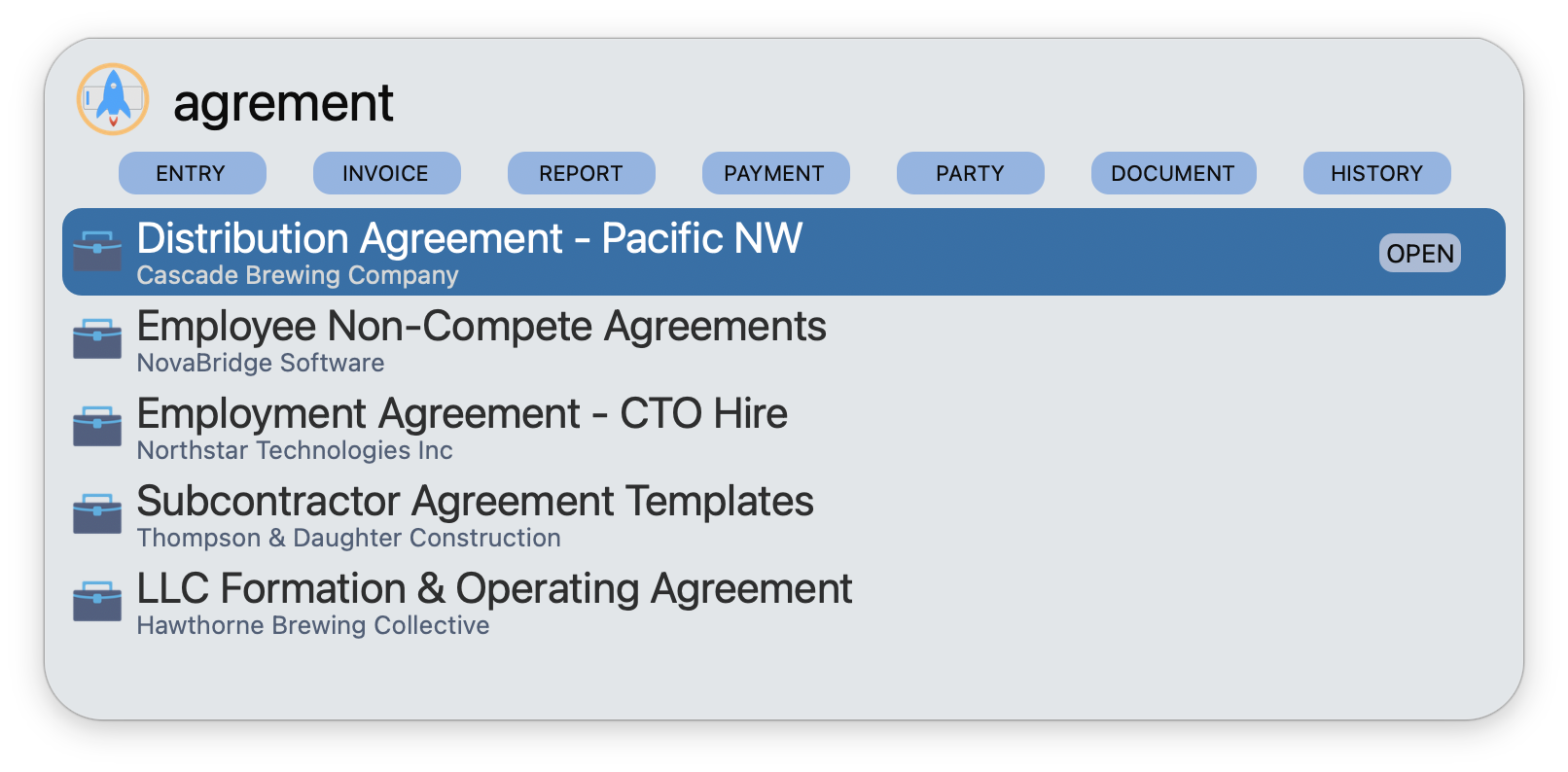
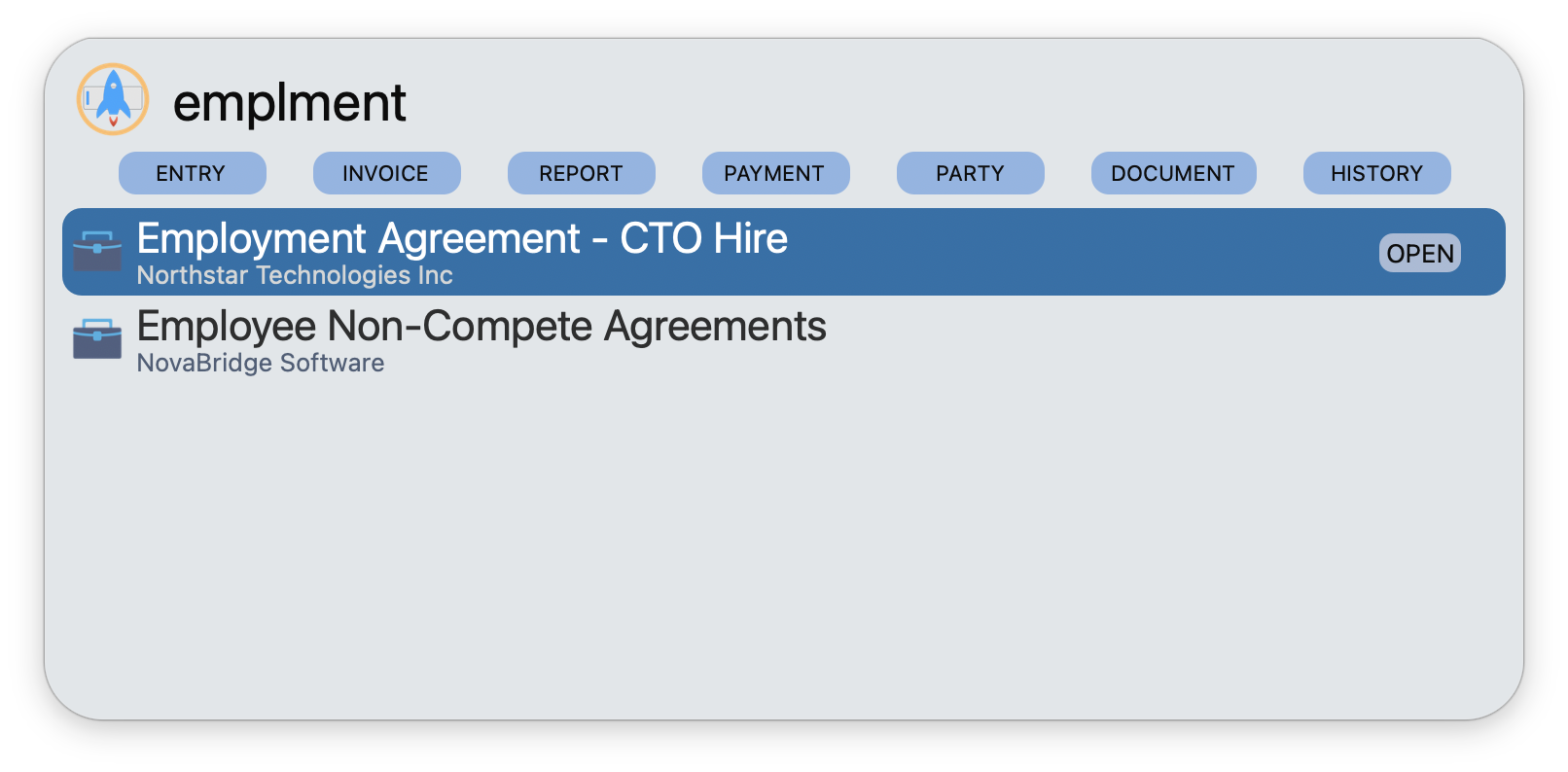
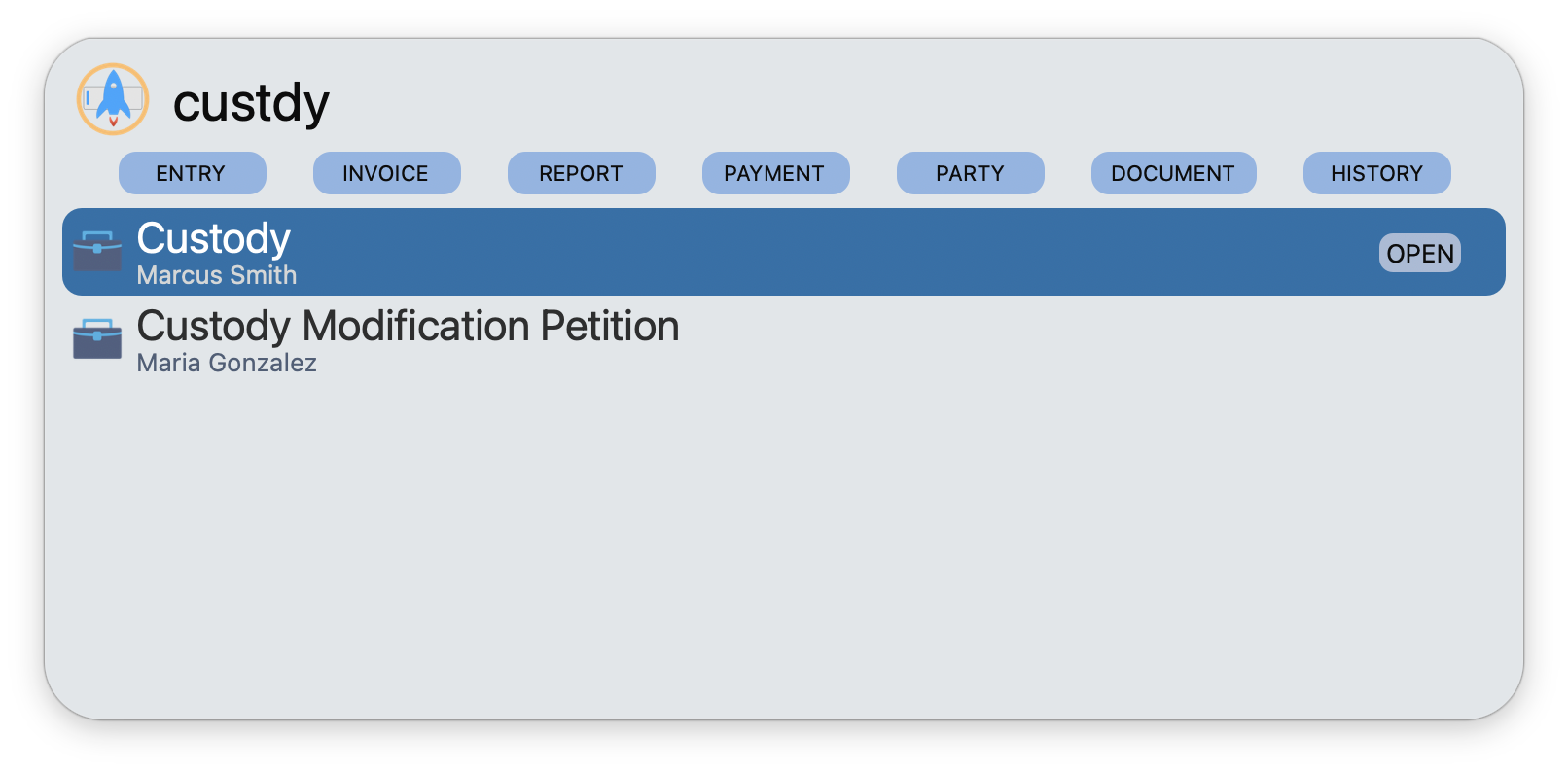
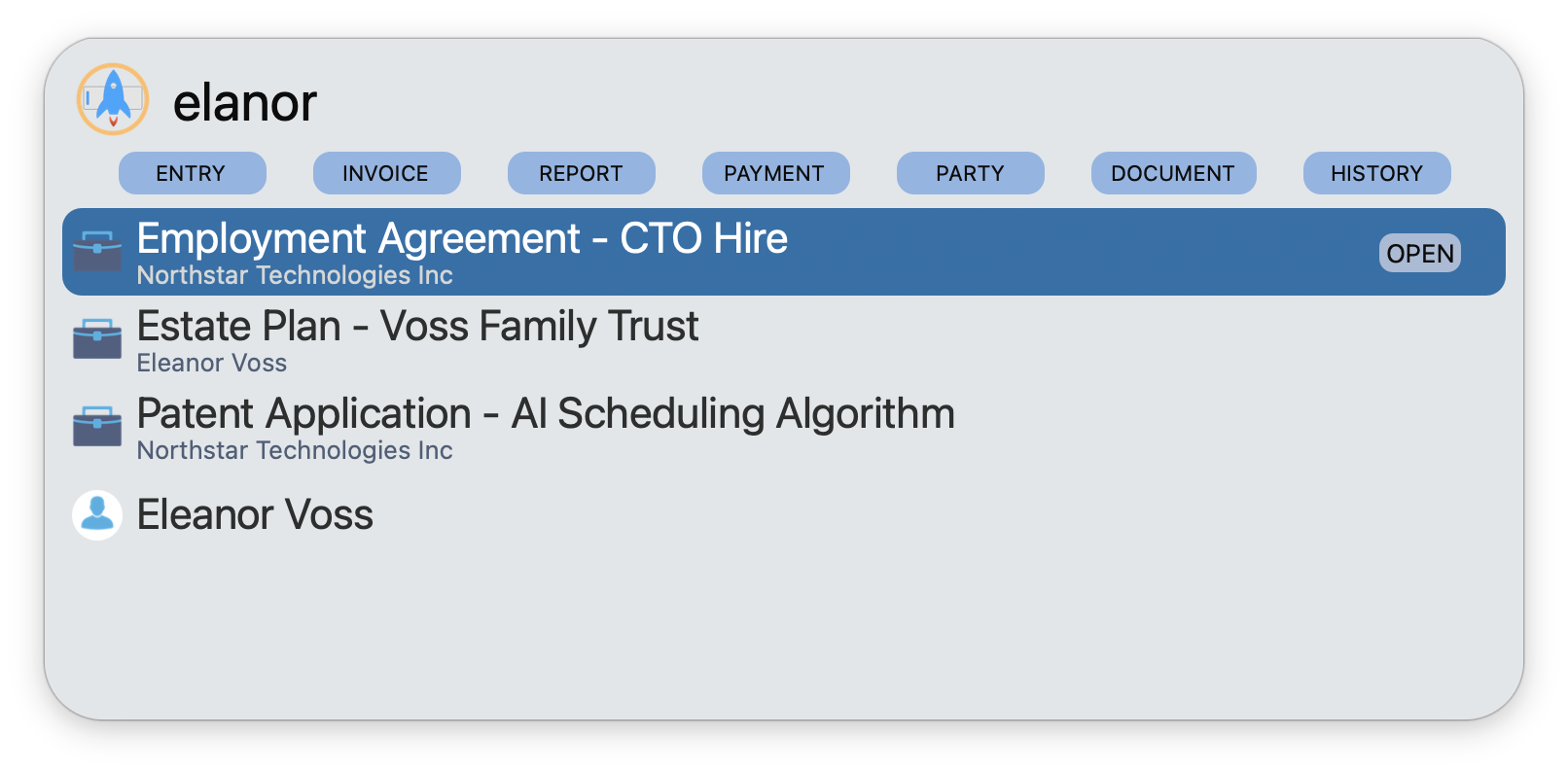
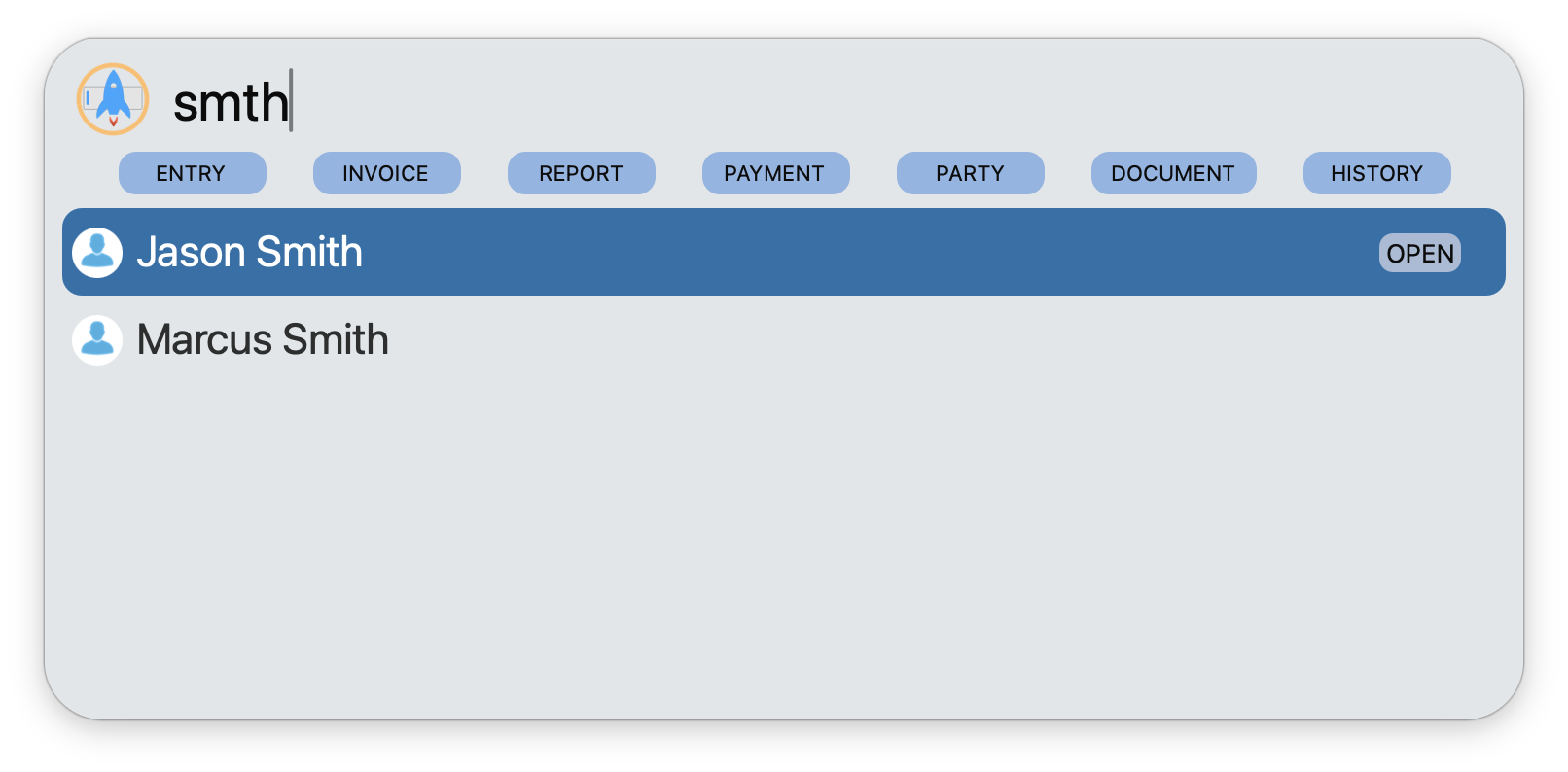
Just start typing the first few characters of a client or matter name. Between frecency and fuzzy matching, you'll rarely need more than 3–4 characters to find what you're looking for.
The Seven Quick-Action Buttons
Across the top of the Launchbar you'll find seven quick-action buttons. One click to jump straight to that action. No menus, no navigation.
Use ⌘1 through ⌘7 to trigger the quick-action buttons from the keyboard. ⌘1 = Entry, ⌘2 = Invoice, and so on.
Pinned Matters & Recent Matters
Pinned Matters
Your most active cases, always visible at the top of the Launchbar. These are the matters you work on every day — the ones you need instant access to. Right-click a matter anywhere in the app and choose Pin Matter.
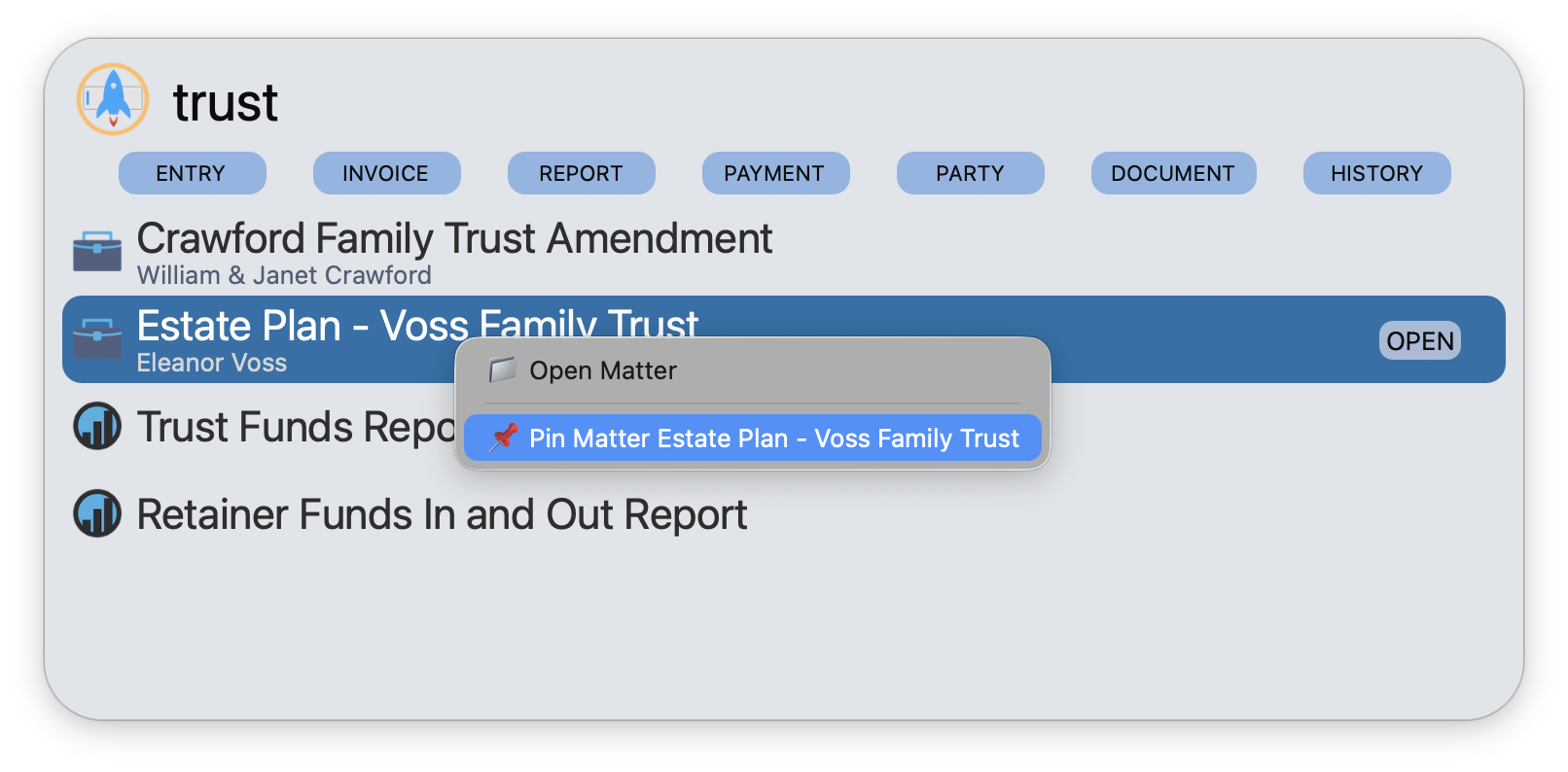
Keep your pinned matters list tight. Just your top 5–8 active cases. Everything else will appear in Recent Matters automatically. Too many pins defeats the purpose.
Recent Matters
Below the pinned section, the Launchbar automatically shows your last-worked-on matters. The system tracks what you access and keeps them ordered by recency. No setup required — it just works.
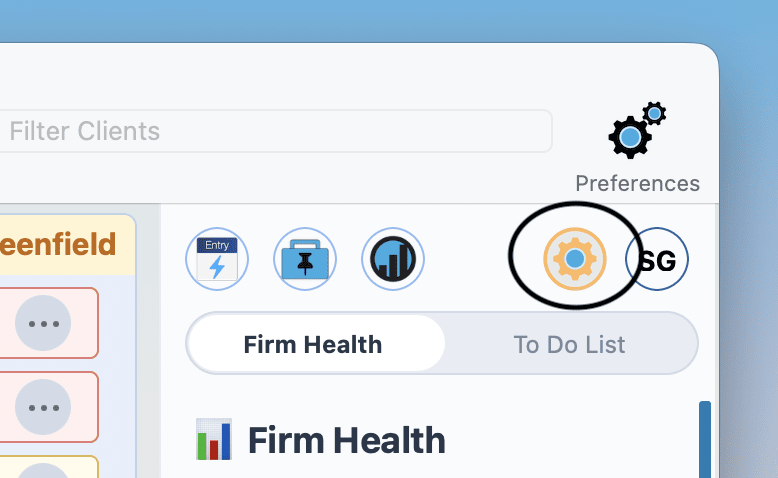
TimeNet Law remembers the last 5 matters you worked on by default, but you can change this number in Launchpad Settings by clicking the Launchpad icon above your Firm Health / To Do Panel at the top-right of your Launchpad window.
Right-Click Context Menus
Right-click any search result in the Launchbar for contextual options:
- Open the matter — jump straight to the matter detail
- Start a timer on it — begin tracking time immediately
- Create a new entry for it — log time without opening the matter
- View invoices — see all invoices for that matter
- Pin/unpin matter — add or remove from your pinned list
Every search result is a launching point for multiple actions. Right-clicking gives you the full menu without leaving the Launchbar.
Option Key Modifier
Hold ⌥ (Option) to change what the execute action does. By default, pressing Enter on a search result opens it. Hold ⌥Enter to edit instead (or vice versa, depending on context).
This gives you two actions per result without any extra clicks. Open or edit. View or start timer. The modifier key doubles the utility of every search result.
Watch the action label at the bottom of the Launchbar change when you hold ⌥. It always tells you exactly what the alternate action is before you press Enter.
Voice Command & Natural Language System
This is where the Launchbar becomes extraordinary. Type or speak natural language commands directly into the search field. The parser understands plain English and breaks it down into structured actions.
To use private on-device dictation, press F5 to toggle Dictation mode on or off. You can customize this shortcut in your Mac's System Settings. What you say never leaves your Mac and is never recorded anywhere.
Try something like "add 42m contract review to pearl" and the Launchbar instantly parses it into a structured time entry: 42 minutes, description "contract review", matter matched to "Pearl" via fuzzy search.
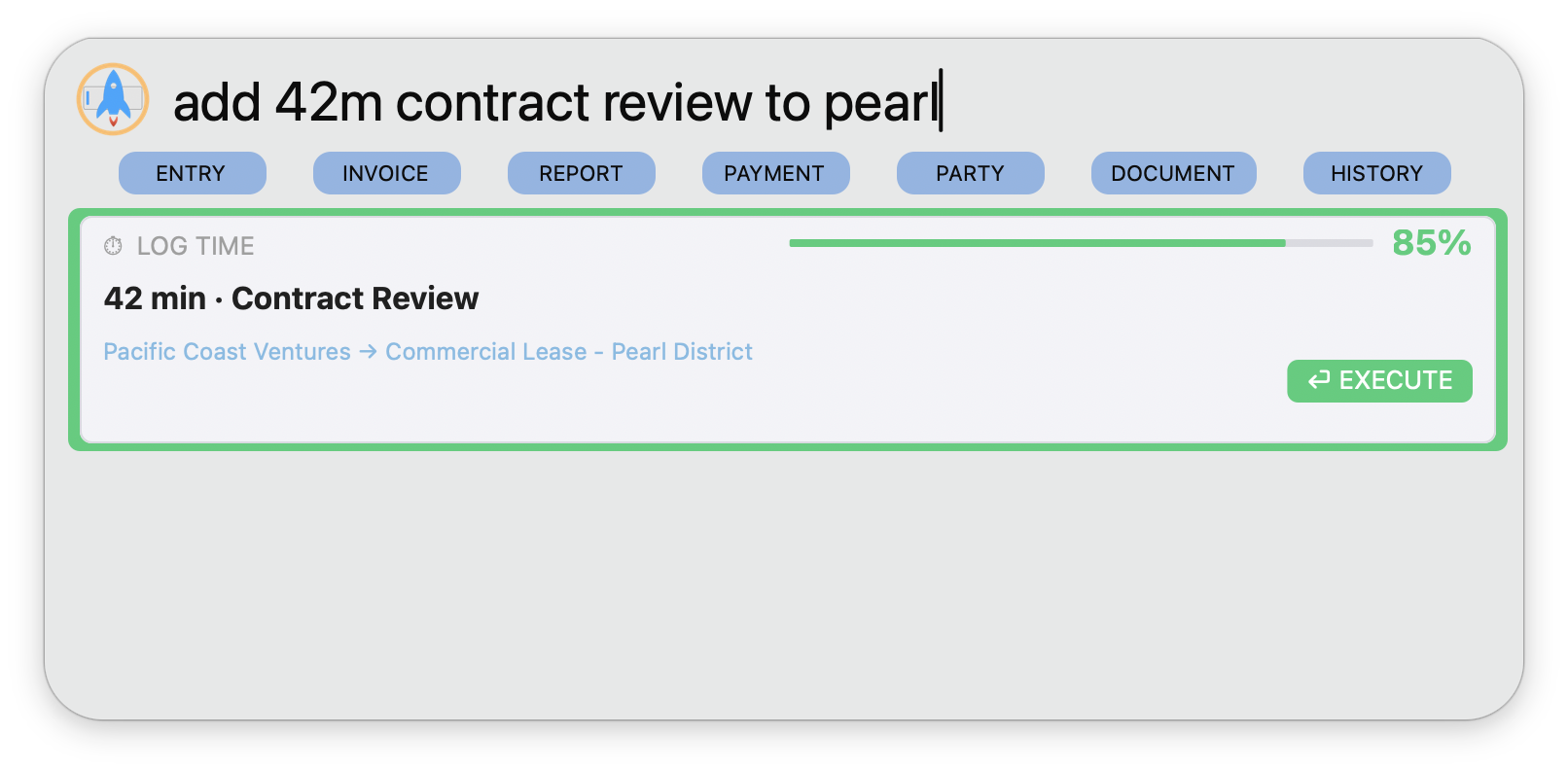
The Command Card
When the Launchbar recognizes a command, it shows an action card with everything you need to confirm:
- The detected action (e.g., LOG TIME, START TIMER, CREATE INVOICE)
- The parsed parameters (duration, matter, description, amount, etc.)
- A confidence score (percentage showing how sure the parser is)
- A green EXECUTE button to confirm the action
Nothing executes until you press Execute or hit Enter. You always see exactly what the system understood before it acts.
All 17 Command Types
Below is the complete reference for every command the Launchbar understands. Each entry shows example phrases, trigger words, and what gets parsed.
1. Log Time
Record time entries using natural language. The parser detects durations, matter references, and descriptions.
Triggers: log add record throw put enter + duration
Parses: duration, matter (fuzzy match), client (fuzzy match), description
When typing instead of speaking, enter time with "m" or "h" for ultra fast duration detection: "log 36m research for melissa", or "log 3h court appearance for elanor" (bonus: will automatically fuzzy match and find Eleanor).
2. Log Expense
Record expenses by including a dollar amount instead of a time duration.
Triggers: dollar amount + add log record enter
Parses: amount, matter, client, description
3. Start Timer
Start a running timer for a specific matter without logging a completed entry.
Triggers: new timer track start timer time begin timer track time
Parses: task, client, matter
4. Create Invoice
Generate an invoice for a client or reissue an existing one.
Triggers: create draft new make + invoice, or just invoice [name]
Also handles reissue: reissue reprint + invoice number
5. Apply Payment or Deposit
Record payments against specific invoices, or deposit funds into trust, escrow and retainer accounts with optional check numbers and payment types.
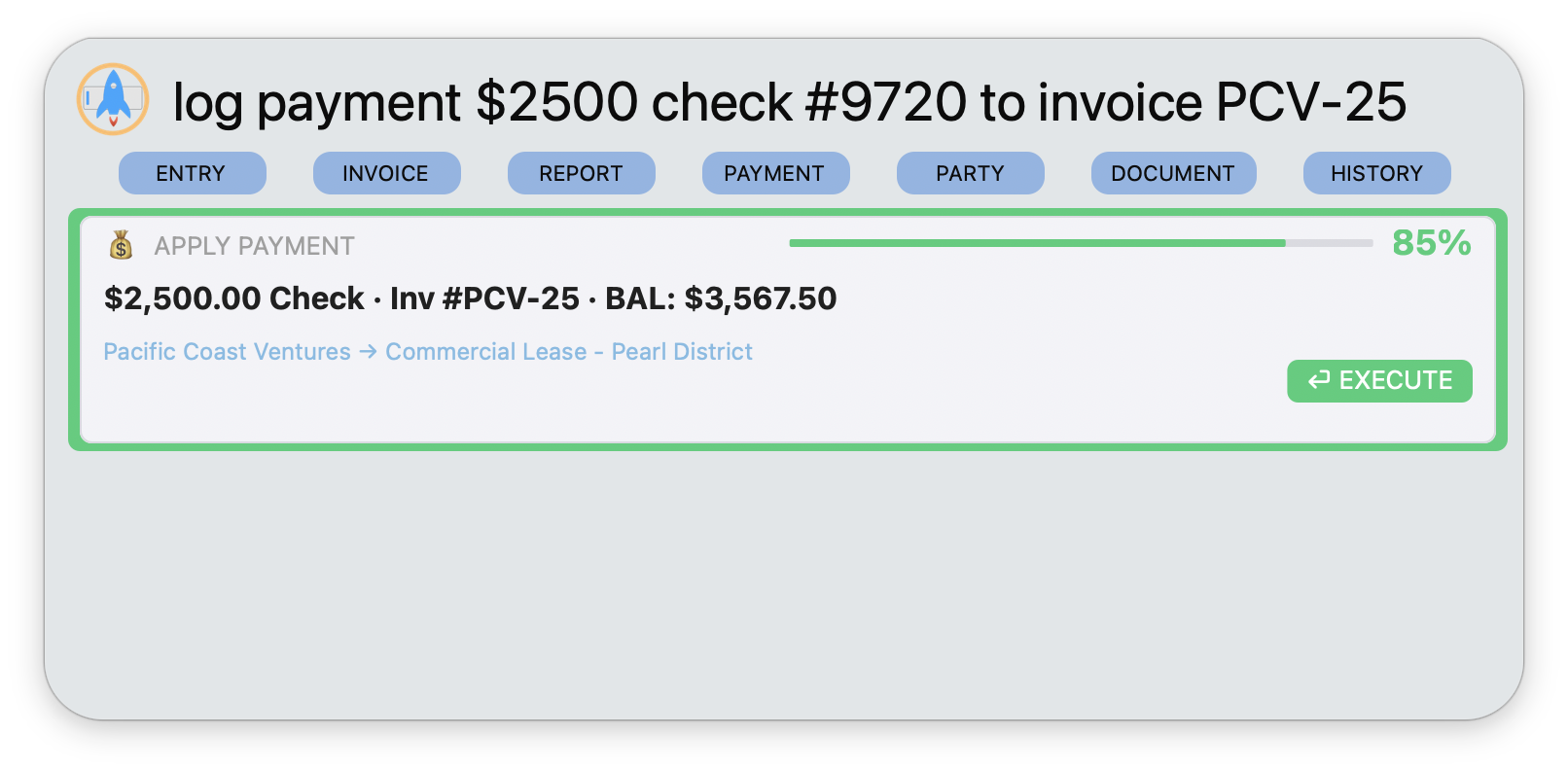
Triggers: apply log record add deposit + payment + invoice reference
Parses: amount, invoice number, check number, payment type
6. Invoice Balance
Instantly check the outstanding balance on any invoice.
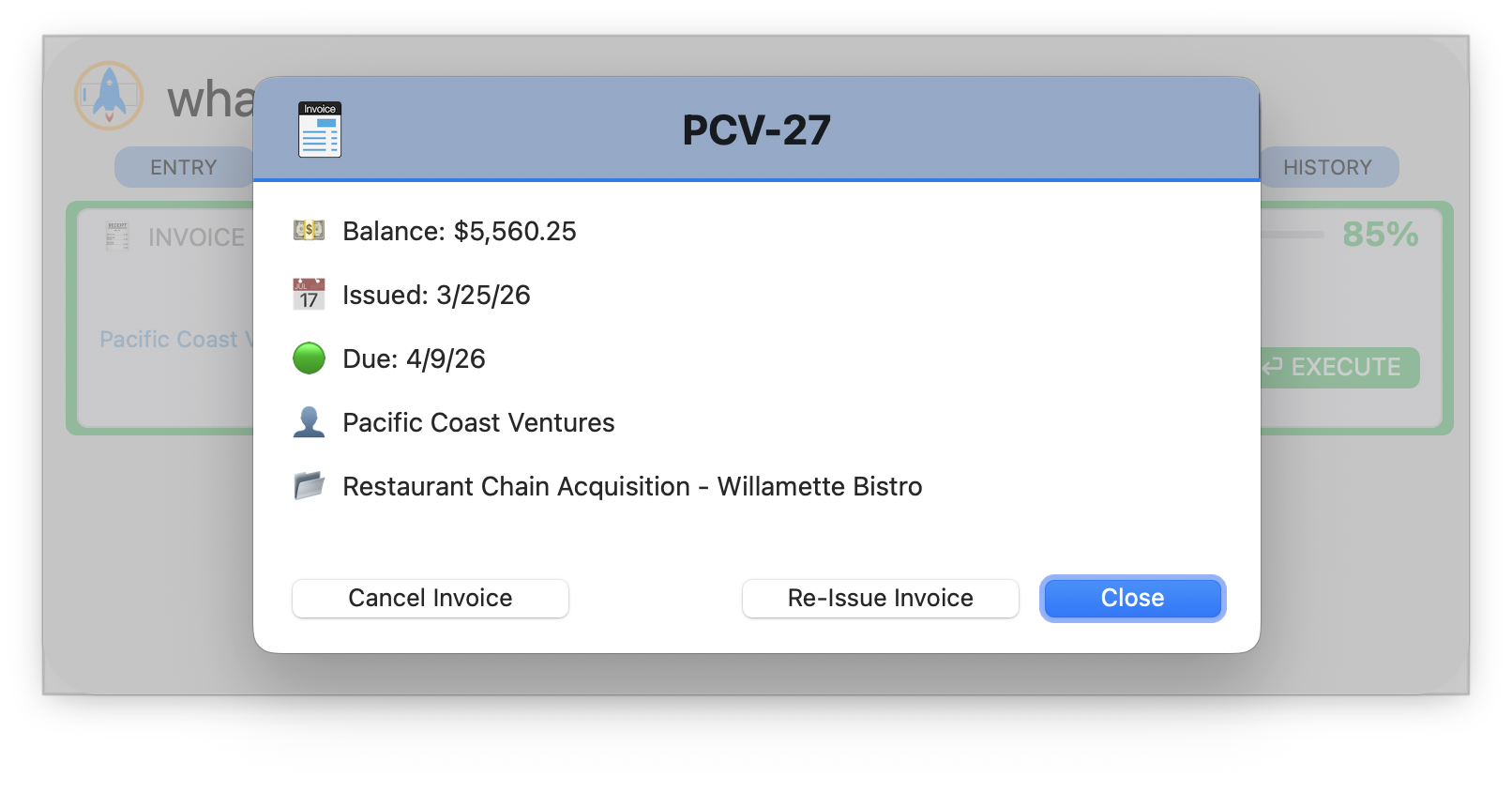
Triggers: balance + invoice anywhere in the text
7. Client Balance
Check the outstanding balance for any client across all their matters and invoices.
Triggers: owe, overdue/past due, balance (without invoice)
Parses: client name (fuzzy match)
8. Unbilled Clients
Quickly pull up the Unbilled Fees & Expenses Report to see which clients have outstanding work.
Triggers: unbilled + client, or client + billed/billing
9. Run Batch Billing
Start the batch billing process to generate invoices for multiple clients at once.
Triggers: batch + bill or billing + draft
10. Run Report
Generate reports by name and optionally specify a date range.
Triggers: run generate create pull + report
Parses: report type, date range
11. Open Matter
Jump directly to a specific matter.
Triggers: open go to show + matter
12. Show Client
Navigate directly to a client's profile.
Triggers: show open go to edit view + client
13. Search
Run a general search across your entire system.
Triggers: find search look for look up
14. Create Client
Add a new client to your system directly from the Launchbar.
Triggers: create new add + client
15. Create Matter
Create a new matter with type, client, and name parsed from your command.
Triggers: create new add + matter (but NOT if it contains a duration — that's a time entry)
Parses: matter type, client, matter name
16. Create Reminder
Set reminders for yourself with a description and a time or delay.
Triggers: remind
Parses: task description, duration/time
17. Draft Document
Start drafting a document with the type and client pre-filled.
Triggers: draft write prepare + document type
Parses: document type, client reference
Quick Reference
| # | Command | Example | Category |
|---|---|---|---|
| 1 | Log Time | log 45m phone call for Acme |
Time |
| 2 | Log Expense | add $300 filing fee for Smith |
Time |
| 3 | Start Timer | start timer for Smith case |
Time |
| 4 | Create Invoice | invoice Smith |
Invoice |
| 5 | Apply Payment | apply payment $5,000 invoice JD-101 |
Invoice |
| 6 | Invoice Balance | balance for invoice JD-101 |
Invoice |
| 7 | Client Balance | how much does Rachel owe |
Invoice |
| 8 | Unbilled Clients | unbilled clients |
Invoice |
| 9 | Batch Billing | run batch billing |
Invoice |
| 10 | Run Report | run aging report for March |
Report |
| 11 | Open Matter | open matter Robinson Trust |
Nav |
| 12 | Show Client | show client John Smith |
Nav |
| 13 | Search | find Smith |
Nav |
| 14 | Create Client | new client Sarah Smith |
Create |
| 15 | Create Matter | add custody matter for Smith |
Create |
| 16 | Create Reminder | remind me to file motion in 30m |
Productivity |
| 17 | Draft Document | draft demand letter for Johnson |
Productivity |
Smart Disambiguation
When a command matches multiple matters — for example, typing "Smith" when you have "Smith v. Jones", "Smith Family Trust", and "Smith Corp" — the Launchbar shows a disambiguation picker.
The picker isn't alphabetical. It's sorted by frecency: the matter you most recently and frequently billed appears first. The system learns from your usage, so over time the right "Smith" is always at the top.
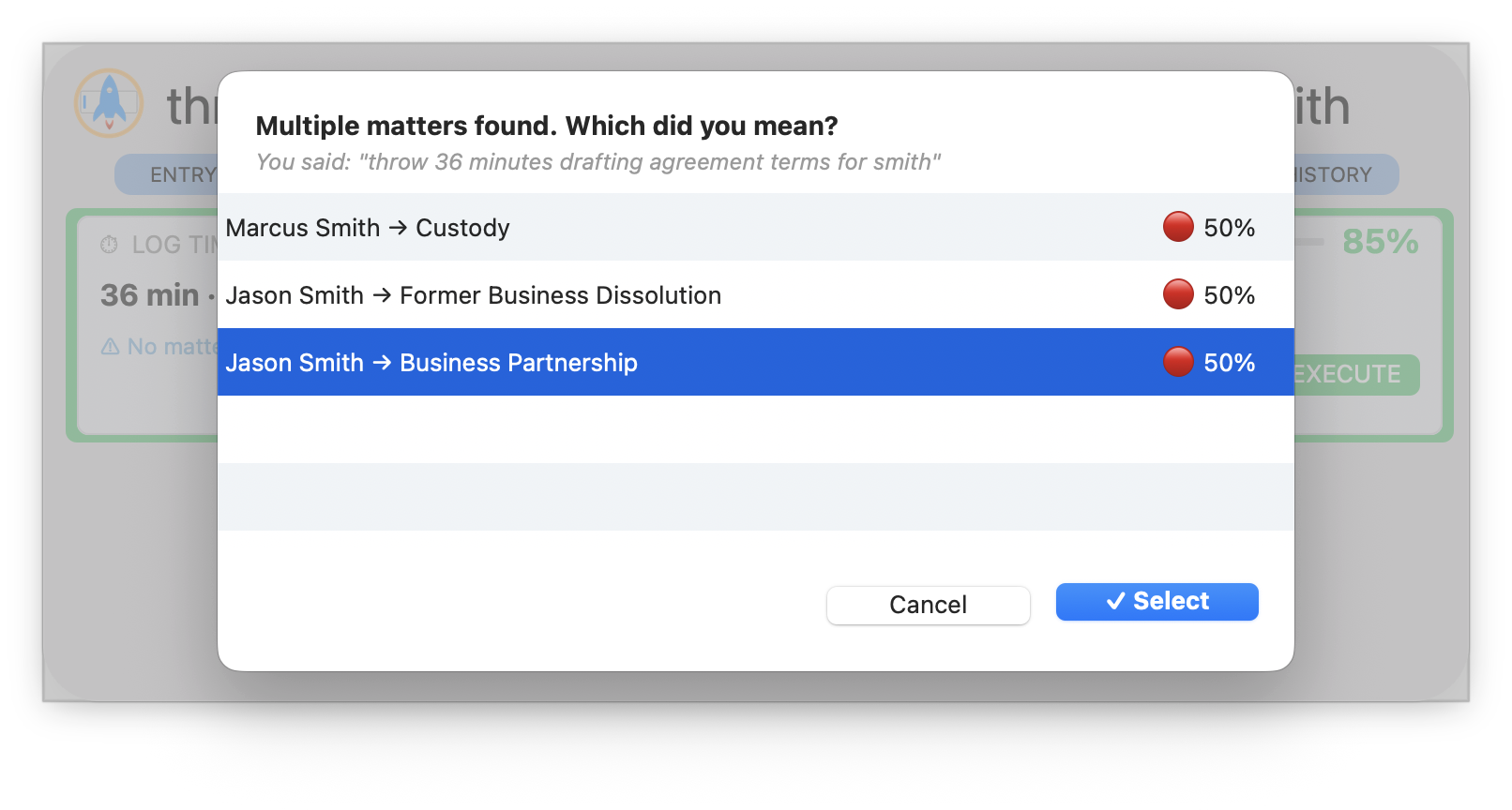
Use a more specific reference to skip disambiguation entirely. Instead of "Smith", try "Smith Trust" or "Smith v Jones". Two or three words is usually enough to get a unique match.
Keyboard Shortcuts
The Launchbar is designed for full keyboard control. You should rarely need to touch the mouse.
The Summon Launchbar shortcut is customizable in Preferences → App Settings. Set it to whatever key combination feels most natural to you.
Related Tutorials
Need Help? Perry Actually Answers.
The Launchbar is designed for discovery, but if you want a personal walkthrough of the voice commands or SmartSearch, call, email, or screen share. The person who built this will show you around.