What You'll Learn
- Needs Attention System
- Navigation & Timer
- Three Powerful Views
- Firm Health Metrics
- Pinned Matters
- Task Management
- To Do List
- The Launchpad Timer
- Drag and Drop Rescheduling
- Mouse and Interaction Patterns
- Keyboard Shortcuts
- Native Mac Notifications
- Document Integration
- Rewind: Undo Anything
- Launchpad Settings
- Performance
- Your Command Center
Launchpad is the home screen of TimeNet Law, completely redesigned in Version 6. It replaces the old static dashboard with a living, breathing command center that shows your day, week, or month at a glance, with firm health metrics, smart prioritization, and drag-and-drop scheduling built right in.
Open the app and you're immediately oriented. What's happening today. What needs attention. How your firm is doing. No clicking through menus. No switching screens. No running reports. It's all here.
Getting to Launchpad
Launchpad is the top option in your sidebar, always visible, always one click away. You can also access it in the toolbar, via View → Show Dashboard or press ⌥2 (Option+2).
Needs Attention System
The Needs Attention card is your intelligent prioritization engine. It surfaces what matters most using a scoring algorithm that weighs four factors:
| Factor | Weight | What It Measures |
|---|---|---|
| Time Urgency | 4× | Meeting in 15 minutes beats overdue task from last week |
| Consequence Level | 4× | Malpractice risk items ALWAYS surface above routine tasks |
| Financial Impact | 2× | $10K+ invoices get priority attention |
| Client Tier | 1.5× | VIP clients get elevated priority |
Item Types Tracked
- Document Reminders Filing deadlines, court dates (consequence level 4 = malpractice risk)
- Upcoming Events Meetings requiring preparation
- Incomplete Entries Missing descriptions (revenue leakage risk)
- Unbilled Work Matters with significant time ready to invoice
- Trust Alerts Low balance warnings and compliance issues
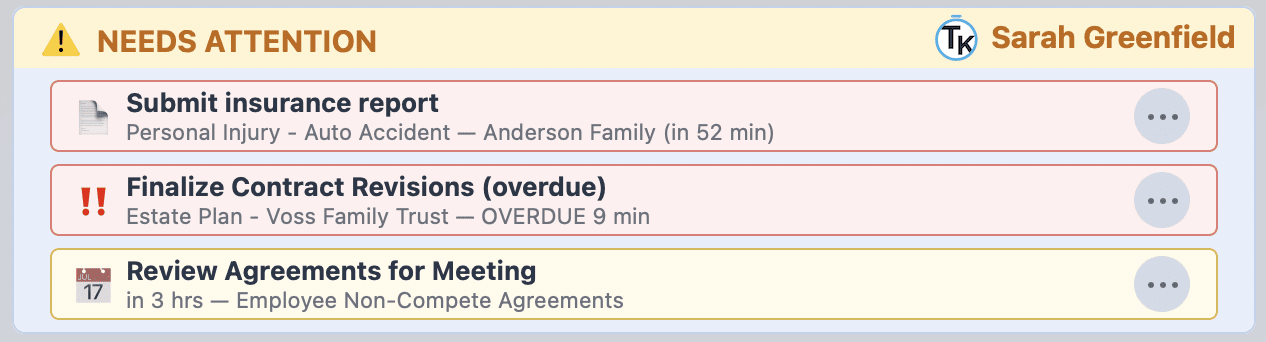
Needs Attention means you never need to mentally track "what should I be doing right now?" Open Launchpad, look at the top item, and act. It's your intelligent assistant that never forgets.
Navigation & Timer
Quickly move from day, week, or month to month. Jump to today. And control the Launchpad timer widget. Use your keyboard ← and → to quickly move around. Swipe left or right, or hold Shift while scrolling to move back and forward in time.
Using the Timer Widget
Start or stop your Launchpad timer by clicking it or pressing Space. When paused, the timer expands to show Clear Timer and Log Time options. You can reset the timer or log time with QuickCapture. If you accidentally clear the timer, you can bring it back with Edit → Undo or ⌘Z.

Three Powerful Views
Navigate your practice with three beautifully designed views, each optimized for a different planning horizon. Switch between them instantly with the 1, 2, and 3 keys.
Day View: Your Hourly Command Center
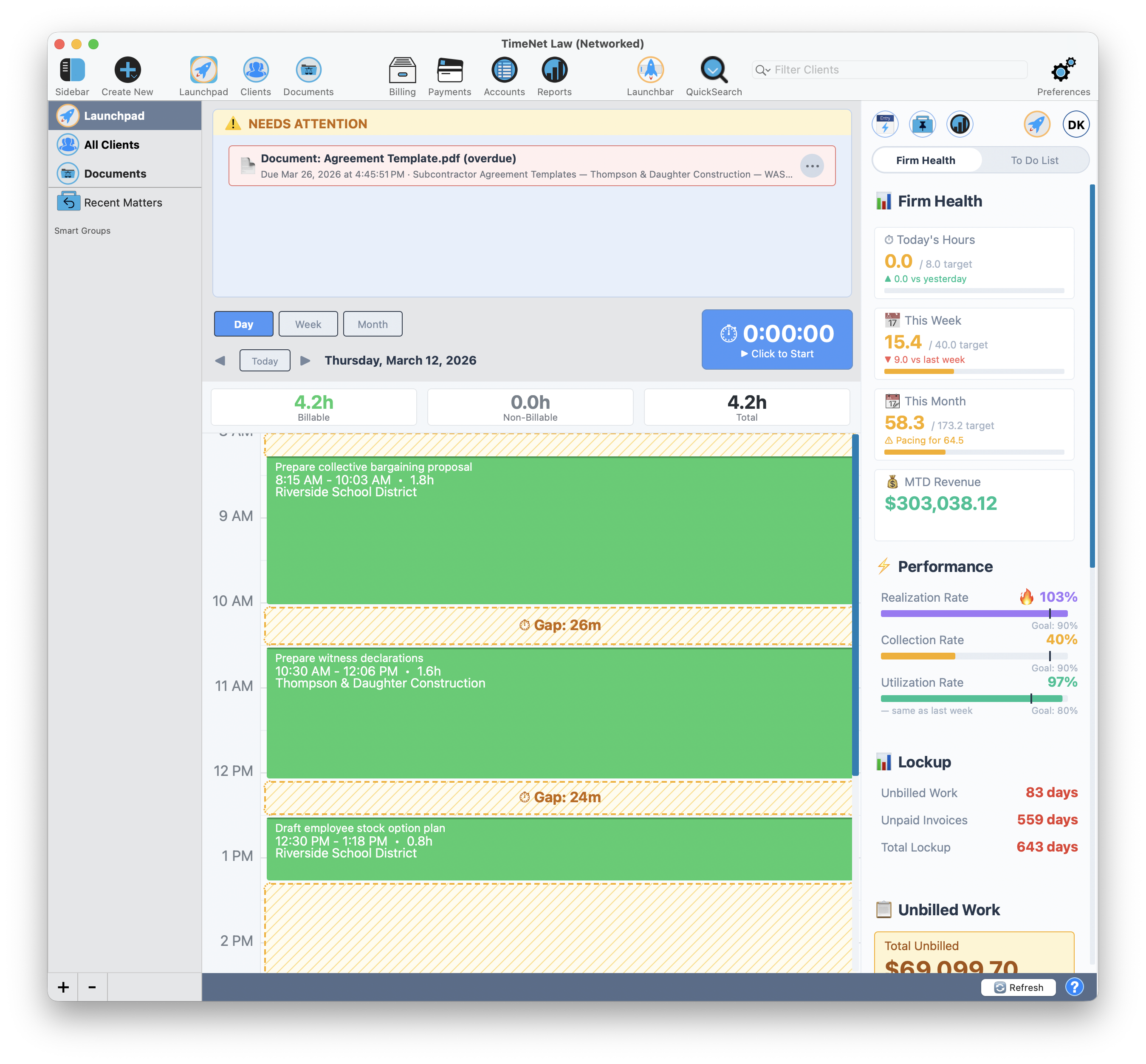
Day View is where most of your time will be spent. It lays out your day on a precise hourly timeline with everything in one place.
- Green time entry blocks on an hourly timeline show your billable work at a glance
- Click an entry to edit it, or click an empty time slot to create a new entry
- Gap detection highlights unbilled time between entries (for example, "Gap: 26m" in yellow dashed boxes)
- Color-coded blocks make it clear what is billable vs. meetings vs. deadlines
- Hover over any entry to see full details. Click to edit, right-click for more options
Precision Controls
- Drag entries up and down to reschedule them
- Press Esc to cancel a drag mid-flight
- Drop outside the view boundary to cancel
- Hold Option when rescheduling or clicking to use precision time (vs. 15-minute snap)
- Hold Option and click to open the matter with that entry pre-selected
- Hold Shift while scrolling to move forward and back in time
- Hold Option and scroll to zoom in and out, or press ⌘+ or ⌘-
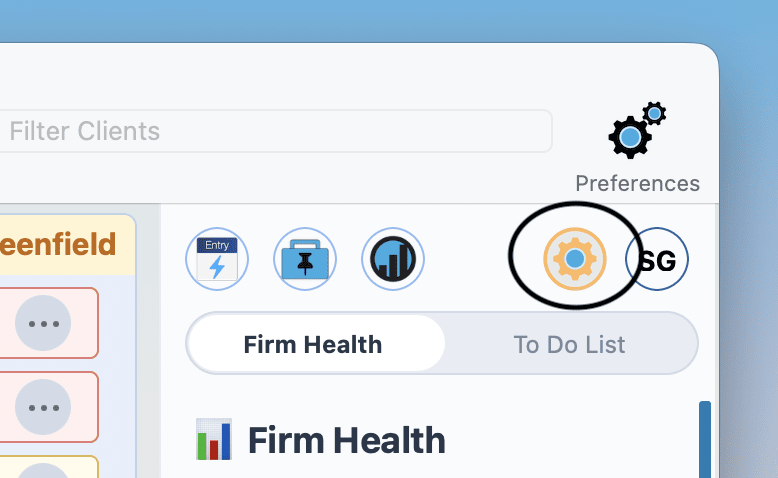
Change the start and end times for your workday in Launchpad Settings:
Week View: Seven-Day Strategic Overview
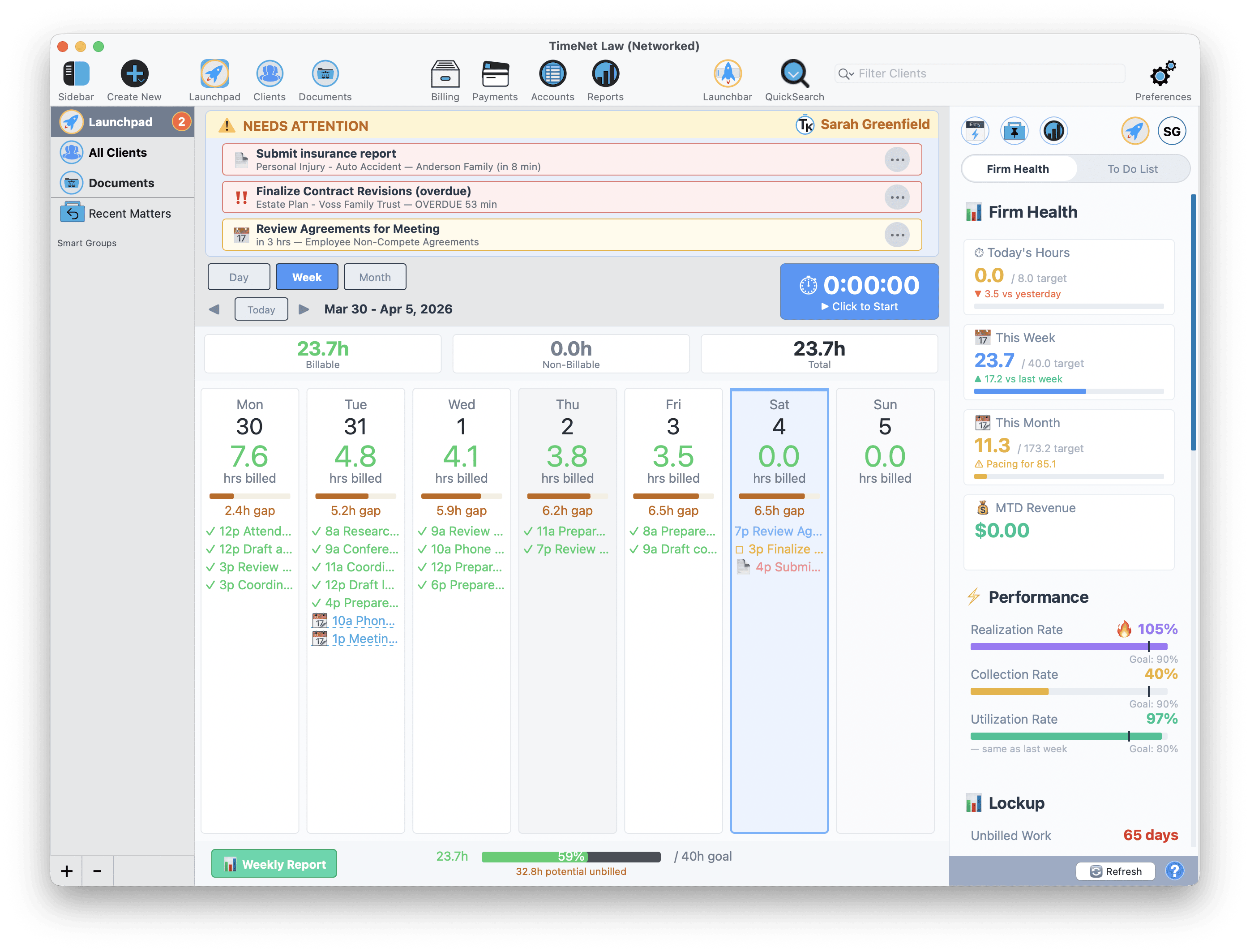
Pull back and see the full picture. Week View shows seven daily columns so you can assess workload, spot open time, and plan ahead.
- Daily cards showing key metrics, appointments, and tasks
- Billable goal progress across the entire week
- Quickly assess your week's workload at a glance
- Spot opportunities for additional billable work
- Hover over any entry to see full details. Click to edit, right-click for more options
- Drag entries between day columns to reschedule
- Double-click any item to edit it
- Hold Option and double-click to open the matter with that entry pre-selected
- Hold Shift while scrolling to move forward and back by week
Month View: Calendar-Style Big Picture
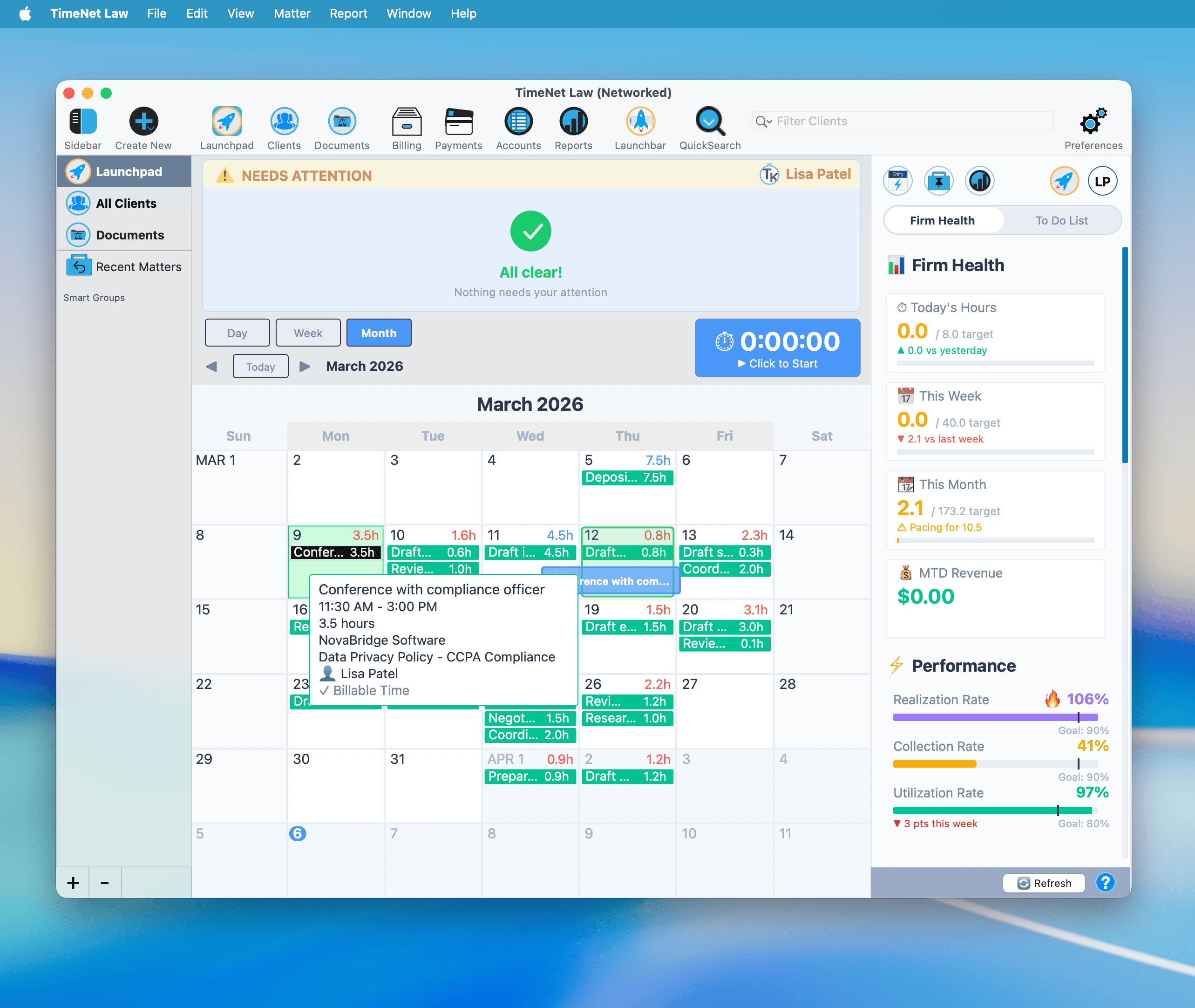
The 30,000-foot view. Month View gives you a full calendar grid with billable hour totals per day so you can see trends and plan strategically.
- Full calendar grid (Sun through Sat) with daily billable hour totals in each day header
- Individual entries appear as colored pills with truncated descriptions and hours
- Hover over any entry to see a tooltip with full details: task name, time range, duration, client, matter, timekeeper, and billable status
- Drag items between days to reschedule (Esc to cancel drag)
- Double-click to edit or create entries
- Hold Option and double-click an entry to open the matter with that entry pre-selected
- Hold Option and double-click a day to jump to Day View for that date
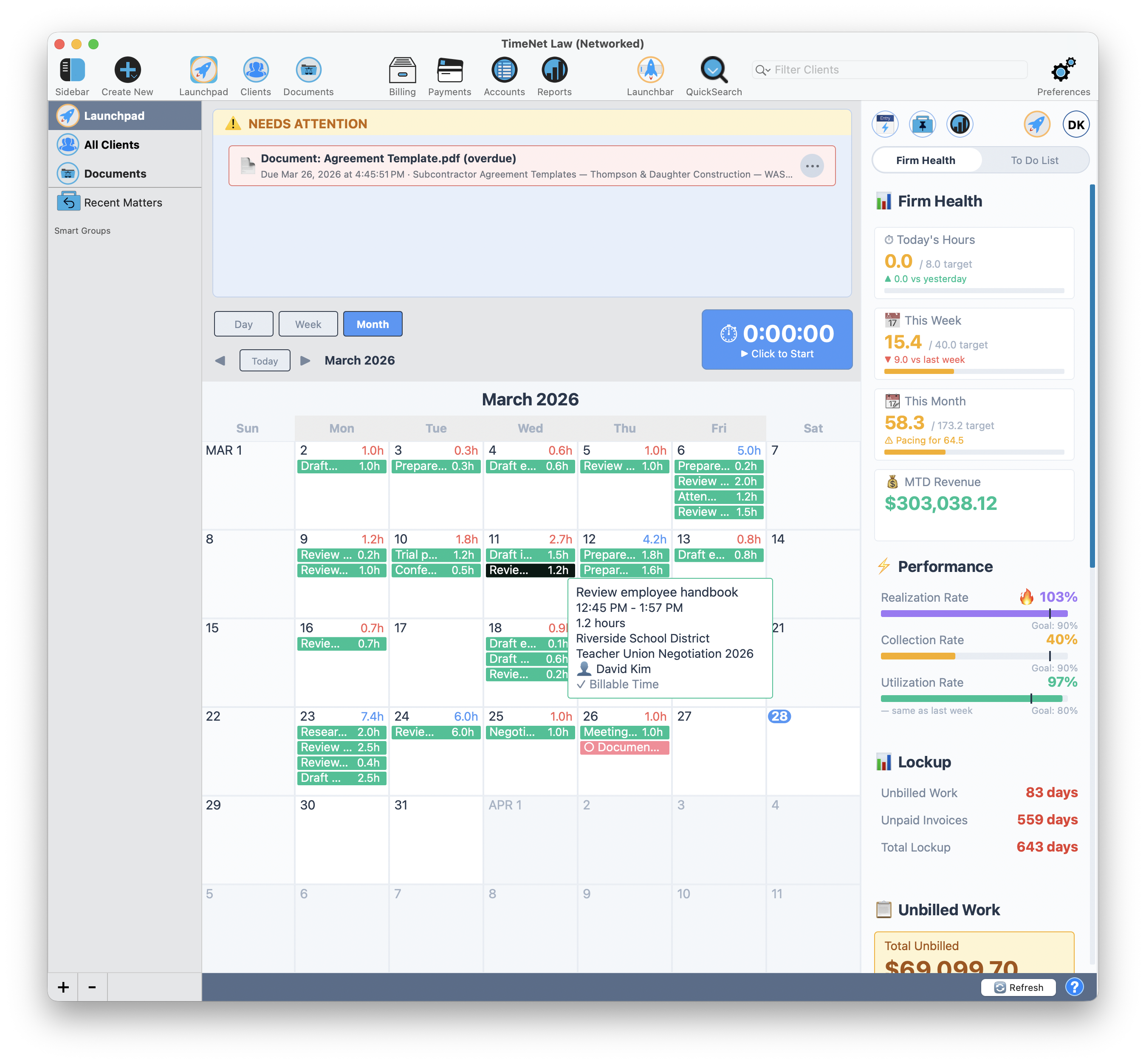
Color Coding at a Glance
Every item type has a consistent, recognizable color across all three views. You'll learn to read your day at a glance, no labels needed.
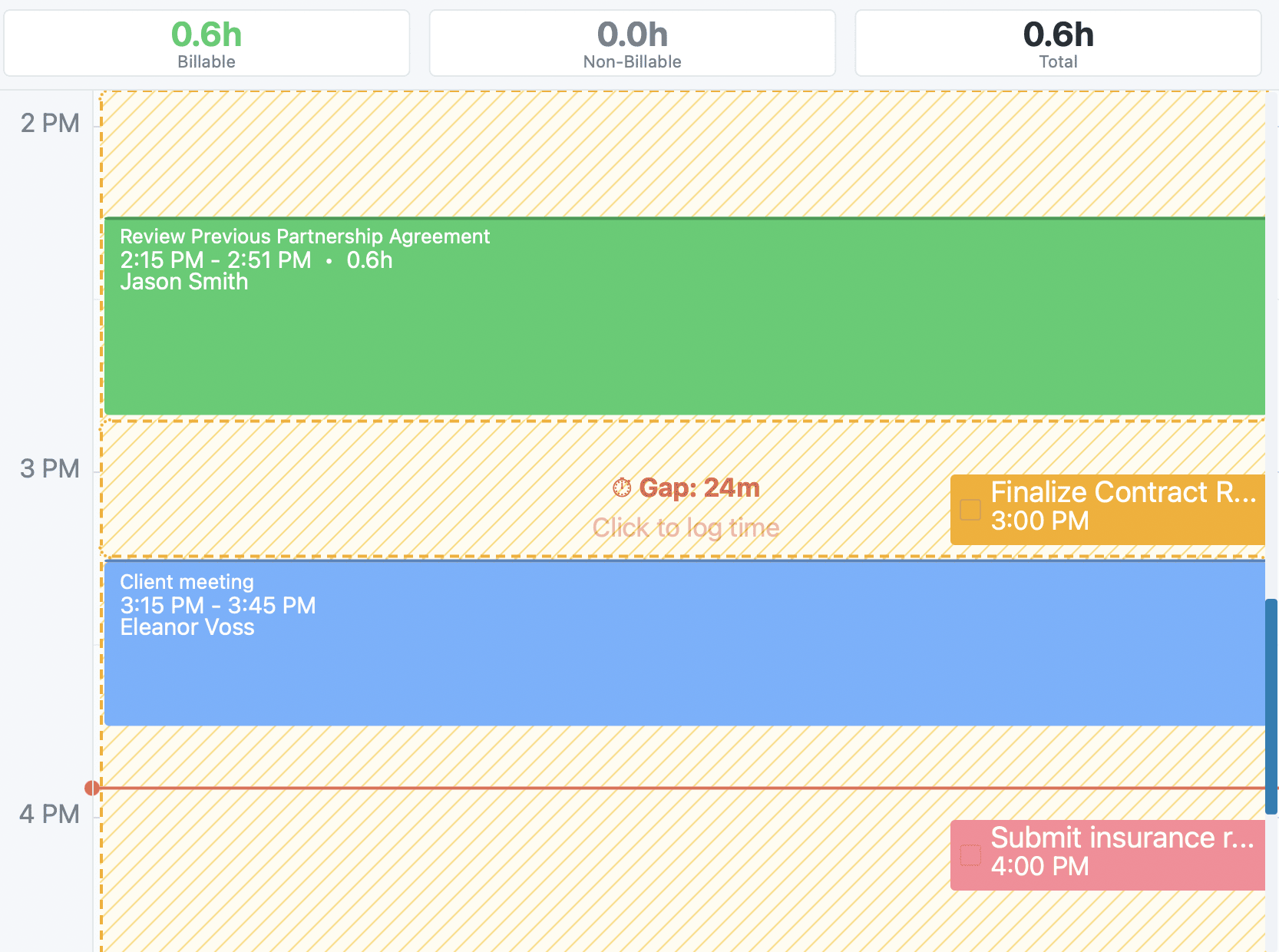
The color system extends to light and dark mode. Both themes are fully designed so colors remain distinct and readable regardless of your preference. Dark mode is gorgeous for late-night billing sessions.
Firm Health Metrics
The Health Sidebar gives you instant visibility into your practice's financial pulse. Three KPIs tell the complete story: are you recording time, billing it, and collecting it?
Realization Rate Target: 90%+
How much of your recorded time actually gets billed. This is the first leak in the revenue pipeline.
Low realization = you're recording time that never makes it onto invoices.
Collection Rate Target: 95%+
How much of what you bill actually gets paid. The second leak, and often the most painful one.
Low collection = accounts receivable problem.
Utilization Rate Target: 70%+
What percentage of your time is spent on billable work. The upstream indicator of revenue potential.
Low utilization = too much time on non-billable tasks.
Each metric shows a visual progress bar with a mint-green goal line marking your target. You can see at a glance whether you're on track or falling behind.
Lockup Dashboard: Track Working Capital
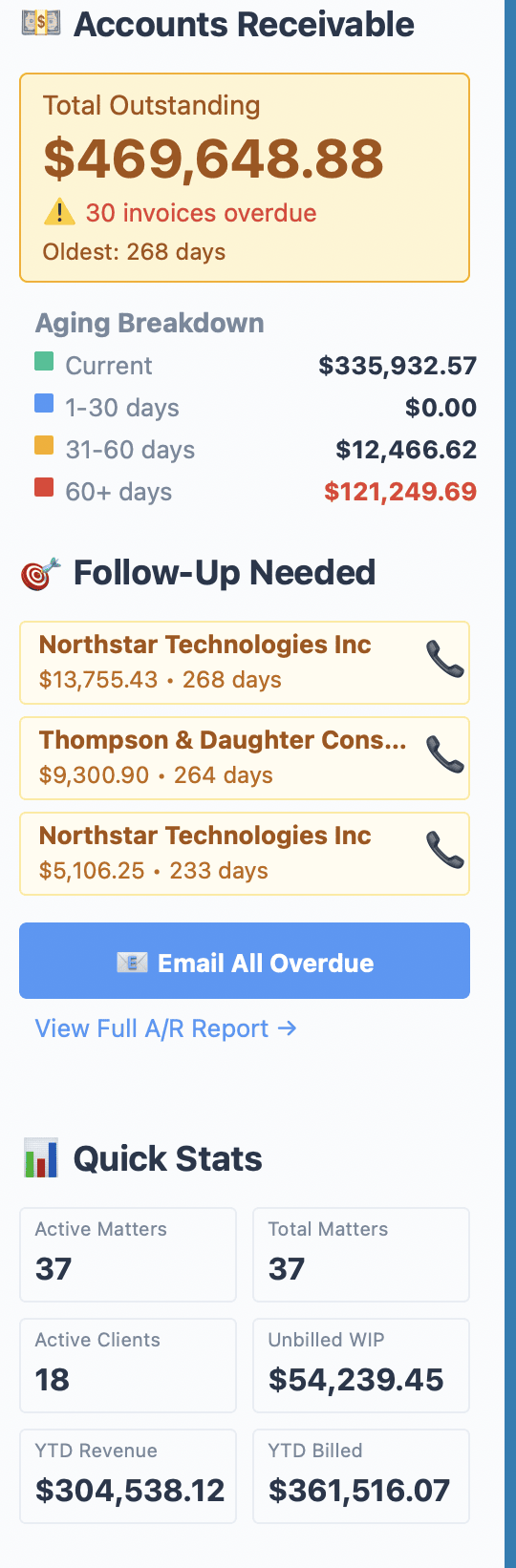
Below the health metrics, the Lockup Dashboard shows where your money is stuck in the revenue cycle.
Unbilled Work
Total value of time not yet invoiced. Your cash flow opportunity.
Unpaid Invoices
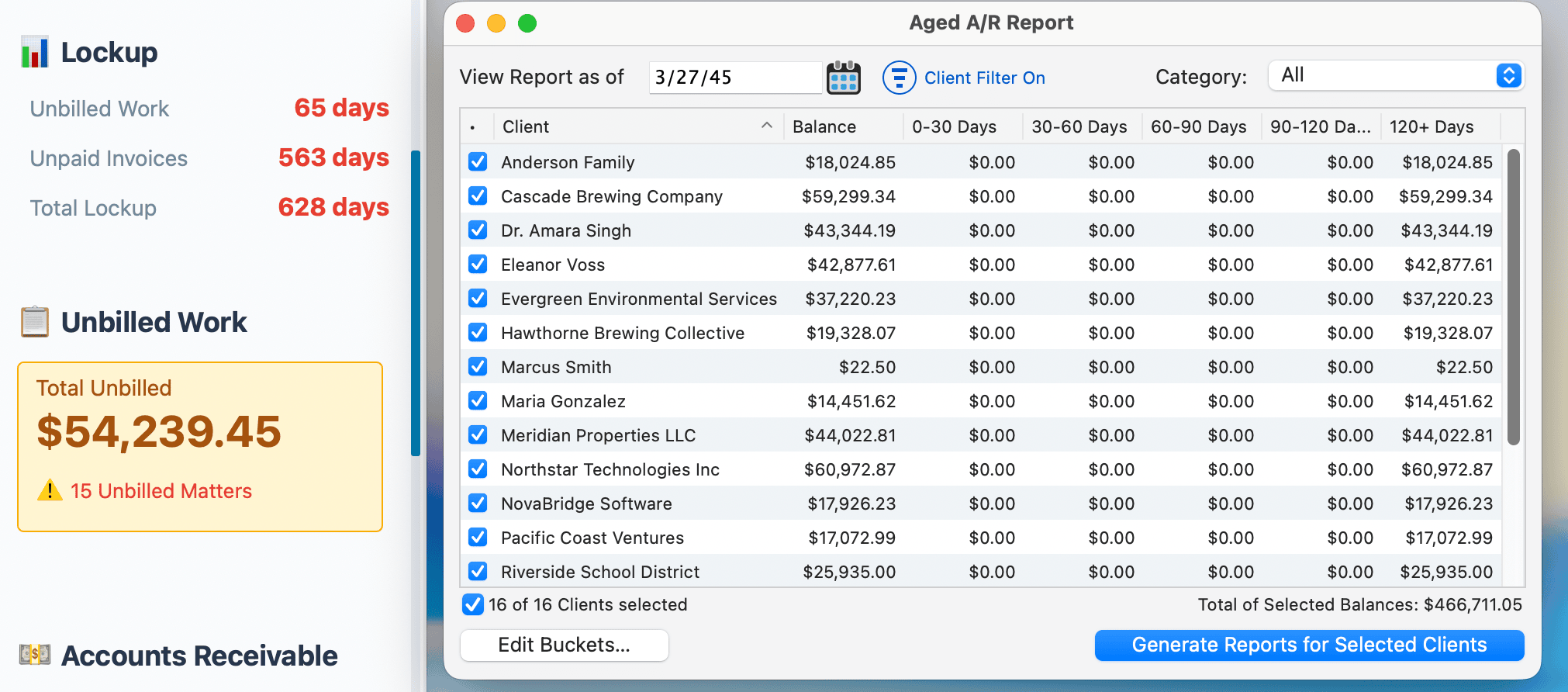
Outstanding A/R with aging breakdown: 30, 60, and 90+ day buckets.
Total Lockup
Combined metric. Total working capital tied up in the revenue cycle.
Click any metric to drill into reports, run a billing batch, generate statements for overdue clients, or send payment reminder emails. One click to action.
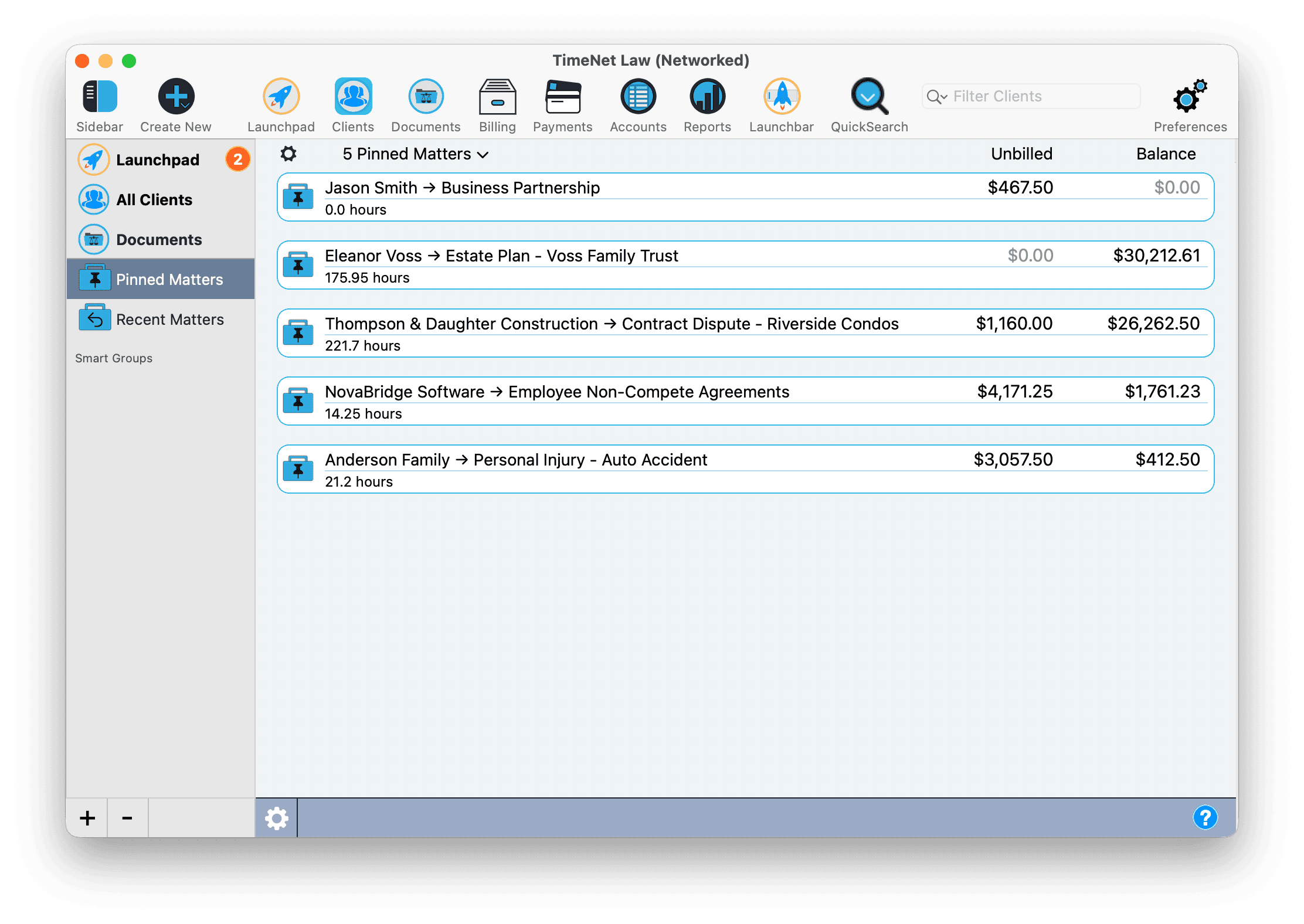
Pinned Matters
Pin your most active matters for instant access. No more digging through client lists to find the case you're working on right now.
- Pin any matter from its detail view or right-click menu
- Pinned matters appear in a dedicated Smart Group in the sidebar
- Rearrange pinned matters by dragging them into your preferred order
- Pinned matters are also listed by default when you open Launchbar
- One-click access to create entries, view details, or check balances
- Custom pinned matters per user, so everyone has a personalized workspace
Task Management
Launchpad includes a complete task management system. Schedule client tasks, filing deadlines, meeting preparations, depositions, court appearances, and anything else your firm needs to track.
Due Dates
Set deadlines with times
Reminders
Native Mac notifications
Checkboxes
Mark tasks complete
Tags
Full tagging system
Priority Levels
Flag what's urgent
Assignments
Delegate to team members
Timers
Run timers on tasks
Bill to Client
Completed tasks linked to a matter are automatically converted to billable time
Task Detail Panel
Click any task to open its detail panel. Everything you need is right there:
- Timekeeper assignment Assign to yourself or delegate to team members
- Date and time pickers Set exactly when it's due
- Duration tracking See time spent vs. estimated
- Rich description Add detailed notes
- Document linking Drag and drop files directly to the task
- Event toggle Turn it into a calendar event with reminders
- Priority level Mark what's urgent
- Matter link Associate with a specific client matter
- Bill to Client Convert completed tasks to billable time entries instantly
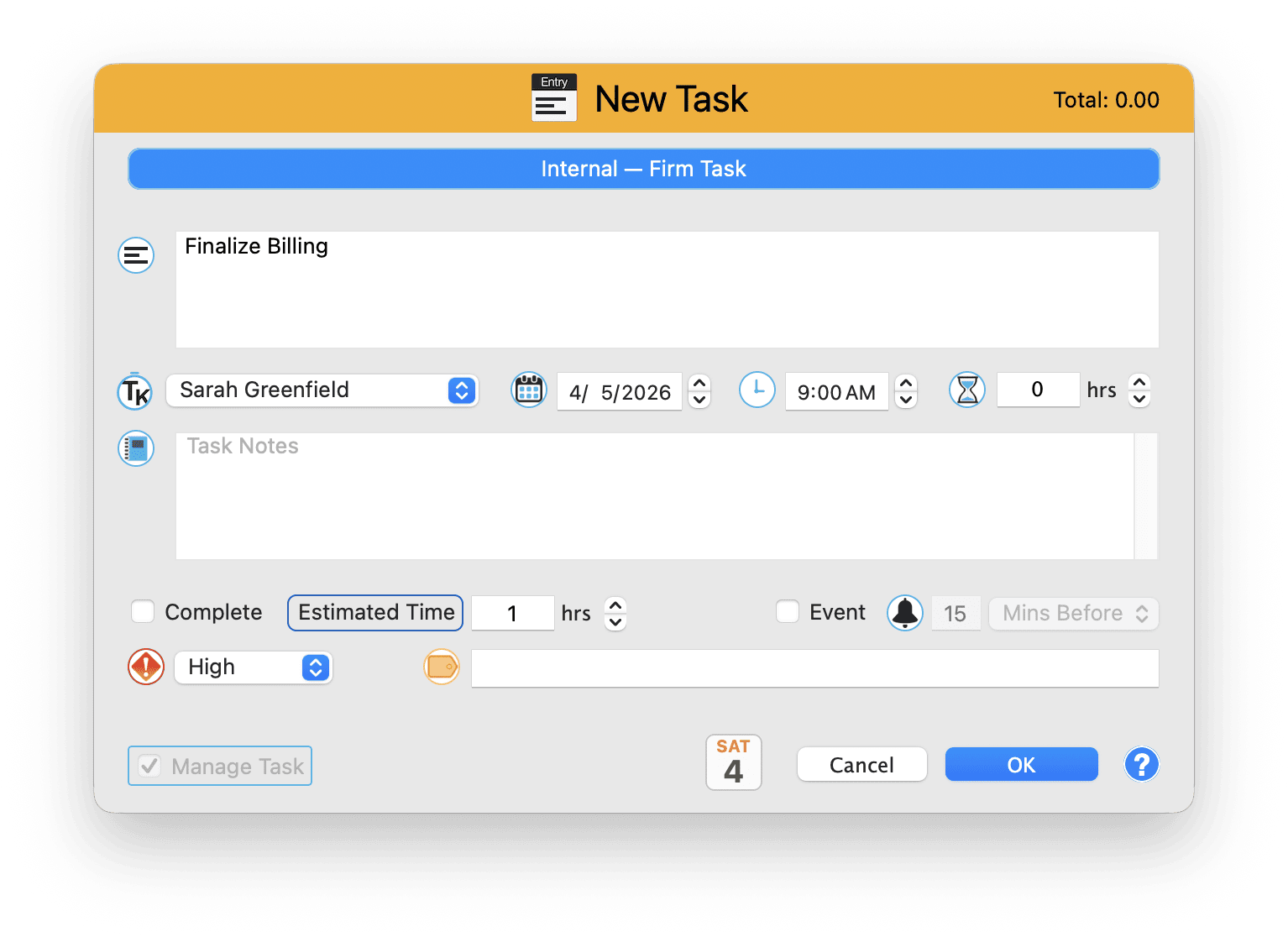
When you complete a matter task, the time you tracked automatically becomes a billable entry on that client's account. No re-entering data, no copy-paste errors. Your work flows directly to the invoice.
To Do List
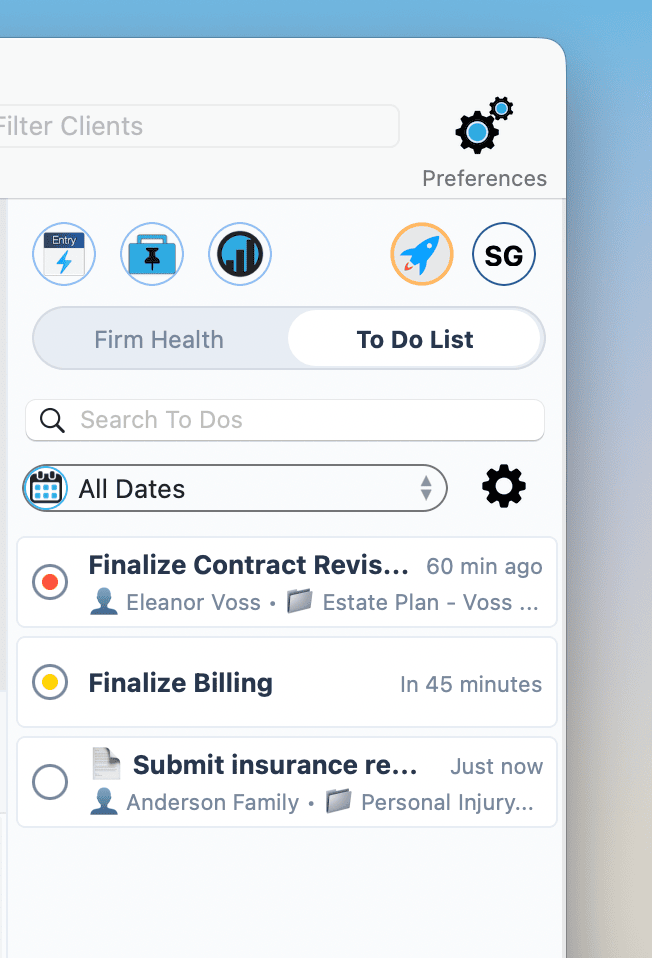
The To Do list slides over the Health Sidebar in Launchpad, giving you a task management view without leaving your main workspace.
Features
- Full task list with search and filtering
- Tag tasks for organization
- Date filtering to see what's due
- Show or hide completed tasks
- Manage your work without the calendar, all in a focused list view
This is your quick-access task manager. No separate window, no context switching. Slide it open, check your tasks, slide it closed.
The Launchpad Timer
The Launchpad includes an always available timer. Press Space from anywhere in Launchpad to start or pause it.
How It Works
Start
Press Space or click the large blue timer in the Launchpad. The clock starts ticking immediately.
Pause
Press Space again. The timer animates and expands to reveal Clear and Log buttons. It automatically rounds to your preferences, and resumes from its actual time.
Log Your Time
Click Log to open a QuickCapture window with the elapsed time already filled in. Add a matter, description, and save. Done.
Clear (or Undo)
Click Clear to reset the timer. Changed your mind? Use Rewind to undo the reset.
Make the Spacebar your reflex. Starting a call? Space. Wrapping up research? Space to pause, then Log. The timer becomes muscle memory within a day, and you'll never lose track of billable time again.
Drag and Drop Rescheduling
Reschedule anything with drag and drop. No dialogs, no forms. Grab it, move it, done.
How It Works
Click and Hold
Grab any time entry, event, or task. It lifts off the timeline with a subtle shadow.
Drag
Move it to the new time or day. A live preview shows exactly where it will land.
Drop the entry outside of the calendar view or press Esc to cancel the drag.
Drop
Release to confirm the reschedule. The entry snaps smoothly into its new position. Done. And if you change your mind, Rewind can undo it.
View-Specific Behavior
- Day View: Drag up/down to change time. A green indicator line shows exactly where it will land. Hold Option while dragging to override 15 minute snapping.
- Week View: Drag between day columns. The target day highlights with a green border on hover.
- Month View: Drag between calendar cells to reschedule to any day.
Mouse and Interaction Patterns
Launchpad is designed to feel like a native Mac app. Every click and gesture does something useful.
- Double-click any entry to edit it. The detail panel opens immediately.
- Right-click any entry for contextual options: delete, duplicate, move, and more.
- Option+Double-click an entry to jump directly to its matter. Skips the entry and takes you straight to the client file.
- Drag to reschedule entries between time slots or days to move them instantly.
- Double-click any date in Month View to add a new task on that day.
- Option double-click any date in Month View to jump to Day View for that day.
NOTE: Day View only requires a single click to create or edit an entry, or Option single click to open the entry's matter.
Option+Double-click is a power move. When you see an entry and want to check the matter balance or open related documents, this shortcut skips the entry detail and takes you straight to the matter with the entry pre-selected. Saves a click every time.
Keyboard Shortcuts
Power users love keyboard shortcuts. Here's how to navigate Launchpad without touching the mouse.
Navigation
Views
Actions
Native Mac Notifications
Set a reminder on any task and TimeNet Law uses native Mac notifications to alert you. These are real system notifications that appear even when you're in another app. No browser required.
When a reminder fires, you get actionable options right in the notification:
- Snooze Push it back if you're in the middle of something
- Mark Complete Done? Check it off without opening TimeNet Law
- Show Task Jump directly to the task detail

Set reminders 30 minutes before important deadlines. That buffer gives you time to wrap up current work and mentally shift to what's next.
Document Integration
Tasks don't exist in isolation. They're connected to documents, contracts, filings, and correspondence. Launchpad integrates with TimeNet Law's document management so you can link files directly to tasks.
Drag and drop a contract into the task detail panel. Now when you open that task, the relevant documents are right there. No hunting through folders.
Rewind: Undo Anything
Made a mistake? Rewind has you covered. Timer resets, entry edits, deletes, moves, and drag-and-drop reschedules can all be undone with Rewind. It's a safety net for every action you take in Launchpad.
Accidentally deleted a time entry? Rewind. Dragged something to the wrong day? Rewind. Cleared your timer before logging it? Rewind. You're always one step away from undoing the last change.
Launchpad Settings
Launchpad includes a dedicated Settings dialog for customization. These are LOCAL SETTINGS, stored per machine and not synced across devices. Access the dialog from within Launchpad to configure your experience.
- New Event Reminder Default: Set your preferred reminder timing (for example, 15 Minutes Before Event)
- Recent Matters count: Show the last 5, 10, or 20 matters you have worked on
- Task options: Toggle "Show Incomplete Tasks from Before Today" and "Show Task Count in Badge Next to Launchpad Icon"
- Day View hours: Define your visible range (for example, 8:00 AM to 6:00 PM)
- Data History: Choose how many years of data to load
- Dashboard cards: Toggle visibility for Needs Attention, Unbilled Totals, Follow-Up Actions, and A/R & Collections
- Apple Calendar Sync: Shows sync status with a green indicator when active. Click to customize Calendar options

Every timekeeper gets their own personalized Launchpad. A solo practitioner's view looks different from an associate's, which looks different from a managing partner's. No clutter, no compromise.
Performance
Launchpad is built for speed. We obsessed over every millisecond so the interface feels instant, even with years of data.
View switch time
Time entries supported
Smooth animations
How we got there: Smart data indexing, intelligent caching, incremental updates (only changed data reloads), and optimized rendering with pre-computed hit rectangles. The result is a UI that feels like a native Apple app, because it is one.
Your Command Center
Launchpad is the heart of TimeNet Law. Completely redesigned in Version 6, it transforms TimeNet Law from billing software into a true practice management command center. Your day, your metrics, your priorities, all in one place.
Open the app and you immediately know what needs your attention, how your firm is doing, and where to focus next. That's the power of a great command center.
Related Tutorials
Need Help Setting Up Launchpad? Just Ask Perry.
Launchpad is designed for discovery, but if you want a walkthrough, call, email, or screen share. The person who built this will show you around personally.