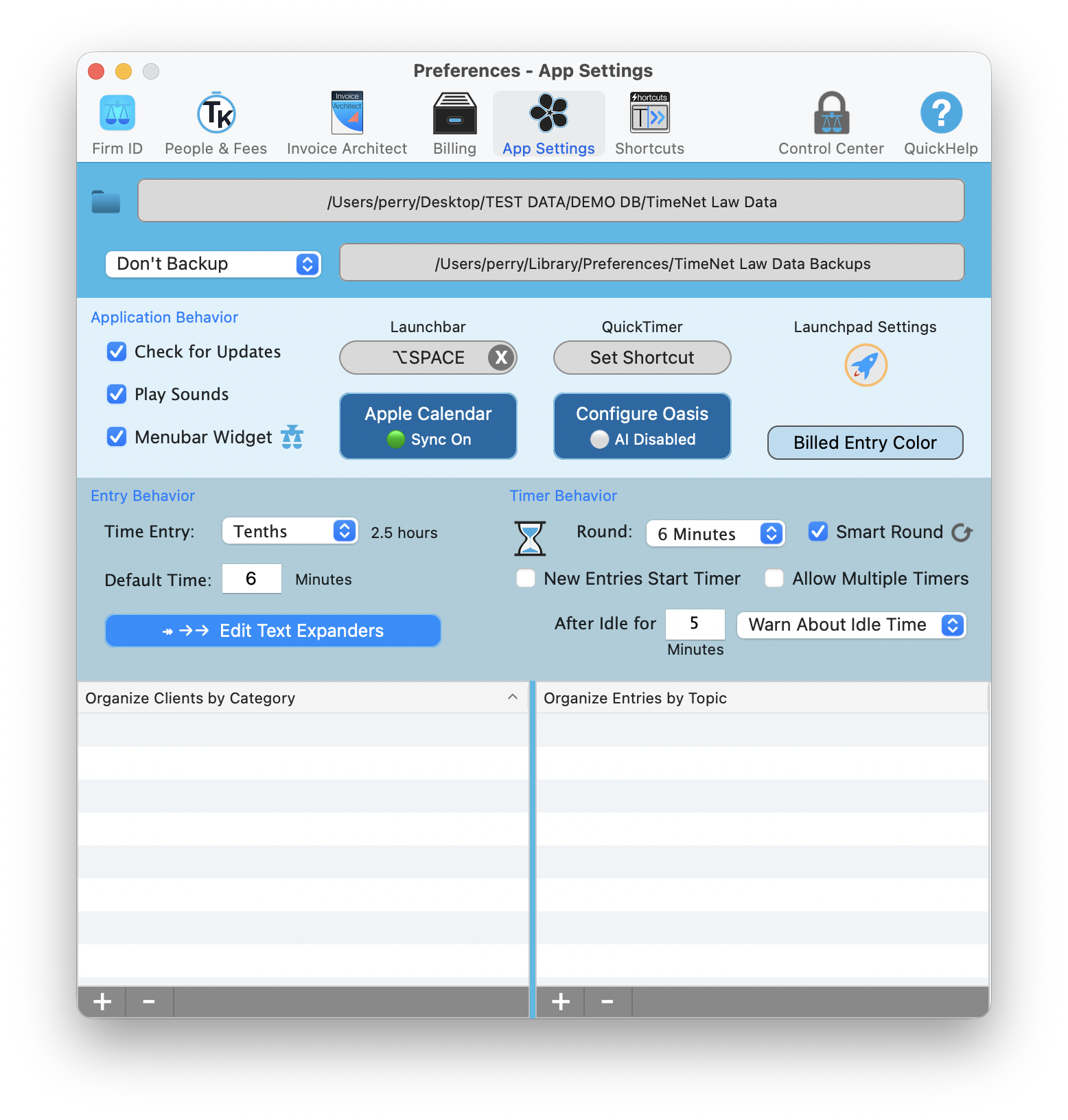
The App Settings tab in Preferences with the "Edit Text Expanders" button in the Entry Behavior section
You type the same phrases over and over. "Phone call with." "Review and revise." "Opposing Counsel." Every single day. Text Expanders fix that. Type a short abbreviation, and TimeNet Law instantly replaces it with the full phrase. Two keystrokes become twenty words. Your fingers will thank you.
How Text Expanders Work
The concept is dead simple. You define an abbreviation and the text it should expand to. When you type that abbreviation in any description field, TimeNet Law automatically replaces it with the full text. No special key combination needed. Just type the abbreviation, and it expands.
Text Expanders work in every text field where you write descriptions: time entries, expense entries, Quick Capture, the Full Entry window, and notes fields. Anywhere you type billing descriptions, your expanders are active.
Type your abbreviation
In any description field, type your short code. For example, type pcw.
Watch it expand
TimeNet Law recognizes the abbreviation and instantly replaces it with the full text: 'Phone call with'.
Keep typing
Continue your description naturally. The expanded text flows right into whatever you type next.
Built-in Defaults
TimeNet Law ships with a set of commonly used legal abbreviations already configured. You can start using these immediately:
pcwexpands to Phone call withocexpands to Opposing Counselrrexpands to Review & Revisemtgwexpands to Meeting withemwexpands to Email correspondence withdftexpands to Draftprpexpands to Preparerschexpands to Research regardingtlcwexpands to Telephone conference withattnexpands to Attention to
You can modify or delete any of the built-in defaults. They are a starting point, not set in stone. Customize them to match how your firm actually talks.
Creating Custom Expanders
The real power is in building your own library. Think about the phrases you type most often. Client names, opposing parties, court names, specific legal terms. Anything you repeat is a candidate.
Open Text Expander Settings
Go to Preferences → App Settings → Entry Behavior → Edit Text Expanders (or use the gear icon in the toolbar).
Click Add New
Click the + button to create a new expander.
Enter the abbreviation
Type a short, memorable code. Keep it lowercase, 2 to 5 characters. For example: jdg.
Enter the expansion text
Type the full phrase: 'Judge Harrison, Superior Court'. This is what will replace your abbreviation.
Save
Click Save. Your new expander is active immediately.
A few examples to get you thinking:
scny→ Supreme Court of the State of New Yorkmsj→ Motion for Summary Judgmentmtd→ Motion to Dismissdep→ Deposition ofclnm→ [Client Name]
Managing Your Expander Library
As your library grows, organization matters. The Text Expanders settings panel shows all your abbreviations in a searchable list. You can:
- Search by abbreviation or expansion text
- Edit any existing expander by clicking on it
- Delete expanders you no longer need
- Sort alphabetically or by most recently added
Keep abbreviations consistent. Pick a pattern and stick with it. For example, always use the first letters of each word: 'pcw' for 'Phone call with', 'mtgw' for 'Meeting with'. Consistency makes them easier to remember.
Tips for Building an Effective Set
- Start with your top 10. Look at your last month of billing. What phrases appear most? Those are your first expanders.
- Keep abbreviations short. Two to four characters is the sweet spot. Longer defeats the purpose.
- Avoid common words. Don't use
theorforas abbreviations. You will trigger them by accident. - Include trailing spaces. Add a space at the end of your expansion text so you can keep typing seamlessly.
- Build over time. Every time you catch yourself typing the same phrase twice, stop and make an expander for it right then.
Text Expanders vs. Shortcuts
Text Expanders and Shortcuts both save you typing, but they work differently:
- Text Expanders replace abbreviations inline as you type. They work inside any description field and expand individual phrases.
- Shortcuts are billing-specific codes that auto-fill entire time entries, including client, duration, and description. They are triggered from the shortcut field, not inline.
Use Text Expanders for phrases and sentence fragments. Use Shortcuts for complete, repeating billing entries. They work great together.
Keep exploring:
- Shortcuts for full entry auto-fill
- Quick Time Entry for the fastest manual entry method
- Keyboard Shortcuts for app-wide key commands
Need Help with Text Expanders? Perry Can Help.
Screen share with the guy who built it. He'll get you sorted in minutes.