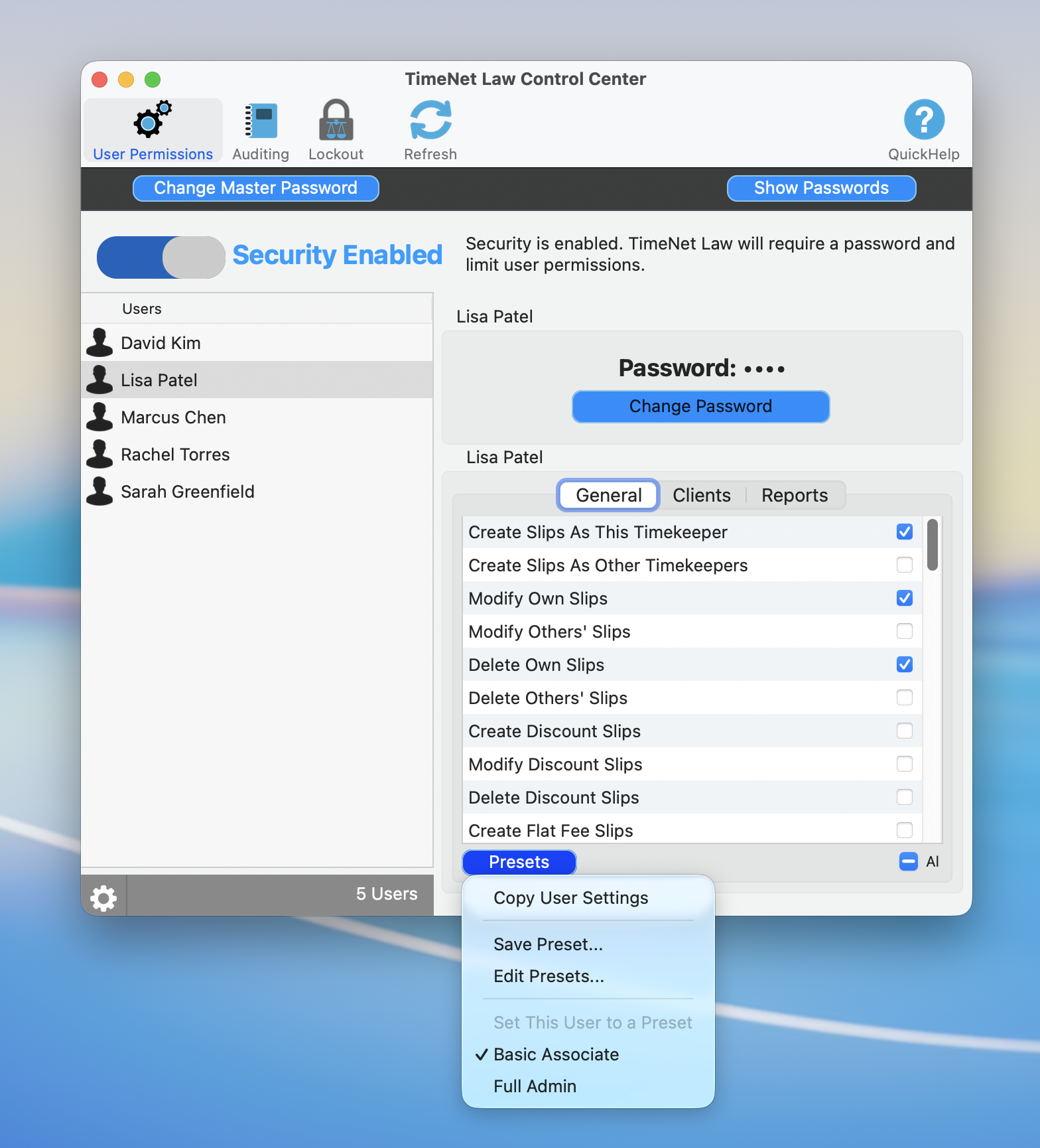
The Control Center is a separate window with tabs for User Permissions, Auditing, Lockout, Refresh, and QuickHelp
Every change to your billing data is tracked. Every edit, every creation, every deletion. The Control Center is your firm's complete audit trail, showing who changed what and when. It is accountability, compliance, and peace of mind in one window.
Accessing the Control Center
Open the Control Center from the main menu: Window → Control Center, or use the keyboard shortcut ⌘ + Shift + L.
The Control Center opens as a dedicated window showing the full audit log. Access is controlled by User Permissions, so only authorized users can view the log.
Understanding the Audit Log
The audit log records every action taken in your database. Here is what gets tracked:
- Time entries created, edited, or deleted
- Expense entries created, edited, or deleted
- Invoices generated, modified, voided, or reissued
- Payments recorded or adjusted
- Client and matter records created or modified
- Rate changes for timekeepers or matters
- Trust account transactions
- Settings changes including permissions and preferences
- User logins and access events
Each log entry includes:
- The timestamp (date and time of the action)
- The user who performed the action
- The action type (create, edit, delete)
- The record affected (which entry, invoice, or record)
- The before and after values for edits
Searching and Filtering the Log
With potentially thousands of log entries, finding what you need requires good filtering. The Control Center provides:
Filter by date range
Set a start and end date to narrow the log to a specific time period.
Filter by user
Select a specific timekeeper to see only their actions.
Filter by action type
Choose from Create, Edit, or Delete to focus on specific kinds of changes.
Filter by record type
Narrow to just time entries, invoices, payments, or other record types.
Search by keyword
Use the search bar to find entries mentioning specific clients, matters, or descriptions.
When investigating a billing discrepancy, start by filtering to the specific client and date range. Then narrow by record type. You will find the change in seconds instead of scrolling through the entire log.
Reviewing Specific Changes
Click any log entry to see the full details. For edits, you get a clear before-and-after comparison:
- Before: The original value before the change
- After: The new value after the change
- Changed by: The user who made the edit
- Changed at: The exact timestamp
This is invaluable when a client questions an invoice. You can trace exactly what changed, who changed it, and when. No guesswork.
Restoring from the Audit Log
Made a mistake? Accidentally deleted an entry? The Control Center lets you restore from the audit log.
Find the change
Use the filters to locate the specific action you want to reverse.
Click Restore
Select the log entry and click the Restore button.
Confirm the restoration
Review the restoration preview showing what will be reverted, then confirm.
Restorations are themselves logged in the audit trail, so you always have a complete record of what was changed and what was reverted.
Restoration works for edits and deletions. For edited records, it reverts to the previous value. For deleted records, it recreates the record. This is your safety net.
Access and Permissions
Not everyone should have access to the full audit log. Control Center access is managed through User Permissions:
- View Audit Log permission allows reading the log
- Restore from Audit Log permission allows reverting changes
- Typically, only Partners and Administrators have both permissions
- Associates might have view-only access for their own entries
Why This Matters for Your Firm
A comprehensive audit trail is not just a nice feature. It is a business requirement:
- Client disputes: When a client questions a charge, you can show exactly what was billed and any changes made
- Malpractice protection: A complete record of billing actions provides defensible documentation
- Bar compliance: Many jurisdictions require detailed records of client trust account transactions
- Internal accountability: Know who is making changes and whether those changes are appropriate
- Error recovery: The ability to restore means mistakes are fixable, not permanent
Keep exploring:
- User Permissions to control who can access the audit log
- Backup Strategy for additional data protection
- Trust Accounting where audit trails are legally required
Need Help with the Control Center? Perry Can Help.
Screen share with the guy who built it. He'll get you sorted in minutes.